| Creating Your Account |
| |
| Windows XP - User Profiles |
| |
Windows XP lets you the ability to create user profiles, which allows each user on your computer to have a separate login. For instance, instead of having to use multiple identities in Outlook Express, you can have your own customized version of Outlook Express with your own folders for your login.
There are also additional benefits, such as allowing each user to have their own document folders and personal settings such as desktop icons, start menu items, favorites, etc.
|
 |
|
| This also allows for greater privacy and less hassle of changing individual preferences for each user. |
| |
| Note: You must have a computer administrator account on the computer and be logged in as an administrator to add a new user to the computer. |
| |
| To Create a New User Account: |
| |
| 1. To open the User Accounts tool, open Control Panel from the Start menu, and then double click User Accounts. |
| |
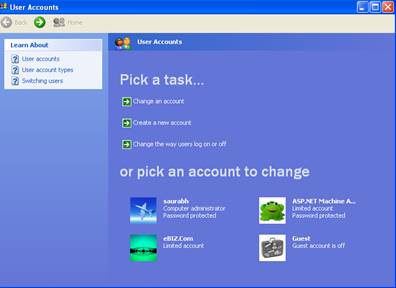
| 2. Click Create a new account in the Pick a task list box. |
| |
 |
| |
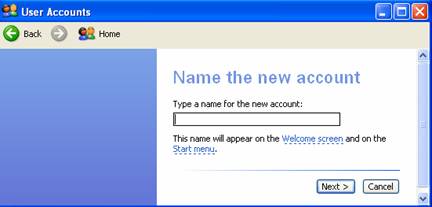
| 3. Type the name that you want to use for the account, and then click Next. |
| |
 |
| |
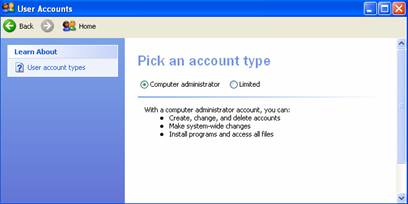
| 4. Click Computer administrator or Limited, depending on the type of account you want to assign to the new user, and then click Create Account. |
| |
 |
| |
| |
| To Make Changes To An Account |
| |
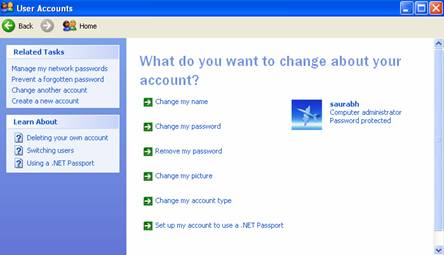
| 1. To open the User Accounts tool, open Control Panel from the Start menu, and then double click User Accounts. |
| |
 |
| |
| 2. Click Change an account in the Pick a task list box. |
| |
| 3. Click the account that you want to change. |
| |
| 4. Select the item that you would like to change: |
| |
| a. Click Change the name to change the name that appears on the Welcome screen for the account. |
| |
| b. Click Change the picture to change the picture that is used to represent the user account. You can use any image file on the computer for the user's picture. |
| |
| c. Click Change the account type to change the account type to increase or decrease the user's rights on the computer. |
| |
| d. Click Create/change the password to create or change the password for the user and create or change the password hints. |
| |
| e. Click Delete the account to delete the user account from the computer. When you delete the account, you are given the option to save the user's files on the computer. |
| |
| Note: You cannot delete the account for a user that is currently logged on to the computer. |
| |
| |
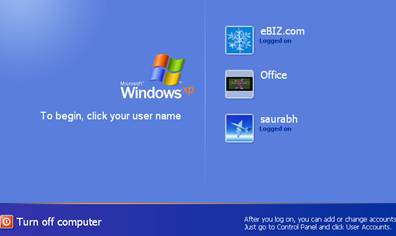
| 5. Now, whenever you start windows, you will come to a login screen. Just click on the icon for the user account that you will be using, and enter a password, if you have specified one. |
| |
 |
| |
| |
| To change users without logging off |
| |
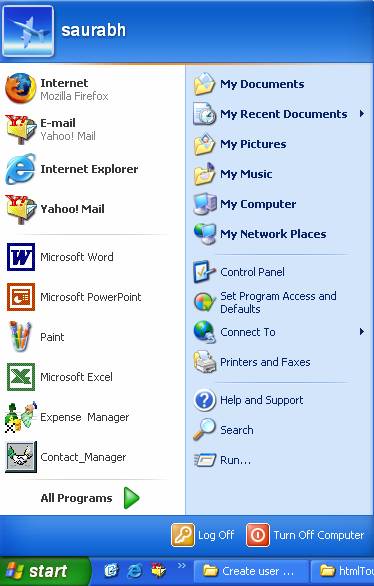
| 1. Click Start, click Log off, and then click Switch User. |
| |
| 2. On the Welcome screen, click another user account icon. |
| |
| Note: Windows displays the new user's desktop and settings. |
| |
 |
| |
| |
| To logoff |
| |
| 1. Click Start, click Log off, and then click Log off. |
| |
| 2. On the Welcome screen, either click another user account icon, or click on Turn off computer to shutdown. |
| |
| Note: You can identify the current user account by clicking Start and then reading the account name located on the Start menu. |
| |
| For Animated Presentation(With Voice) Click Here. |
| |
| |
|
| |
| |


