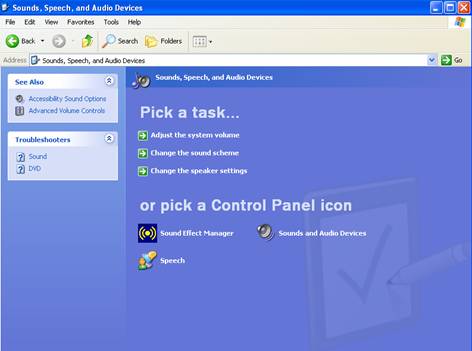
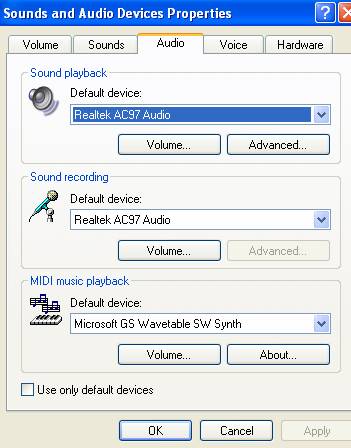
| 1. Click Start, and then click Control Panel. 2. Click Sounds, Speech, and Audio Devices. 3. Click Sounds and Audio Devices. 4. Click the Audio tab. 5. In the Default device box under Sound playback, click SB Audigy Audio. 6. Click OK. |
 |
| Mouse actions | Keyboard actions | |
| 1. | On the Start menu: • Select Control Panel |
Display the Start menu by pressing CTRL+ESC (or the Windows Key  ). ). |
| 2. | In Control Panel: • Be sure you are in Classic View (all Control Panel icons are showing). • If not, under Control Panel in the left pane, select Switch to Classic View. • Select Sounds and Audio Devices. |
In Control Panel: • Be sure you are in Classic View (all Control Panel icons are showing). • If not, under Control Panel in the left pane, select Switch to Classic View by pressing TAB. • Press ENTER. • Move to Display by pressing the arrow keys. • Press ENTER. |
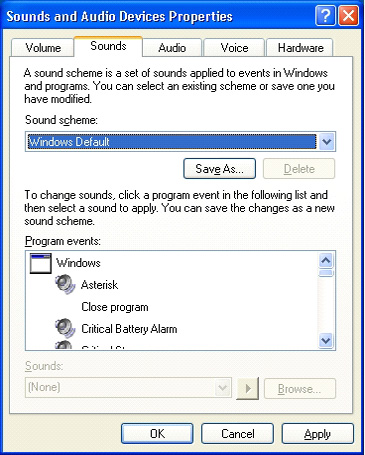
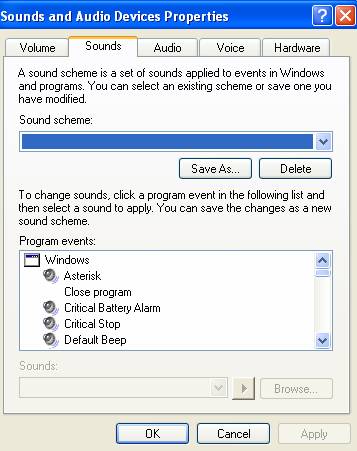
| 3. | In the Sounds and Audio Devices Properties dialog box: • Select the Sounds tab. |
In the Sounds and Audio Devices Properties dialog box: • Move to the Sounds tab by pressing CTRL+TAB. |
| 4. | On the Sounds tab: • Select the sound scheme you want. • Select OK. |
On the Sounds tab: • Move to Sound scheme by pressing ALT+C. • Select the sound scheme you want by pressing the UP ARROW and DOWN ARROW keys. • Press ENTER. |
| 5. | To close Control Panel: • Select the Close button. |
To close Control Panel: • Press ALT+F, C. |
 |
 |
 |