| What's New? |
| |
| New Views and Options in Folders |
| |
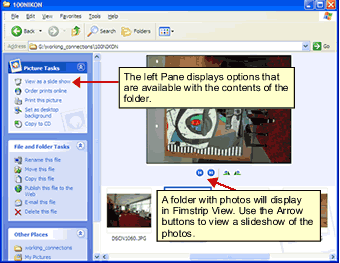
| In folder that store pictures, you may notice that pictures will display a bit different. This is the Filmstrip View. Use the arrow buttons to click through a slideshow of the photos in the folder. |
| |
 |
| |
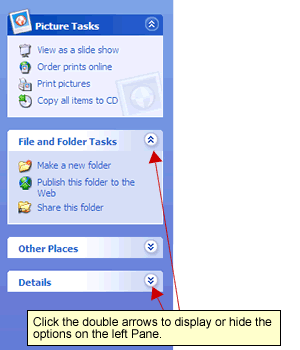
| Use the left Panel options to burn a CD, order pictures, or other options. Click the double arrows on the upper right side of each small window in the left pane to display or hide the options. |
| |
 |
| |
| |
| Rotating Photos in Window View |
| |
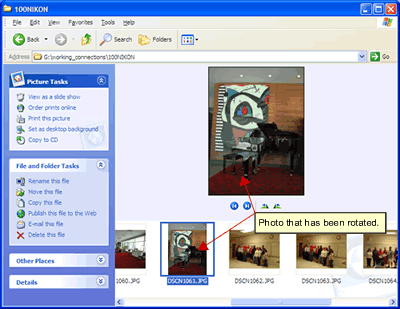
| You can rotate photos in the Window View without the help of a graphics program. Right-click over a photo and choose Rotate Clockwise or Rotate Counter Clockwise depending your preference for the photo. It may take a few seconds for the change to occur. |
| |
 |
| |
| |
| Navigating the Control Panel |
| |
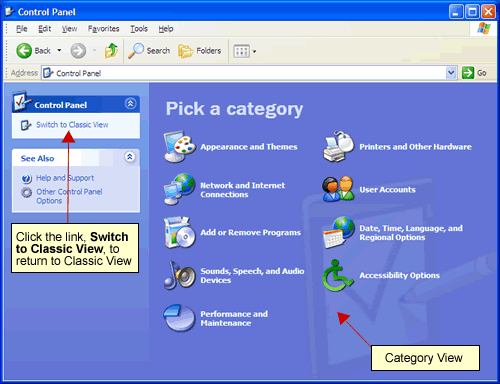
| In the XP Theme, the Control Panel appears differently than in Windows 2000. In Windows XP, the Control Panel will display in Category View. To switch back to Classic View, click the link, Switch to Classic View, on left hand side of the Control Panel. |
| |
 |
| |
| |
| New and Improved Taskbar |
| |
| The Taskbar has a couple of new features that make it easier to manage open files and programs. |
| |
| Example: In Internet Explorer, in the example below, there are several windows opened on the desktop. Windows XP will display only one button on the Taskbar for Internet Explorer windows that are opened. |
| |
 |
| |
| This will group all windows of each program opened making the Taskbar look neater and more organized. When windows are grouped, a small white arrow will display on the Taskbar button. Follow the steps below for Maximinze and closing windows open on the Taskbar. |
| |
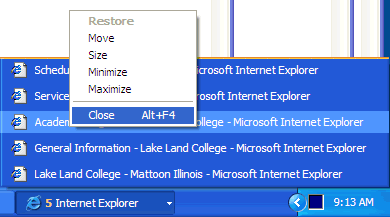
| 1. Click the Taskbar button for Internet Explorer (or the program opened) and all the windows will display in a pop-up menu. |
| |
| 2. Several options will be available: |
| |
| o Select the desired window of the program to maximize. |
| |
| o If desired to close only one program window, click the Taskbar button and select the window and right-click over that window button in the popup and choose Close. |
| |
 |
| |
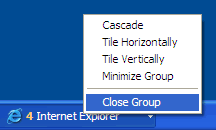
| 3. When the Taskbar button is right-clicked, options to Close Group, Minimize Group or choose a Tile option will display. |
| |
 |
| |
| |
| Changing Options for the Taskbar: |
| |
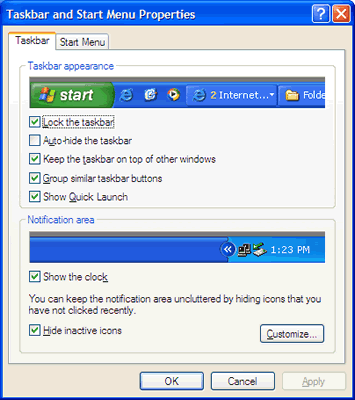
| 1. Settings for the Taskbar can be changed by right-clicking over an empty area of the Taskbar and choosing Properties from the shortcut menu. |
| |
| 2. The Taskbar and Start Menu Properties dialog box will appear. Choose the desired settings for the Taskbar appearance and Notification area. |
| |
| 3. Click the Customize... button to customize the Notification area if desired. |
| |
| 4. Click OK when done. |
| |
 |
| |
| |
| Burning a CD Using Windows Explore |
| |
| With Windows XP, it is possible to burn a CD directly from the Window's Explorer window. Follow the steps below to burn a CD. |
| |
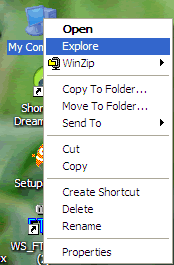
| 1. Open the Windows Explorer by right-clicking over the My Computer icon and choosing Explore from the shortcut menu. |
| |
 |
| |
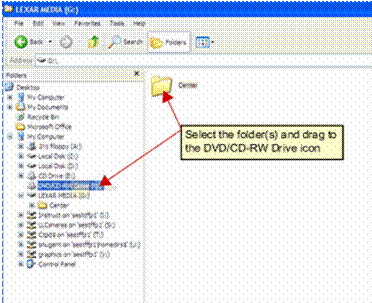
| 2. Select the desired files and folders and drag them to the DVD/CD-RW Drive icon. The Copying... dialog box will appear as the folders and files coping over the DVD/CD-RW Drive. |
| |
 |
| |
| 3. Once the files have been copied, a small balloon window will appear in the lower right hand corner of the desktop. Click the balloon to the see the files that are ready to burn to the CD. |
| |
 |
| |
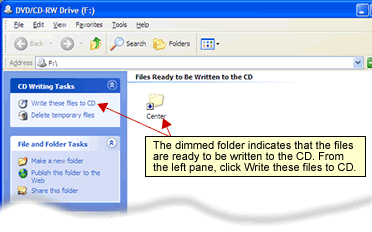
| 4. A window for the DVD/CD-RW Drive will appear with dimmed icons representing the data ready to be burned. In the Left Pane, click the link, Write these files to CD. |
| |
 |
| |
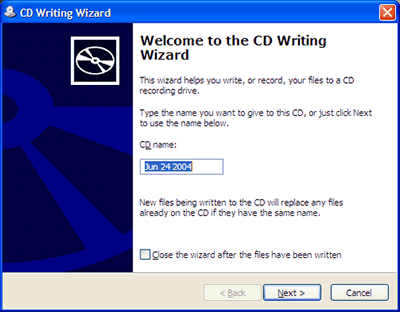
| 5. The CD Writing Wizard will appear. Follow the instructions in the Wizard to complete the task of burning the CD. Click Next as prompted. |
| |
 |
| |
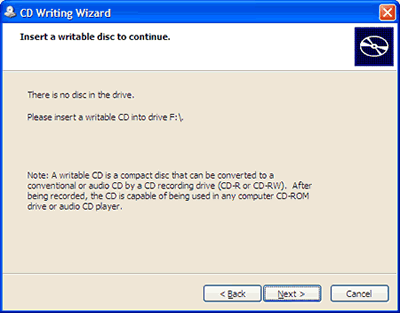
| 6. The next screen will prompt for a burnable CD to be placed in the CD-RW drive. Click Next when ready. |
| |
 |
| |
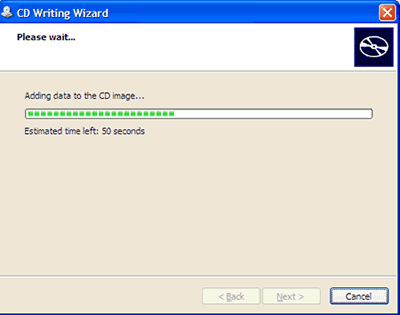
| 7. The next screen will display progress bar. Click Next when it appears not grayed out. |
| |
 |
| |
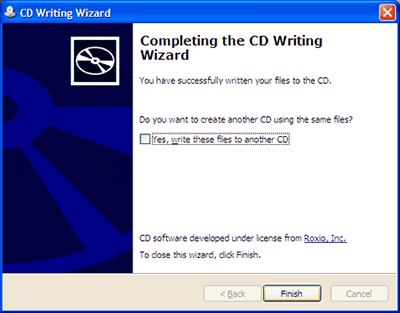
| 8. The next screen will display that the files have been successfully written to the CD. Click the checkbox next to Yes, write these files to another CD to make another copy of previous CD or Click Finish when done. |
| |
 |
| |
| |
|
| |
| |


