| Printer |
| |
| The Print Manger |
| |
| The Print manager is very useful because we can cancel a document if we do not want it to be printed. |
| |
| The print manager shows the documents that have been sent to the printer. Through the print manager we can cancel or pause a document to be printed. |
| |
| To manage the print manager: |
| |
| From the Start menu, go to Printers and Faxes. |
| |
| Click on the printer that you would like to manage. |
| |
| On the left hand panel select See what is printing. |
| |
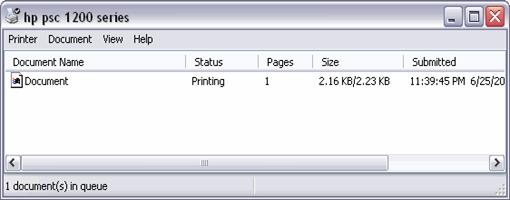
| This will open a window where a list of the documents being printed or waiting to be printed will appear. |
| |
 |
| |
| You can see that the name of the document we have sent to print appears (in this example, Document) next is the stage of the document (Printing), and the name of the person who sent the document and the date when it was sent to the printer also appears. |
| |
| It is possible to restart a print job that has been stopped by turning the computer off or by pausing the documents to give way to other more important ones. |
| |
| When we send a document to print, the printer icon will appear in the notification area on the bottom right of the screen. Usually an icon will also appear, depending on the program we are printing from, such as Word, Excel, etc. |
| |
| • To delete a document from the print manager you need to select it and click Delete. |
| |
| • To pause a document open the menu Document and click Pause. |
| |
| • To delete all documents from the print manager open the menu Printer and select Cancel All Documents. |
| |
| • To temporarily stop the printing of all the documents open the menu Printer and select Pause Printing. |
| |
| • To set the printer as the main printer open the menu Printer and select Set as Default Printer. Setting a printer as the default printer means that by default all the documents will go to that printer unless otherwise indicated. |
| |
| |
|
| |
| |


