| Mouse Configuration |
| |
| Pointer Option |
| |
| The Pointer Option Tab |
| |
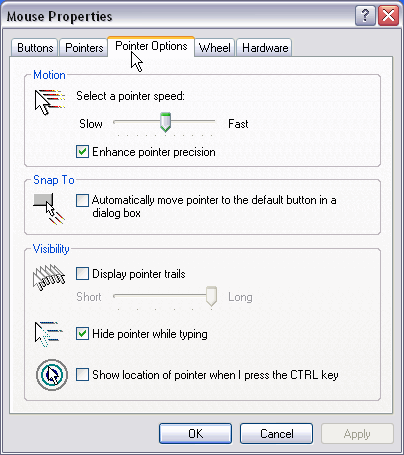
On the Pointer Options tab we can change the speed of the pointer.
To change the speed of the movement of the pointer select the Motion section. |
| |
 |
| |
| If you check the next box, Snap to, the pointer will go to the predetermined button when you open a dialog box. This option is used to minimize the mouse movement since the pointer will appear on the button we will click on most of the time. |
| |
| In the Visibility section we have the Display pointer trails option. |
| |
| With the Hide pointer optionwhile typing the pointer will disappear as you type and as soon as the mouse is moved it will appear again. |
| |
| The Show location of the pointer when I press the CTRL key option is useful to find the pointer when inactive or on smaller screens. |
| |
| |
| The Wheel Tab |
| |
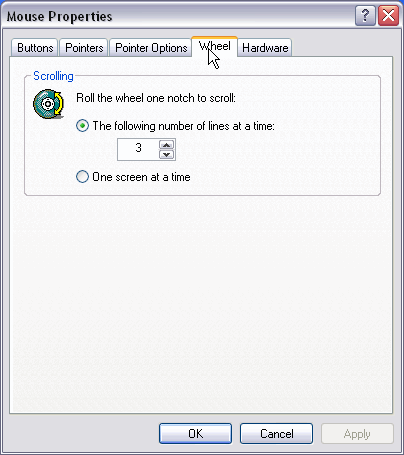
| The Wheel tab is used for a mouse that has a small wheel in between the two buttons and is used to move up and down a page. |
| |
 |
| |
| In the section scrolling you can choose what function the Weel will have. |
| |
| There are two options: |
| |
| • The following number of lines |
| |
| • One screen at a time |
| |
| Hint: With the first option you select the number of lines it will scroll up or down. |
| |
| |
| The Hardware Tab |
| |
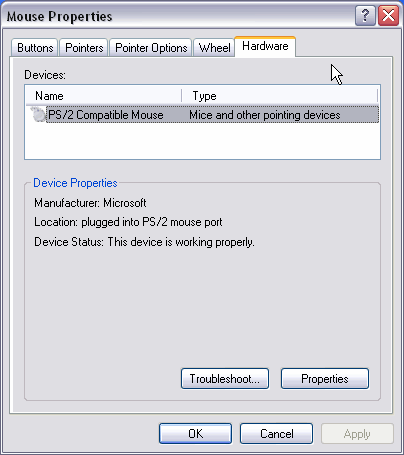
| On the Hardware tab we can see information related to the hardware configuration of the mouse. |
| |
 |
| |
| The Devices section shows the name and type of drivers installed. |
| |
| In the Device properties section we have the information of the manufacturer, location, and state of the driver. |
| |
| Note: It the state of the driver is bad, you can use the Troubleshoot... button that will help you find the problem with the driver. |
| |
| With the Properties button you can access more information on the mouse and you will be able to change the driver of the mouse. |
| |
| For Animated Presentation (With Voice)Click Here. |
| |
| |
|
| |
| |


