| From the Start menu, select the Control Panel. Now select Printers and Other Hardware and double-click on the mouse icon and the Mouse properties window will open, as in the example below. On the Buttons tab you can adjust the set up of the mouse to suit your needs. By default the left mouse button executes the drag and select functions. |
 |
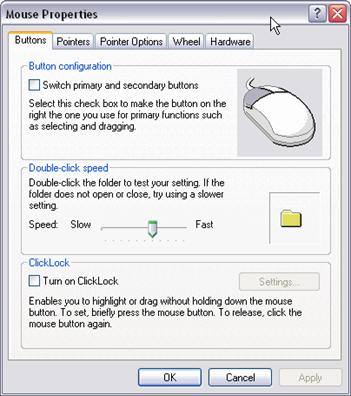
Windows XP allows you to change the configuration of the buttons so that the right button realizes these functions.
For a slower double-click, mover the slider to the Left.
 |
 |
 |