| Screen Configuration |
| |
| Screen Appearance |
| |
| How to customize the windows in Windows XP: |
| |
| Click with the right mouse button somewhere that has no icons on the desktop and select the option Properties from the shortcut menu that is displayed. |
| |
| The Display properties window will appear where we can change the configuration parameters. |
| |
 |
| |
| |
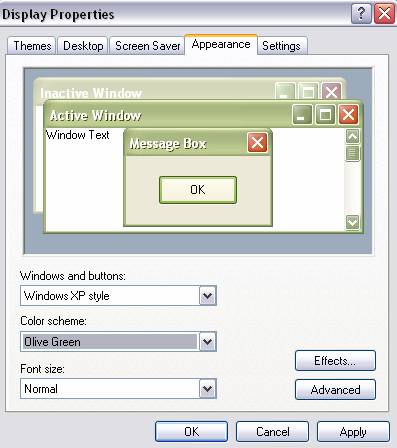
| Select the tab labeled Appearance on the Display properties window. |
| |
| On the Windows and buttons list select which style you want. |
| |
| Then select one of the Schemes offered to you from the Color scheme list. |
| |
| In the box Font size choose the the size of lettering that you like. |
| |
| Once all changes are done Click OK. |
| |
| |
| How to customize the windows with themes: |
| |
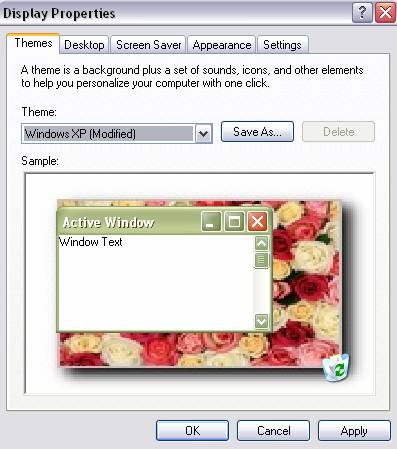
| A Theme is nothing more than a way to group the different characteristics that affect the appearance of WindowsXP by giving it a name. This way we can change the theme with a single click. |
| |
| Select the tab labeled Appearance on the Display Properties window. |
| |
 |
| |
| From the Theme list choose the theme you prefer. On the bottom part you can see how it will look. |
| |
| If you wish to save the changes, select My Favourite theme and click Save as... , then name it and Click OK.. |
| |
| For Animated Presentation (With Voice)Click Here. |
| |
| |
|
| |
| |


