|
Working with Graphics |
| |
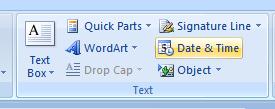
| Insert Date & Time |
| |
| When your document is use by several users on the network. It is careful to know the time and date when it is modified. |
| |
| For example: if there is an interoffice group project, team leaders can keep track of when a document is created, printed, or last saved. |
| |
| For Insert Date & Time follow these steps: |
| |
| 1. Click where you want to insert the date or time. |
| |
| 2. Click the Insert tab. |
| |
| 3. Click the Date & Time button in the text group. |
| |
| 4. Then click the Language list arrow, and then select a language. |
| |
| 5. Select the Update automatically check box. |
| |
| 6. Click the date and time format you want. |
| |
| 7. To set the current date and time based on your computer clock, click Default. |
| |
| 8. Click OK. |
| |
 |
| |
| In Microsoft Word, use can also use the following shortcut keys to enter the current system date and time. |
| |
| • Alt + Shift + D Insert the current date. |
| • Alt + Shift + T Insert the current time. |
| |
| For Animated presentation Click here |
| |
| |
|
| |


