. Square
. Tight
. Behind Text
. In Front of Text
. Top and Bottom
. Through
 |
 |
 |
| Working with Graphics | |||
| Text Wrapping | |||
| When you first insert a picture into a document, Word 2007 places it in line with the text. Sometimes, you want the text to cover around the picture. | |||
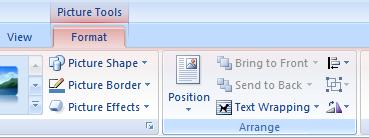
| When you need to change the text wrapping style, then follow these steps: | |||
| 1. Select the picture. | |||
| 2. Go to the Format tab. | |||
| 3. Click on Position in the Arrange group. | |||
|
|||
| If the Arrange group is collapsed and Position isn't visible, click the Arrange button, and then click Position. | |||
| 4. Click the wrapping position that you want to apply. | |||
| The Text Wrapping button gives you several options. | |||
| . In Line with Text . Square . Tight . Behind Text . In Front of Text . Top and Bottom . Through |
|||
| For Animated presentation Click here | |||
|
|||