|
Working with Graphics |
| |
| Insert Image from file |
| |
| Follow the followings given step for Insert Image from file: |
| |
| 1. Click the position where you want the image to appear |
| |
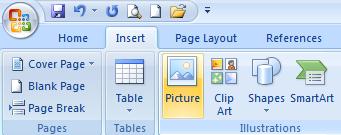
| 2. From the Insert command tab, in the Illustrations section, click Picture.
The Insert Picture dialog box appears. |
| |
| 3. Using the Look in pull-down list, locate and select the desired image |
| |
| 4. Click INSERT |
| |
| The image appears in your document. |
| |
 |
| |
| Positioning Images |
| |
| When you have inserted an image into your document, you can simply place or resize it as needed. |
| |
| 1. Click and hold the center of the image. The cursor turns into a four-headed arrow when you are able to move the image. |
| |
| 2. Drag the image to the desired location |
| |
| 3. Release the mouse button |
| |
| The image is now in the desired location. |
| |
| For Animated presentation Click here |
| |
| |
|
| |


