| Drawing Tools |
| |
| Change Line Color & Fill Color |
| |
| Change Line Color |
| |
| You can Change Line Color by following steps: |
| |
| 1. Select that line which you want to change. |
| |
| If you want to change several lines, select the first line, and then press and hold CTRL while you select the other lines. |
| |
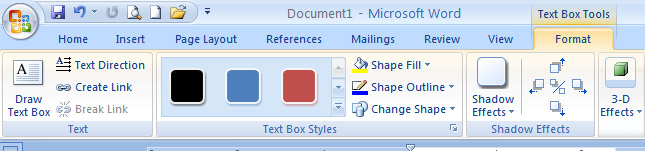
| 2. Under Drawing Tools, on Format tab, in the Shape Styles group, click the arrow next to Shape Outline, and then click the color that you want. |
|
 |
| |
| If you do not see the Drawing Tools or Format tabs, double-click the line to make sure that you selected it. |
| |
|
Change Fill Color
|
| |
| You can change fill color in your document by follow these steps: |
| |
| 1. Select that Shape which you want to change. |
| |
| 2. Under Drawing Tools, on Format tab, in the Shape Styles group, click the arrow next to Shape Fill, and then click the color that you want. |
| |
|
| |
| 3. If you do not see the Drawing Tools or Format tabs, double-click the line to make sure that you selected it. |
| |
|
| |


