| Decorate Your Document |
| |
| Give Styles |
| |
| A style is a format attractive tool that includes font typefaces, font size, effects (bold, italics, underline, etc.), colors and more. |
| |
| In Microsoft Word-2007 you will note that on the Home Tab of the Ribbon, that you have several areas that will control the style of your document: Font, Paragraph, and Styles. |
| |
 |
| |
| Steps for Create a new Quick Style in Word 2007 |
| |
| The following are the steps to create a new Quick Style in Word 2007: |
| |
| 1. Select the text that you want to create as a new style. |
| |
| 2. Format the text using the mini toolbar that appears above the selected text. |
| |
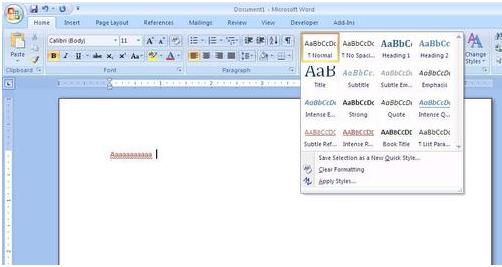
| 3. On the Home tab, in the Styles group click “Save Selection as a New Quick Style” |
| |
 |
| |
| • Provide the style a name, and then click OK |
| |
| • The new style that you created appears in the Quick Styles gallery with the name you gave it, ready for you to use. |
| |
| Modify a style in the Quick Style set in Word 2007: |
| |
| The following are the steps to modify a style in the Quick Style set in Word 2007: |
| |
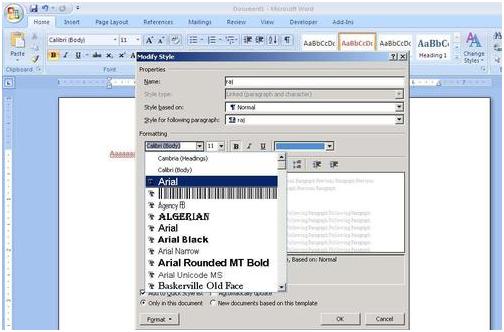
| 1. On the Home tab, in the Styles group, right-click the style that you want to modify in the Quick Style gallery. |
| |
| To find and change more styles in the set, click the up arrow or down arrow next to the Quick Styles gallery. |
| |
| 2. Click Modify on the shortcut menu. |
| |
| In the Modify Style dialog box, change the style any way that you want, and then click OK. |
| |
 |
| |
| Create a custom Quick Style set in Word 2007: |
| |
| The following are the steps to create a custom Quick Style set in Word 2007: |
| |
| 1. Find more styles in a Quick Style set by clicking the up arrow or down arrow then to the Quick Styles gallery and modify them by following the steps above. |
| |
| 2. You can also create new styles and add them to the Quick Style set, by following the steps detailed in “Create a new Quick Style in Word 2007” |
| |
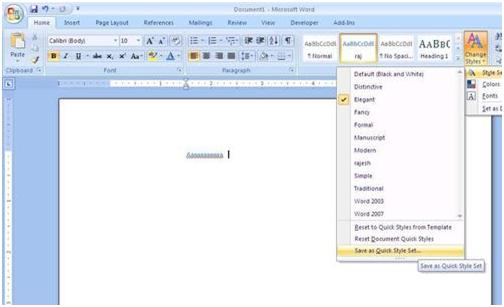
| 3. On the Home tab, in the Styles group, click Change Styles, and then point to Style Set. Click Save as Quick Style Set. |
| |
 |
| |
| 4. In the Save Quick Style Set dialog box, type a name for your new Quick Style set, and then click Save. |
| |
| 5. To view the new Quick Style set, click Change Styles in the Styles group, and then point to Style Set. The new Quick Style set appears in the list so that you can apply it to a document at any time. |
| |
| For Animated presentation Click here |
| |
| |
|
| |


