| Different Operation's on Document |
| |
| See Print Preview of your Document |
| |
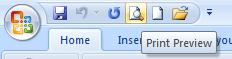
| If you want to see print preview of your document, then you can follow these Steps: |
| |
| 1. Open the document to preview, if you are not currently working on it. |
| |
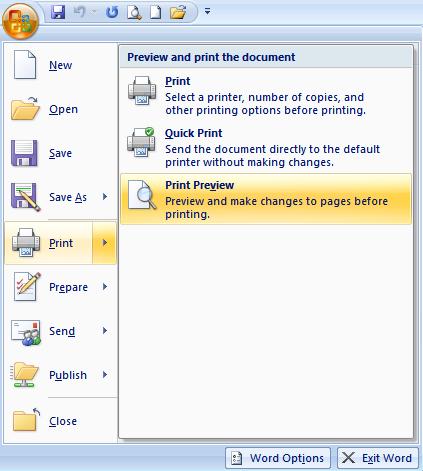
| 2. Click "Microsoft Office Button" in the top left-hand corner of your screen. |
| |
 |
| |
| 3. Highlight "Print" and then select "Print Preview." You will see the document on the screen.; |
| |
| 4. Look at the options on the Ribbon now that you are in the "Preview" mode. You can change margin size, page orientation, change print options and select many other print functions while in the "Preview" mode. |
| |
| 5. Leave the "Preview" mode by "clicking" on "Close Print Preview. |
| |
 |
| |
| For Animated presentation Click here |
| |
| |
|
| |


