| Different Operation's on Document |
| |
| Print your Document |
| |
| Use these following steps for Print a Word-2007 document |
| |
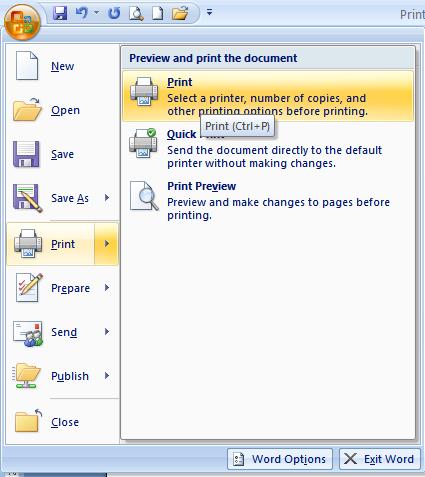
| 1. Click the "Microsoft Office Button" and highlight "Print." |
| |
| 2. Select "Quick Print" if your document doesn't need any changes. |
| |
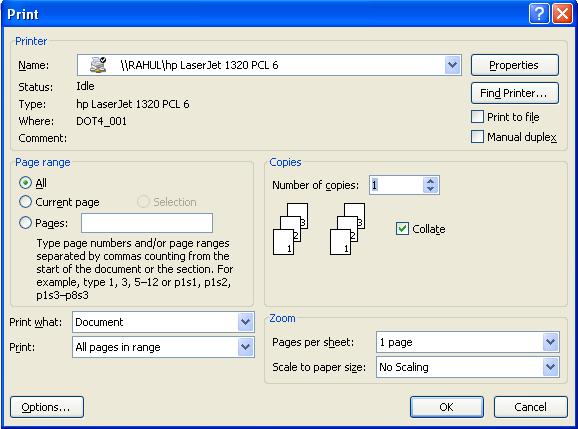
| 3. Otherwise, Choose "Print" if you want more printing options. The "Print Dialog Box" appears. |
| |
 |
| |
| 4. Accept the default printer or choose a new one to the right of "Name." |
| |
| 5. Click on the "Properties" or "Options" buttons to choose different options affecting your document's appearance. |
| |
| More commonly used options are visible on the "Print Dialog Box," including number of copies to print, the order the pages will print in, and choosing to print the entire document, the current page or "Selection," or a range of pages. |
| |
 |
| |
| 6. Select "OK" after you make your choices and the document will print. |
| |
| For Animated presentation Click here |
| |
| |
|
| |


