| Working with other Linux Applications |
| |
| Creating Zip files with File Roller |
| |
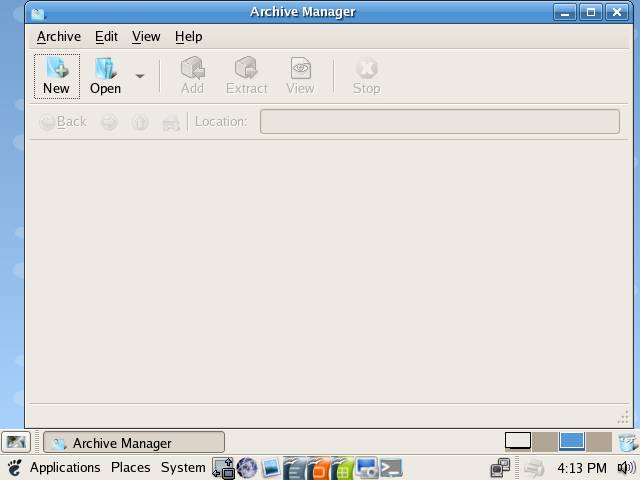
| File Roller can be used to create, view, modify, or unpack an archive. An archive is a file that acts as a container for other files. An archive can contain many files, folders, and subfolders, usually in compressed form. |
| |
| To Start File Roller |
| |
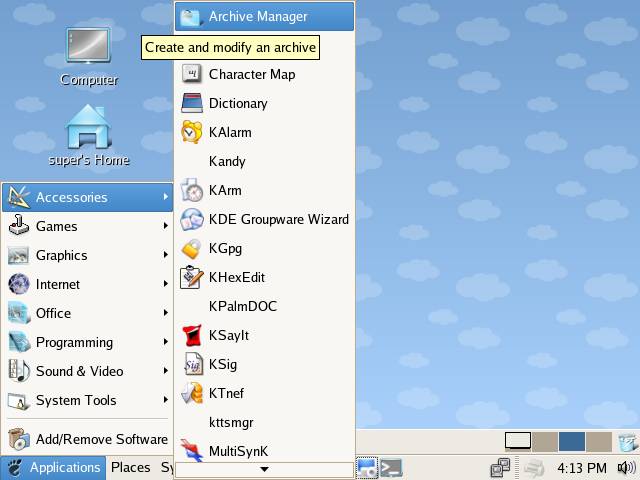
| You can start File Roller in the following ways: |
| |
| Applications ? Accessories ? Archive Manager. |
| |
| Command line |
| |
| Execute the following command: file-roller |
| |
|
| |
|
| |
| Creating an Archive |
| |
| To create an archive, perform the following steps: |
| |
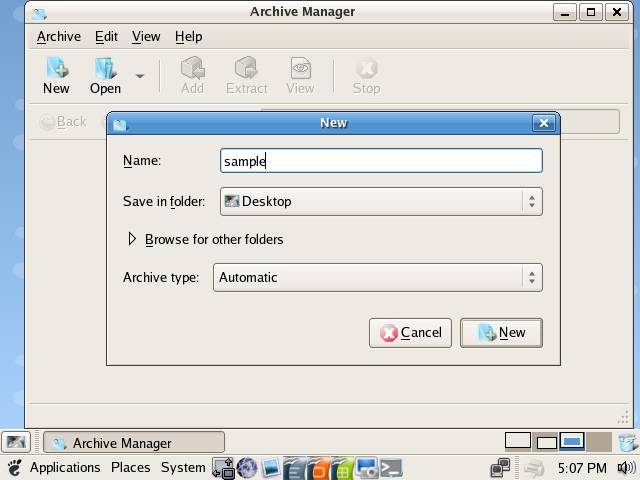
| 1. Choose Archive? New to display the New dialog. |
| |
| 2. Specify the path where File Roller places the new archive. Double-click on an entry in the list box to navigate to that path. Alternatively, enter the path in the Filename text box. |
| |
| 3. Enter the name of the new archive, including the file extension, in the Filename text box. |
| |
|
| |
| Adding Files to Archive |
| |
| To add files to an archive, perform the following steps: |
| |
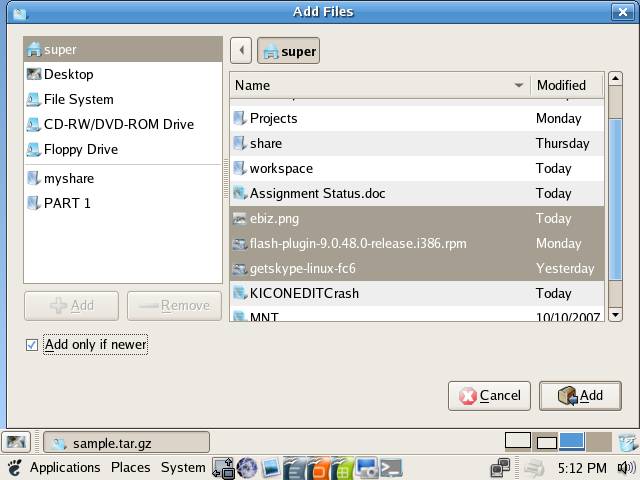
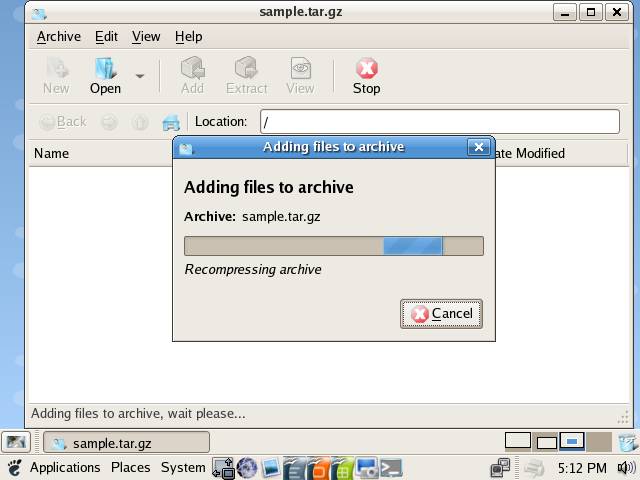
1. Choose Edit? Add to display the Add dialog.
2. Select the files and folders that you want to add. |
| |
 |
| |
| |
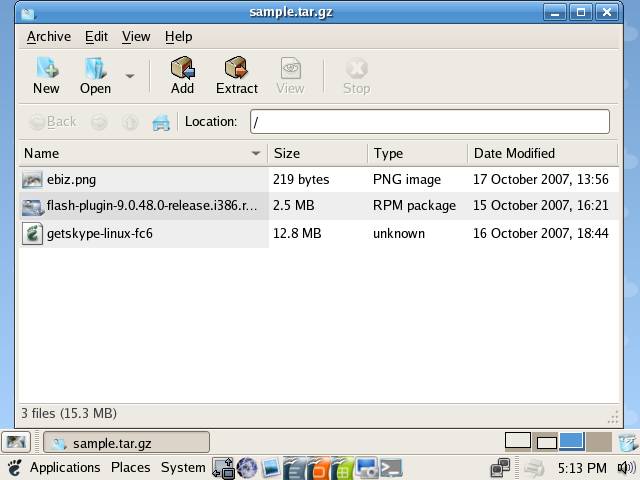
| 3. Click Add. File Roller adds the files and folders to the current folder in the archive. |
| |
|
| |
|
| |
| Extracting Files from Archive |
| |
| To add files to an archive, perform the following steps: |
| |
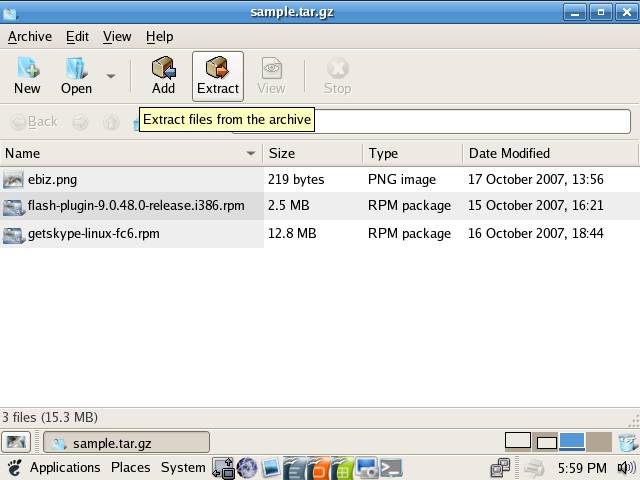
| 1. Select Edit--> Extract or click on Extract button on the Toolbar. |
| |
|
| |
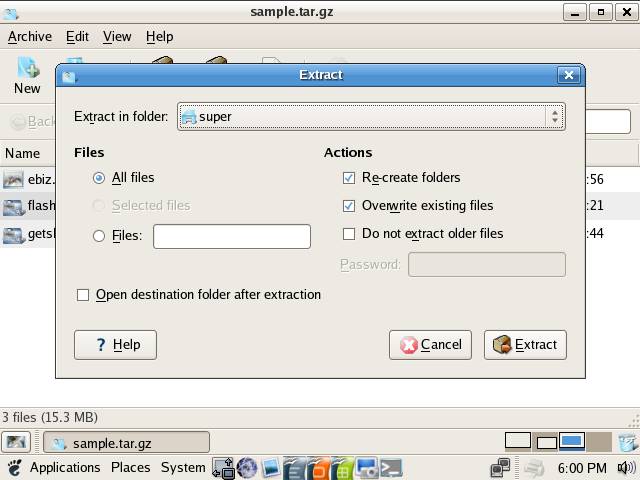
| 2. Chose the location where you want to extract the files and click on Extract button. |
| |
|
| |
| If you want to extract a particular file, then, first select the file that you want to extract and click on Extract, from the Extract dialog box select Selected files options then click on Extract to extract the files. |
| |
| |
| |
| |
| |


