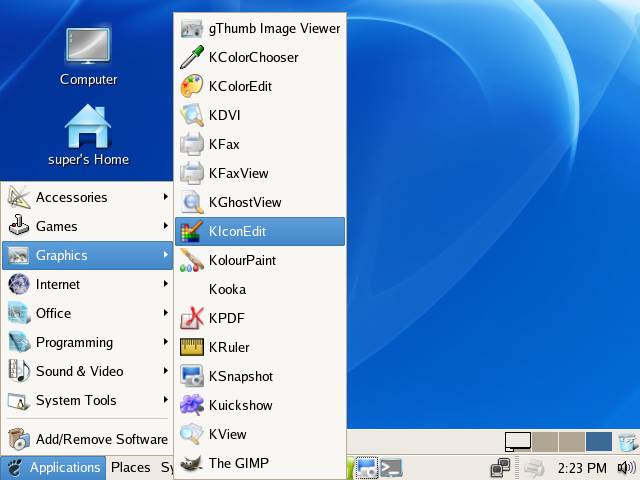
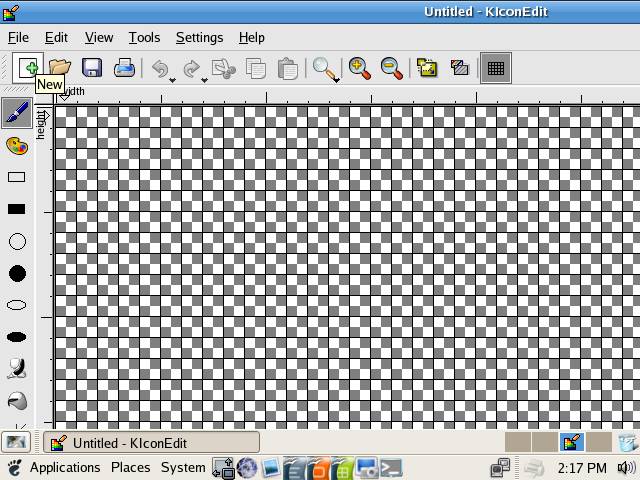

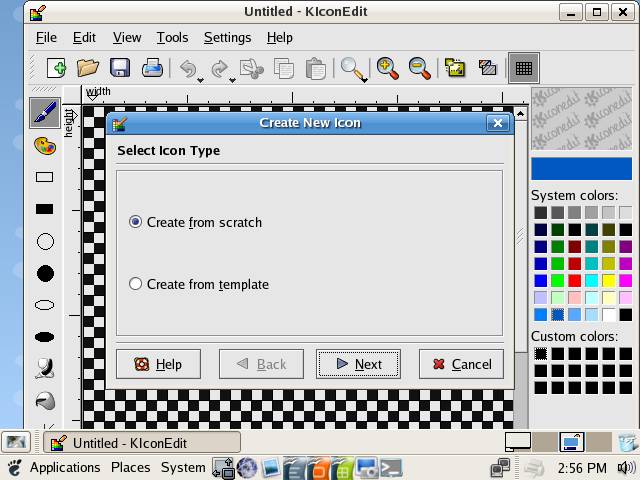
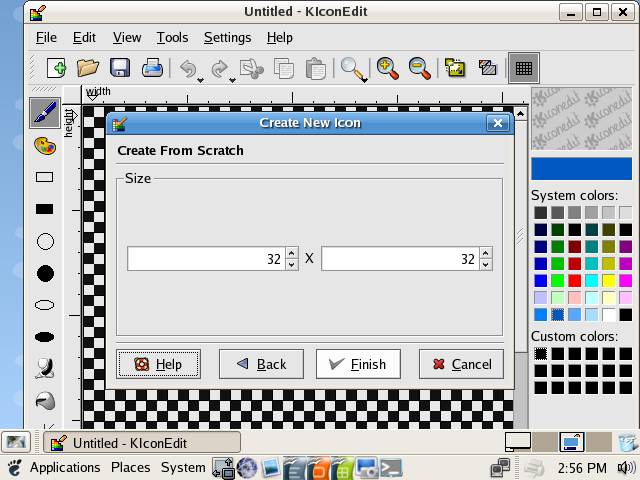
Create a new icon. If the current file has been modified you will be asked if you want to save the changes. After that a dialog will open where you can choose to create the icon from scratch or from a template.
Open
Open an existing icon file.
Save
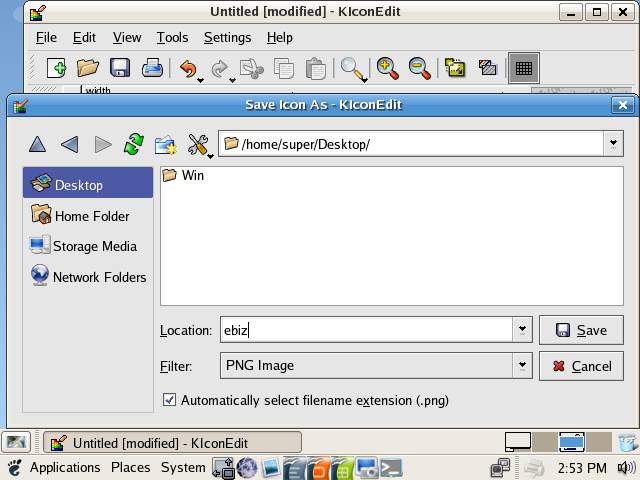
Save the currently open icon.
Print
Print the icon.
Undo
Undo the last action
Redo
Redo the last action undone. If no actions have been undone, this action is disabled.
Cut
Cuts out the entire icon and put it onto the clipboard.
Copy
Copies the entire icon to the clipboard.
Paste
Paste the contents of the clipboard as a new image (if the clipboard contains a valid icon).
Zoom,
Zoom In, Zoom Out
Zoom to predefined zoom factor.
Resize
Resize icon to width X height.
GrayScale
Gray scale the icon image. This may create colors not conformant to the KDE icon palette.
Show Grid
Toggle grid on/off.
Tools Toolbar

Freehand
Draw free hand.
Color Picker
Doesn't change the icon but changes the current drawcolor to the color clicked on.
Rectangle
Draw a rectangle.
Filled Rectangle
Draw a filled rectangle.
Circle
Draw a circle.
Filled Circle
Draw a filled circle.
Ellipse
Draw an ellipse
Filled Ellipse
Draw a filled ellipse (almost the same thing as drawing a circle.)
Spray
Draws a randow dotted pattern like a spraycan.
Flood Fill
Fill an area with the current color.
Line
Draw a line.
Eraser (Transparent)
Draw transparent (invisible).
Rectangular Selection, Circular Selection
Select (mark) a part of the icon.
Grid
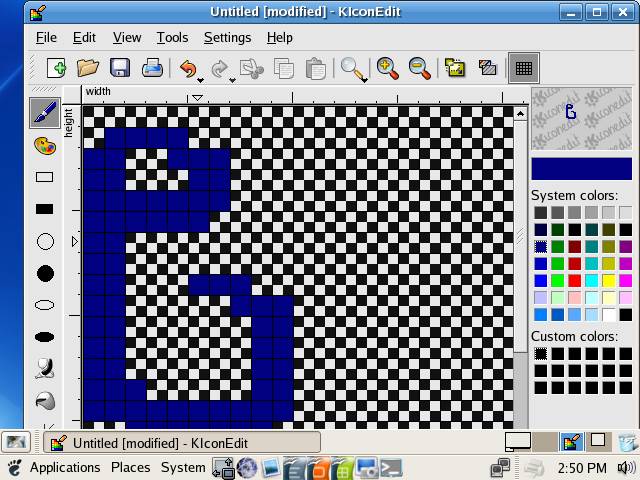
The grid is where you manipulate the icon contents.
Statusbar
The status bar keeps you informed of current operations. From left to right, it tells you the x,y coordinates of the pixel you are working on, the size of the current canvas, the zoom factor, and the current number of colors in the icon.
 |
 |
 |