| Working with other Linux Applications |
| |
| Setting Alarm with KAlarm |
| |
| KAlarm is an application used to set & display reminders on Linux and this application is part of K Desktop Environment, and if you have selected to install KDE base packages, it should be available to you. Availbility of KAlarm also depends upon the distribution you are using. |
| |
| What is KAlarm? |
| |
| KAlarm lets you schedule the display of personal alarm messages, the playing of sound files, the execution of commands and the sending of emails. |
| |
| To Start KAlarm |
| |
| To start KAlarm follow these steps: |
| |
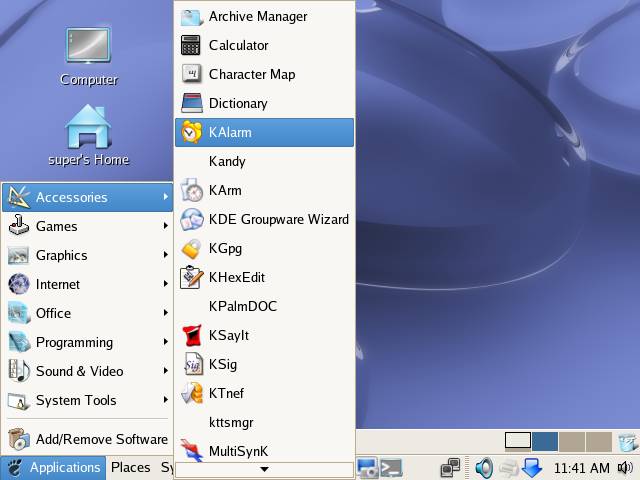
| 1. Click on Applications-->Accessories-->KAlarm |
| |
Or
esecute kalarm from the shell. |
| |
|
| |
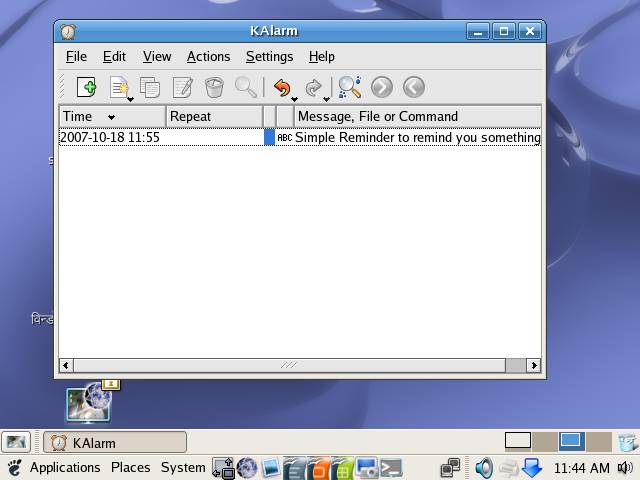
| KAlarm application window |
| |
|
| |
| The main KAlarm window displays the current list of pending alarms, showing their times, repetition intervals, colors, and message texts, names of files to display, commands to execute or email subjects. (For a recurring alarm or an alarm with a reminder, the time shown is its next scheduled trigger time.) An icon at the left of each alarm text/file/command/email subject indicates the type of alarm. |
| |
| Creating a new alarm |
| |
| To create a new alarm, do one of the following. This displays the alarm edit dialog through which you configure the alarm. |
| |
Select Actions->New.
Right click on the system tray icon and choose
New from the context menu.
Click the Middle mouse button on the system tray icon.
Right click in the alarm list and choose New from the context menu.
Double click on empty space below the last entry in the alarm list. |
| |
|
| |
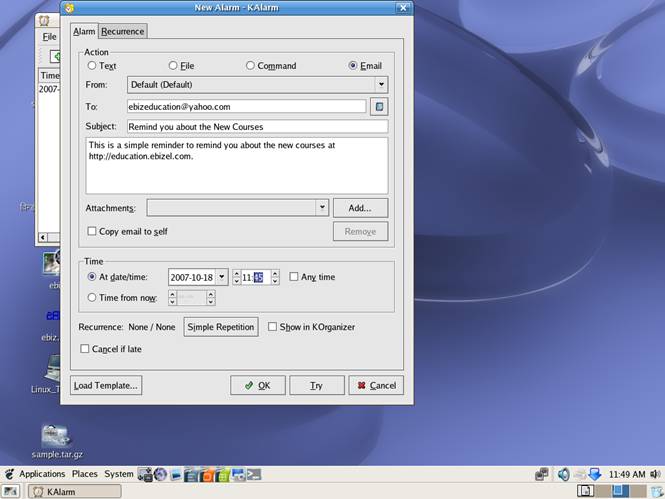
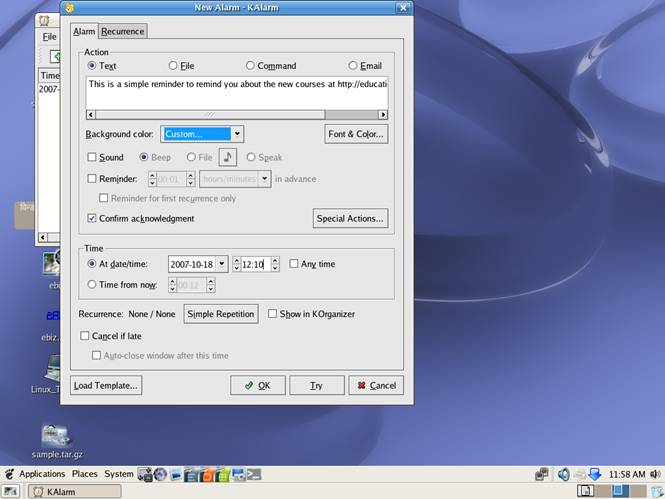
| From the New Alarm dialog box you can chose the action you want to perform as a reminder, i.e. If you want to simply display a message then select Text as action and enter the message that you want to be displayed as rreminder, similarly you can chose to open a file by select File as action or Command to execute a command, or can send reminder email by selecting Email and providing the email details as shown above. |
| |
|
| |
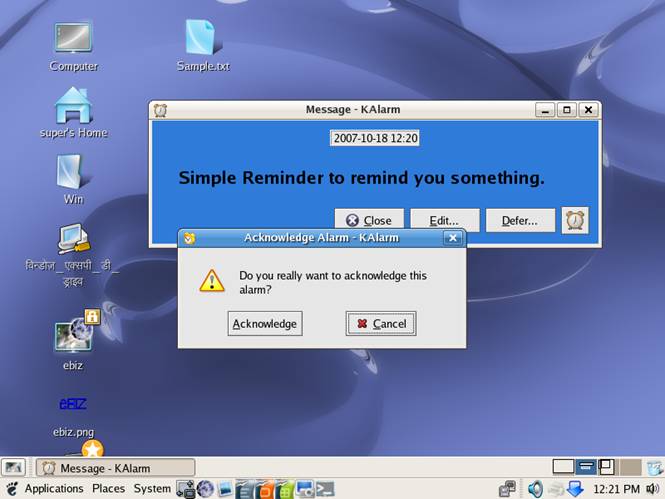
| After configuring the Alarm click on OK to create the alarm, or click on Try button to test your reminder. After you have created an alarm you can close the KAlarm, but it will still display the alarm message when the time of alarm has arrived. |
| |
|
| |
| As you can see, even though KAlarm is not running, it has reminded you through the alarm. Now, click on Close button to close the remindre message then click Acknowledge to let the KAlarm know that you've seen the reminder. |
| |
| Modifying an existing alarm |
| |
| To modify an existing pending alarm (expired alarms cannot be amended), do one of the following: |
| |
Double click on its entry in the alarm list.
Select it by clicking on its entry in the alarm list. Then choose Actions->Edit.
Right click on its entry in the alarm list and choose Edit from the context menu. |
| |
| |
| |
| |
| |


