| Working with Terminal/Shell |
| |
| Using Vi/Vim editor |
| |
| Vim, which stands for Vi IMproved, is an open source, multiplatform text editor extended from vi. It was first released by Bram Moolenaar in 1991. Since then, numerous features have been added to Vim, many of which are helpful in editing program source code. Vim and vi are very popular editors for programmers and users of Unix-like operating systems. |
| |
| What is vi? |
| |
. vim is efficient and elegant. It does things quickly by the best way.
. vim is healthful. It doesn't make your fingers and arms painful.
. vim is small and fast. It fits in one or two floppies and starts instantly.
. vim is powerful. No feature useful for text editing is missing.
. vim is simple and clean. It doesn't offer to do things irrelevant to text editing.
. vim is running everywhere. If you're willing to use it, you can, no matter what computers and operating systems you use.
. vim is free. |
| |
| The Unix editor vi has a long history, and is the one that vim is based on. I believe that the power, beauty and essence of vim always come from vi. A real vim user doesn't mind using vi temporarily, but feels great pain if forced a thing like Emacs. vim retains all the powers of vi, plus a lot of improvements and new features. And now vim is running virtually all platforms. So I see no reason to choose vi over vim |
| |
| Starting vi/vim |
| |
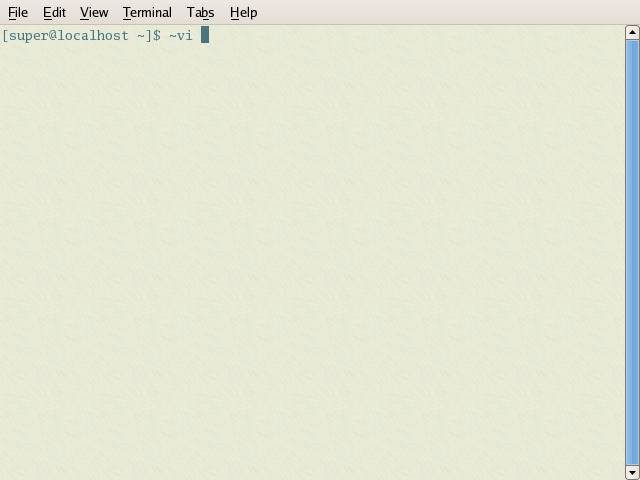
| Type vi or vim to start vi editor on prompt to start the vi editor: |
| |
|
| |
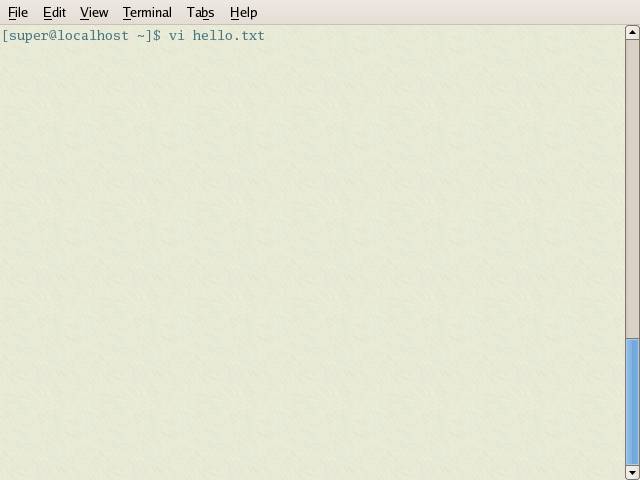
| or you can specify the file name at the command line. i.e. |
| |
|
| press enter after entering the command. |
| |
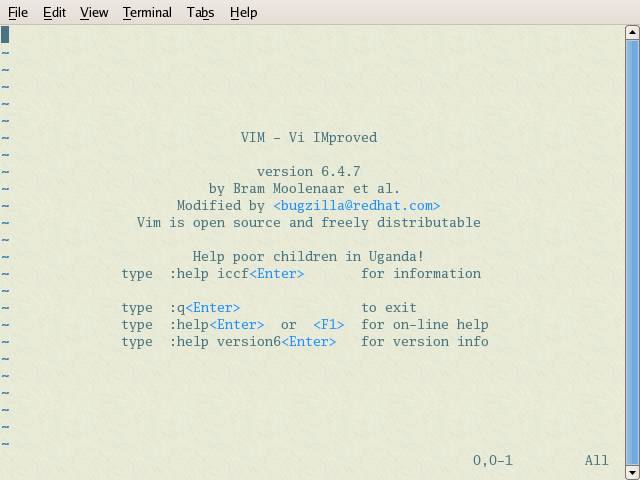
|
| this UI of vi/vim editor. |
| |
| Working with vi editor |
| |
|
| |
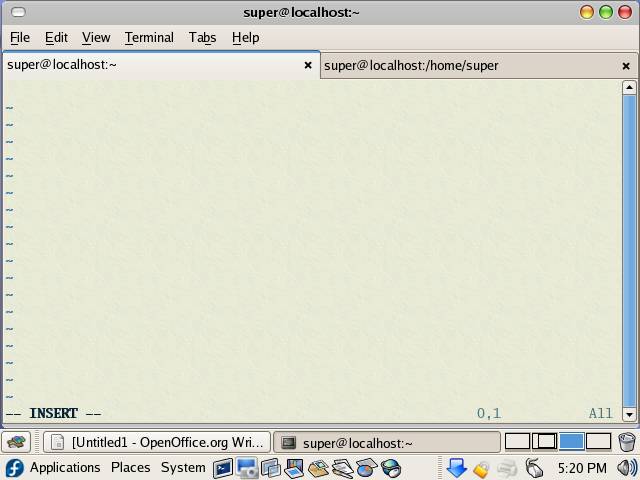
| In the vi editor press i/ESC to toggle between insert/command mode.. |
| |
| Useful vi editor commands: |
| |
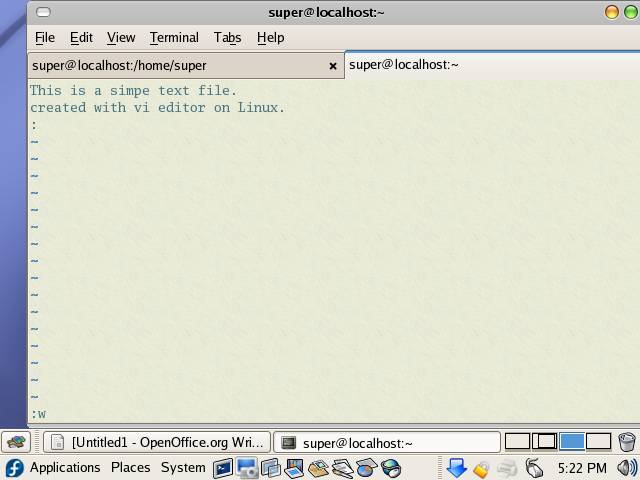
Move around: Use the cursor keys, or "h" to go left, "j" to go down, "k" to go up, "l" to go right.
Close this window: Use ":q<Enter>".
Get out of Vim: Use ":qa!<Enter>" (careful, all changes are lost!).
Save to file: ":w<Enter>" |
| |
|
| Press Esc to toggle between command mode and insert mode. |
| |
| Getting started with vim editor in simple steps: |
| |
| 1. Starting vim |
| |
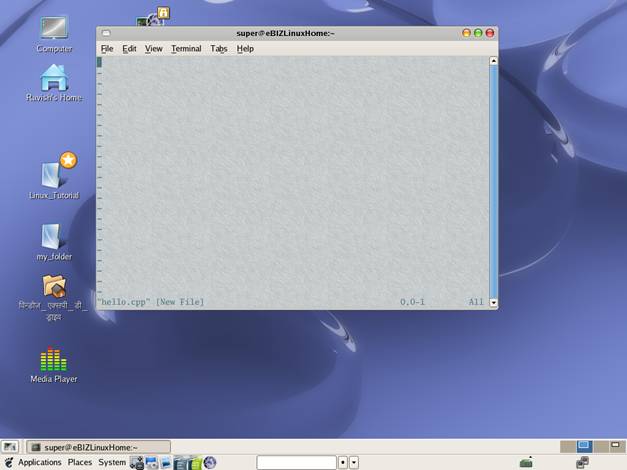
| to start vim and edit a file (new or existing)
vim hello.cpp |
| |
|
| . to start vim and open a new file |
| |
| vim |
| |
| You can give the stuff you typed in a name when later you save it as a file. |
| |
| 2. Enter text/command |
| |
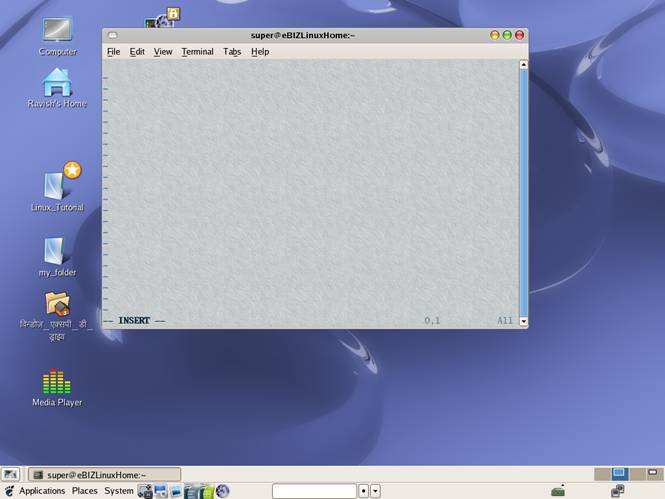
| If this is one of the first few times you use vim, perhaps you're wondering why you cannot type in anything. This is because you're in command mode. In command mode, your key strokes are interpreted as editing commands. To begin typing new text into the file, you need to switch to insert mode by press i. Then you can see each character you type appears on the screen. |
| |
| The two basic modes of vim are: |
| |
* Insert mode, in which anything you type (except some special keys) will appear on the screen and become part of your file buffer.
* Command mode, in which your key strokes are interpreted as commands. |
| |
| After you start vim, you're in command mode. |
| |
| How to Switch between modes |
| |
| 1. From command mode to insert mode, press |
| |
|
| |
| 2. from insert mode to command mode, press ESC |
| |
| 3. How to Navigate ? |
| |
| In both the command mode and the insert mode you can always use the arrow keys to move the cursor, and with gvim you can click mouse to get to new position. However, these are not the ways of vi guys. If you do that, you're not using vim, you're using notepad. |
| |
| If you want to call yourself a vi guy, forget about the arrow keys, backspace, delete, insert, ... and of course, the mouse. The most effective ways of moving cursor is first go to the command mode by pressing ESC and then use vim's cursor-moving commands to move around. |
| |
| The 4 basic commands are: |
| |
. j move down one line
. k move up one line
. h move left one character
. l move right one character |
| |
| Remember: these commands work only in command mode. At first you may feel a bit uncomfortable. After you get familiar using these commands you will stick to them and forget the arrow keys. |
| |
| 4. Copy, Cut and Paste |
| |
| How to COPY, CUT and PASTE |
| |
| If you run the GUI version of vim, gvim, you can use mouse and the pull-down menus to do that---the same fashion with other editors. However, that is not the preferred style. You'll feel better off if you can live without a mouse. |
| |
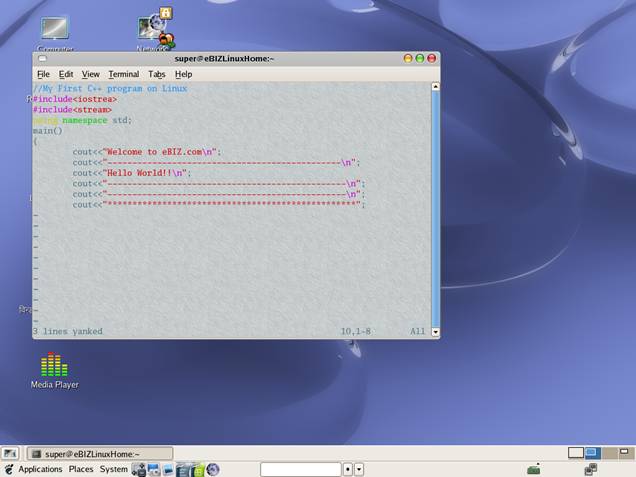
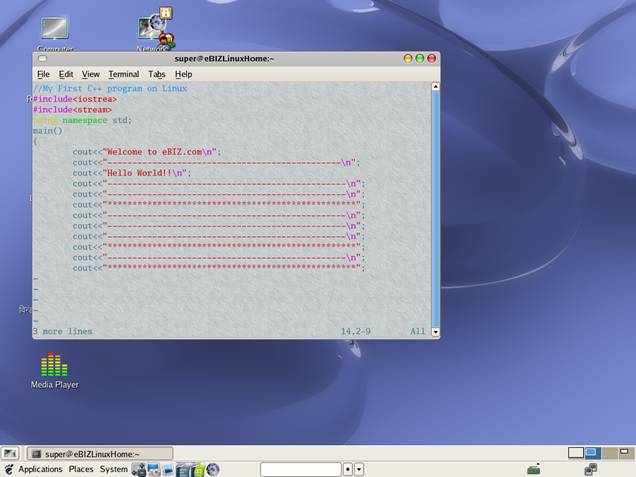
1. Enter the command mode by pressing ESC
2. Move the cursor to the line which you want to make a copy, by pressing j or k
3. press
yy
to make a copy of the line, or
dd
to cut it and make a copy |
| |
|
| |
4. now move cursor (by pressing k or j) to the the location where you want to put this copy
5. press
p
to put the buffer after current line, or
P
to put the buffer before current line |
| |
| |
|
| |
| If you want to copy or cut several lines, put a number before the yy or dd command, like |
| |
| 2yy |
| |
| to copy 2 lines. |
| |
| 5. Searching |
| |
| Suppose you want to find all the words apple in your file |
| |
1. Make sure you are in command mode by hitting ESC
2. type
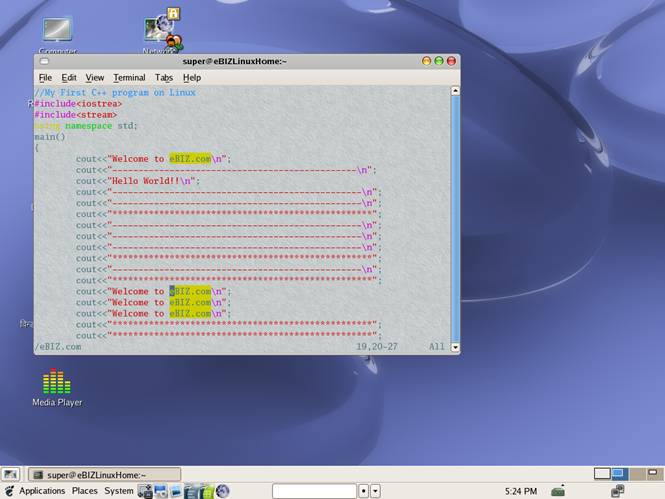
/eBIZ.com |
| |
| followed by ENTER to find an occurrence of apple. When you type the slash, it and the following characters will be shown on the bottom of the screen. After you press ENTER, the cursor will go to the first occurrence of apple if found, and the target will be highlighted. |
| |
|
| |
3.
4. after you got the first eBIZ.com, you can keep typing
n
to find other eBIZ.com |
| |
| 6. Exisiting vim |
| |
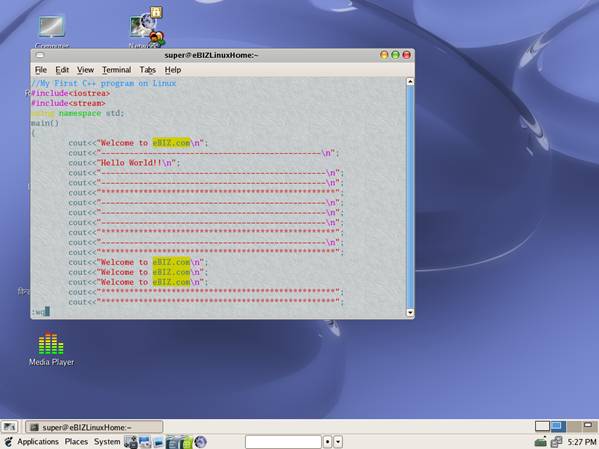
. save your file before you exit: press ESC, then type
:
wq
or
ZZ |
| |
|
| |
. save your file as newname before you exit: press ESC, then type
:
wq newname |
| |
. Exit without saving, press ESC, then type
:
q |
| |
. Forced quit
If :q
doesn't work, it's probably because you didn't save the change. If you want to save, use :wq. If you don't want to save the changes, type
:
q! |
| |
|
| |
| |
| |
| |
| |
| |


