| Working with Terminal/Shell |
| |
| Basic Directory commands |
| |
1. cd
Used for :
Use cd to change directories.
Description :
Type cd followed by the name of a directory to access that directory. Keep in mind that you are always in a directory and can navigate to directories hierarchically above or below. |
| |
| Example: |
| |
cd download
If the directory games is not located hierarchically below the current directory, then the complete path must be
written out. |
| |
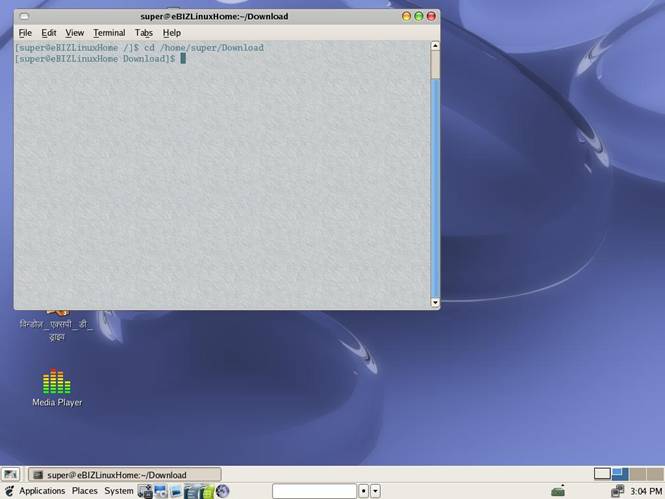
Ex:
cd /home/super/downlaods |
| |
|
| |
|
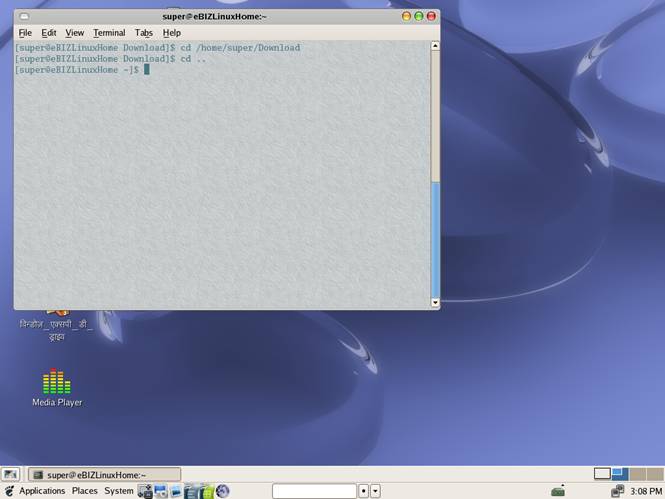
To move up one directory, use the shortcut command. |
| |
Example:
cd .. |
| |
|
| |
2. mkdir
Used for :
Used to create directories on disk. Similar to DOS MD
Description :
Use mkdir to make/create a brand new directory
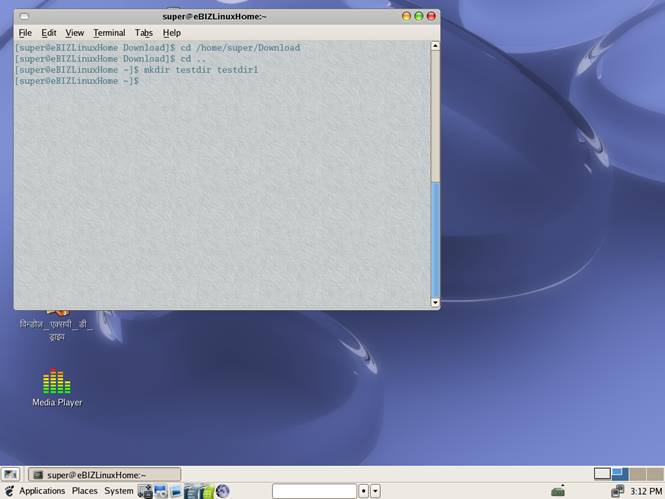
Type mkdir followed by the name of a directory.
Ex:
mkdir testdir |
| |
|
| |
| Create one or more directories. You must have write permission in the parent directory in order to create a directory. The default mode of the new directory is 0777, modified by the system or user's umask. |
| |
Options
-m mode, --mode mode |
| |
| Set the access mode for new directories. See chmod for an explanation of acceptable formats for mode. |
| |
| -p, --parents |
| |
| Create intervening parent directories if they don't exist. |
| |
| -v, --verbose |
| |
| Print a message for each directory created. |
| |
| --help |
| |
| Print help message and then exit. |
| |
| &--version |
| |
| Print version number and then exit. |
| |
| -Z context, --context=context |
| |
| Set security context in SELinux. |
| |
| Examples |
| |
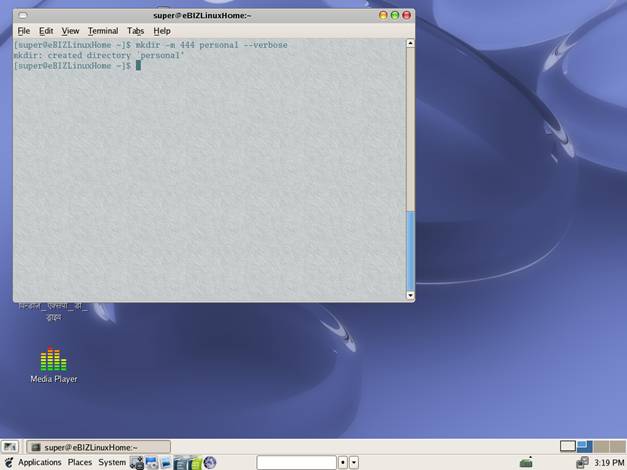
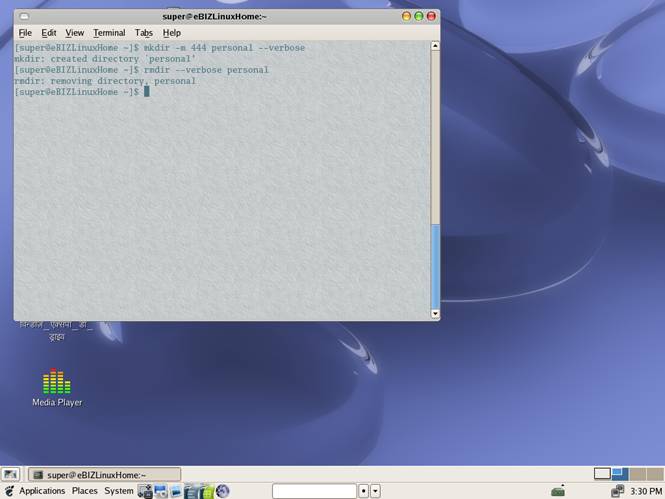
| Create a read-only directory named personal: |
| |
| mkdir -m 444 personal |
| |
|
| |
3. rmdir
Used for :Used rmdir to remove an existing directory (assuming you have permissions set to allow this).
Description : Type rmdir followed by a directory's name to remove it.
Ex: rmdir personal |
| |
|
| |
| You CAN'T remove a directory that contains files with this command. A more useful command is rm -r that removes directories and files within the directories. |
| |
| The rmdir command is used mostly to remove empty directories. If you have a desire to use this command then you'll need to delete or move the files before attempting to remove a full directory. |
| |
| Options |
| |
| --help |
| |
| Print a help message and then exit. |
| |
| --ignore-fail-on-non-empty |
| |
| Ignore failure to remove directories that are not empty. |
| |
| -p, --parents |
| |
| Remove directories and any intervening parent directories that become empty as a result. Useful for removing subdirectory trees. |
| |
| --verbose |
| |
| Verbose mode; print message for each directory as it is processed. |
| |
| --version |
| |
| Print version information and then exit. |
| |
| |
| |
| |
| |


