| Working with Terminal/Shell |
| |
| Basic File Manipulation commands |
| |
1. chmod
Used for:
The chmod command allows you to alter access rights to files and directories. All files and directories have security permissions that grant the user particular groups' or all other users' access.
Description:
To view your files' settings, at the shell prompt type: ls -alt |
| |
| You should see some files with the following in front of them (an example follows): |
| |
| Col 1 |
Col 2 |
Col 3 |
Col 4 |
Col 5 |
Col 6 |
Col 7 |
| -rw-rw-r-- |
1 |
super |
super |
1026 |
Oct 8 16:43 |
simple.txt |
| -rw-rw-r-- |
1 |
super |
super |
3551 |
Oct 8 16:43 |
ChangeAddress
(2).php |
| -rw-rw-r-- |
1 |
super |
super |
3551 |
Oct 1 09:49 |
ChangeAddress
.php |
| -rw-rw-r-- |
1 |
super |
super |
8944694 |
Sep 28 15:58 |
MadeForYou
.tar.gz |
| -rw-rw-r-- |
1 |
super |
super |
787516 |
Sep 28 15:47 |
Almond-rounded
.zip |
| -rw-rw-r-- |
1 |
super |
super |
5986411 |
Sep 27 15:34 |
apache-tom-
cat-6.0.14.-
tar.gz |
| -rw-rw-r-- |
1 |
super |
super |
890880 |
Sep 27 15:32 |
apache-tomcat
-6.0.14-
deployer.tar.gz |
| -rw-rw-r-- |
1 |
super |
super |
363811 |
Sep 25 17:02 |
presentationus1
_new.zip |
| -rw-rw-r-- |
1 |
super |
super |
4208 |
Sep 25 14:18 |
adobe-release-
i386-1.0-1.-
noarch.rpm |
| Drwxrwxrwx |
2 |
super |
super |
4096 |
Sep 24 18:08 |
jdk6 |
|
| |
| What different columns represents in the result? |
| |
Col 1:
The first character in this column tells what kind of file this is. The dash represents a normal file; the d represents a directory.
The remaining characters describe the file's permissions, which we will cover in detail in the next pages. |
| |
Col 2
This column tells how many hard links there are for this file. |
| |
Col 3 & 4
These two columns tell you the name of the owner of the file and the group to which the owner belongs. |
| |
Col 5
The size of the file, in bytes. For directories, this is the size of the directory, not the total of the directory's contents! |
| |
Col 6
This column contains the date and time at which the file was last modified. Note that you get time of day if the modification was during this year; otherwise you see the year. |
| |
Col 7
The last column contains the file name. |
| |
| What do the letters mean in front of the files/directories mean? |
| |
r indicates that it is readable (someone can view the file's contents)
w indicates that it is writable (someone can edit the file's contents)
x indicates that it is executable (someone can run the file, if executable)
- indicates that no permission to manipulate has been assigned. |
| |
| When listing your files, the first character lets you know whether you're looking at a file or a directory. It's not part of the security settings. The next three characters indicate Your access restrictions. The next three indicate your group's permissions, and finally other users' permissions. |
| |
| Use chmod followed by the permission you are changing. In very simple form this would be: |
| |
| chmod 755 simple.txt |
| |
| The example above will grant you full rights, group rights to execute and read, and all others access to execute the file simple.txt. |
| |
| # |
Permission |
| 7 |
full |
| 6 |
read and write |
| 5 |
read and execute |
| 4 |
read only |
| 3 |
write and execute |
| 2 |
write only |
| 1 |
execute only |
| 0 |
none |
|
| |
| Still confused? |
| |
| Use the table above to define the settings for the three "users." In the command, the first number refers to your permissions, the second refers to group, and the third refers to general users. |
| |
| Typing the command: chmod 751 filename |
| |
| gives you full access, the group read and execute, and all others execute only permission. |
| |
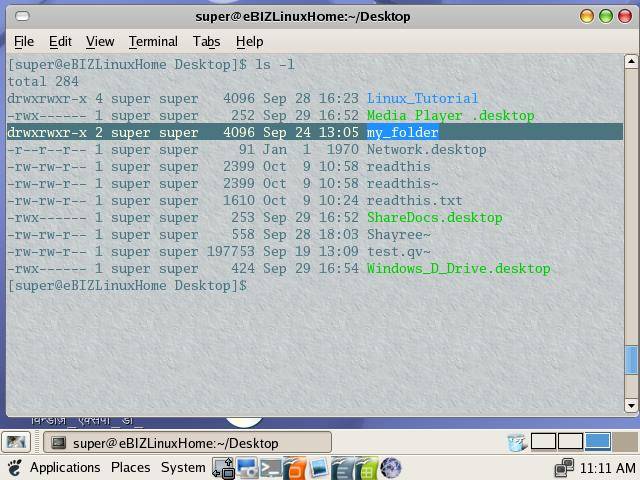
| Execute ls -l command to view the content of current directory |
| |
|
| notice the permissions of the file my_folder, |
| |
| drwxrwxr-x 2 super super 4096 Sep 24 13:05 my_folder |
| |
| here d indicates that my_folder is a directory, after that, 2nd 3rd and 4th characters,[ rwx]represents owner permission and here rwx means owner can read, write and search the directory, 5th, 6th and 7th [rwx] represents the group permission and rwx means group member can read, write and search the directory. Las t three characters represents the permission for others and r-x as permission means, others can read the content of directory and on directory, but they can not write to it. |
| |
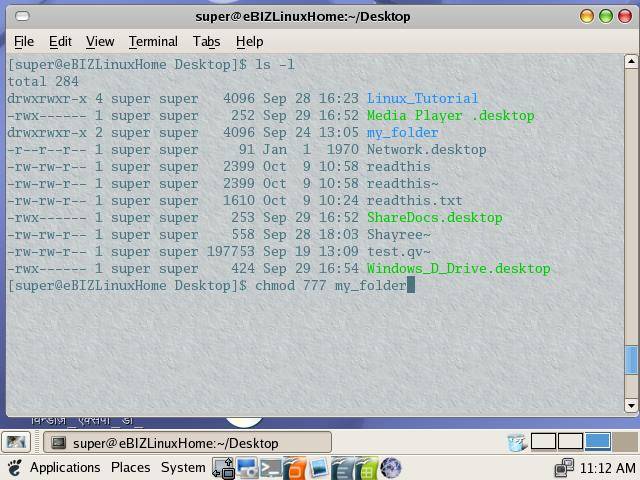
Now, let us the alter the permission of the directory
type the following command:
chmod 777 my_folder |
| |
| as described earlier 7 as permission string means full permission, this means we are assigning full permission to everybody. |
| |
|
| |
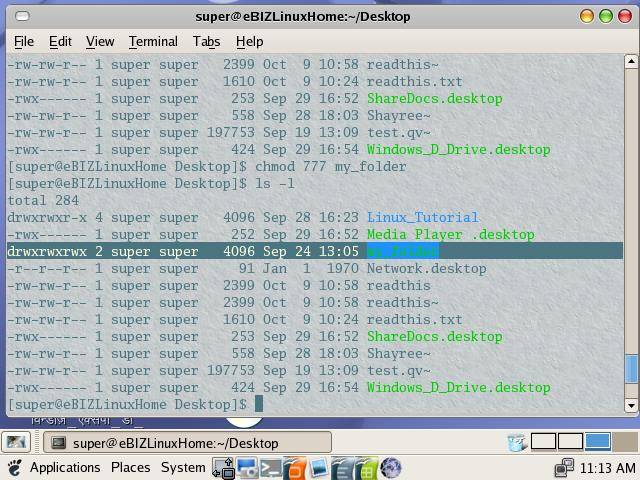
| Now, use the ls command again to see the effect of the chmod |
| |
|
| |
| now notice the change, now everybody has full permission to the my_folder directory.
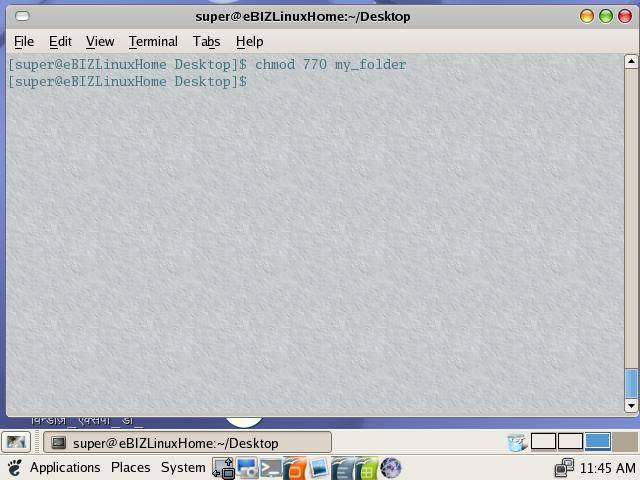
If you want to make this folder inaccessible to other users. You can do so by executing the following command: |
| |
| chmod 770 my_folder |
| |
|
| |
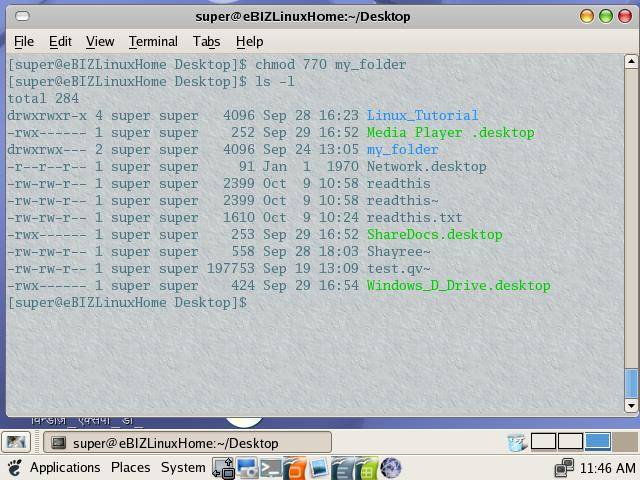
| now use the ls -l command to view the effect of the last chmod command: |
| |
|
| |
| as you can see in the results the last thee characters that belongs to the others permission are blank, that means, users other that owner and group members have no access to the folder. |
| |
2. cp
Used for :
Used to copy file(s) from one location to another
Description :
Type cp followed by the name of an existing file and the name of the new file. Similar to DOS copy . |
| |
cp file newfile
To copy a file to a different directory (without changing th
e file's name), specify the directory instead of the new
filename.
Example: |
| |
cp newfile test
To copy a file to a different directory and create a new file name, you need to specify a directory/a new file name.
Example: |
| |
cp newfile testdir/newerfile
cp newfile ../newerfile |
| |
| The .. represents one directory up in the hierarchy. |
| |
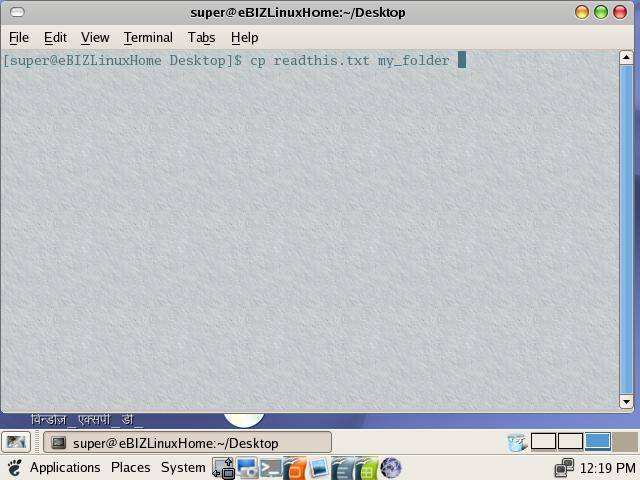
Now, let us copy a file with cp command
type the following command:
cp readthis.txt my_folder
in this command readthis.txt is the file that we want to copy and my_folder is destination folder. |
| |
|
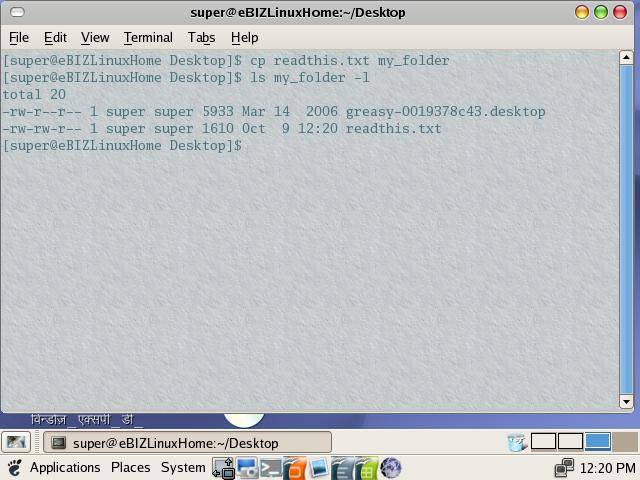
| Now use the ls command to make sure, file has been copied to the destination folder |
| |
|
3. file
Used for :
used to retrieve the information about the file type.
Description :
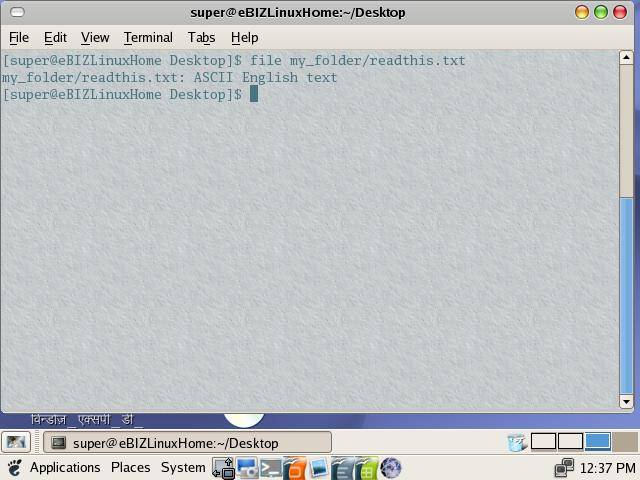
Type file followed by the name of an existing file in the directory.
Ex: file contact_magnager.exe
OUTPUT: MS-DOS executable (EXE) |
| |
| This command allows you to figure out what the file type is and how to use it. For instance the command will tell you whether it is an executable, a compressed file and which type, or something unusual. |
| |
| This command is simplistic, but often can allow you to determine why a file does not respond the way you expect. |
| |
|
| |
4. mv
Used for :
Used to move file(s) from one location to another
Description : Type mv followed by the current name of a file and the new name of the file. Similar to DOS move
Ex:
mv oldfile newfile |
| |
Type mv followed by the name of a file and the new directory where you'd like to place the file.
Ex:
mv readthis.txt my_folder |
| |
| This moves the file named readthis.txt to an existing directory named my_folder. Be certain you're specifying a directory
name or the mv command alters the name of the file instead of moving it. |
| |
| The mv command moves files and directories from one directory to another, or renames a file or directory. If you move a file or directory to a new directory, it retains the base file name. When you move a file, all links to other files remain intact, except when you move it to a different file system. When you move a directory into an existing directory, the directory and its contents are added under the existing directory. |
| |
| When you use the mv command to rename a file or directory, the TargetDirectory parameter can specify either a new file name or a new directory path name. |
| |
| If moving the file would overwrite an existing file that does not have write-permission set and if standard input is a workstation, the mv command displays the file-permission code and reads a line from standard input. If that line begins with a y, or the locale's equivalent of a y, the mv command moves the file. If the response is anything other than a y, the mv command does nothing to that file and continues with the next specified file. |
| |
| You can use the mv command to move files within the same file system or between file systems. Whether you are working in one file system or across file systems, the mv command copies the file to the target and deletes the original file. The mv command preserves in the new file the time of the most recent data modification, the time of the most recent access, the user ID, the group ID, and the file mode of the original file. |
| |
| The mv command will modify either the source file or the destination path if the command is prematurely terminated. |
| |
| Attention: The mv command can overwrite many existing files unless you specify the -i flag. The -i flag prompts you to confirm before it overwrites a file. If both the -f and -i flags are specified in combination, the last flag specified takes precedence. |
| |
| -f |
Does not prompt you before overwriting an existing file. |
| -i |
Prompts you before moving a file or directory to an existing path name by displaying the name of the file followed by a question mark. If you answer with a line starting with y or the locale's equivalent of a y, the move continues. Any other reply prevents the move from occurring. |
|
| |
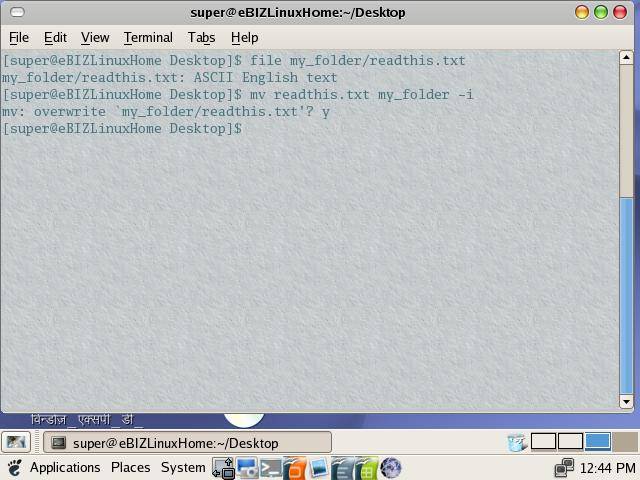
Now, let us move a file with mv command,
type the following command to move a file:
mv readthis.txt my_folder -i
-i in this command means, if a file named readthis.txt exists in the destination folder, then it will ask you if you want to overwrite the existing file. |
| |
|
| |
5. rm [remove]
Used for : Used to remove a file from the file system.
Description : |
| |
| The rm command removes the entries for the specified File parameter from a directory. If an entry is the last link to a file, the file is then deleted. You do not need read or write permission for the file you want to remove. However, you must have write permission for the directory containing the file. |
| |
| If either of the files . (dot) or .. (dot, dot) are specified as the base name portion of the File parameter, the rm command writes a diagnostic message to standard error and does nothing more with such parameters. |
| |
| The rm command writes a prompt to standard error and reads a line from standard input if the -f flag is not specified, and either the File parameter does not have write permission and the standard input is a workstation, or the -i flag is specified. If the response is not affirmative, the rm command does nothing more with the current file and proceeds to the next file. |
| |
| The files owned by other users cannot be removed if the sticky bit of the directory is set and the directory is not owned by the user. |
| |
| Note: The rm command supports the -- (dash, dash) parameter as a delimiter that indicates the end of the flags. |
| |
| Flags |
| |
| -e |
Displays a message after each file is deleted. |
| -f |
Does not prompt before removing a write-protected file. Does not display an error message or return error status if a specified file does not exist. If both the -f and -i flags are specified, the last one specified takes affect. |
| -i |
Prompts you before deleting each file. When you use the -i and -r flags together, the rm command also prompts before deleting directories. If both the -i and -f flags are specified, the last one specified takes affect. |
| -r |
Permits recursive removal of directories and their contents when the File parameter is a directory. This flag is equivalent to the -R flag. |
| -R |
Permits recursive removal of directories and their contents when the File parameter is a directory. This flag is equivalent to the -r flag. |
|
| |
| Type rm followed by the name of a file to remove the file. |
| |
Ex:
rm readthis.txt |
| |
Use the wildcard character to remove several files at once.
Ex:
rm r* |
| |
| This command removes all files beginning with n.
Type rm -i followed by a filename if you'd like to be prompted before the file is actually removed. |
| |
Ex:
rm -i readthis.txt
rm -i r* |
| |
| By using this option, you have a chance to verify the removal of each file. The -i option is very handy when removing
a number of files using the wildcard character *. |
| |
| |
| |
| |
| |


