| Working with Terminal/Shell |
| |
| Basic Shell commands |
| |
| As we know, Linux like Unix was an CLI (Command Line Interface) based operating system in its early days, that means everything that user want to do, has to performed with the help of commands. Even today, when Linux has a lot of Window and Desktop managers, there are a lot of things that are dependent on the terminal and in order to perform those actions we have to give certain commands. |
| |
| Linux is tightly integrated with Shell/Terminal, and has a wide range of Command Library. All commands are discussed in detail in our next Linux tutorial "Linux Administration", and of the basic shell commands are discussed here. |
| |
| Basic commands: |
| |
| 1. cd |
| |
| Used for: Used to change directories. |
| |
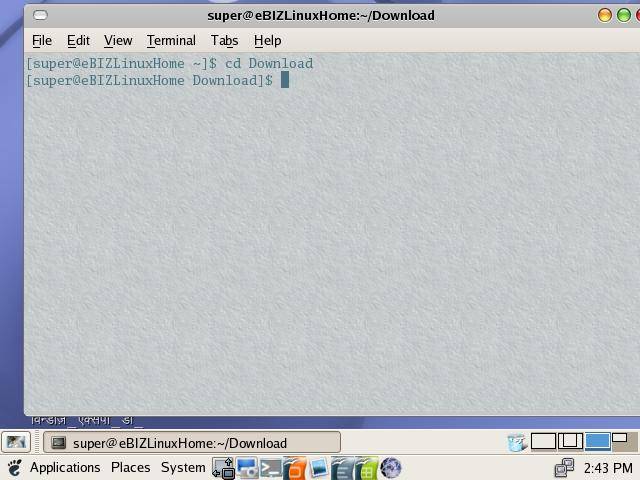
| Description: Type cd followed by the name of a directory to access that directory.
Keep in mind that you are always in a directory and allowed access to any directories hierarchically above or below. |
| |
| Ex: cd download |
| |
| If the directory games is not located hierarchically below the current directory, then the complete path must be written out. |
| |
| Ex:
cd /home/super/Download |
| |
|
| |
To move up one directory,
use the shortcut command.
Ex: cd .. |
| |
2. clear
Used for:
Used to clear the command prompt equivalent to DOS cls
Description:
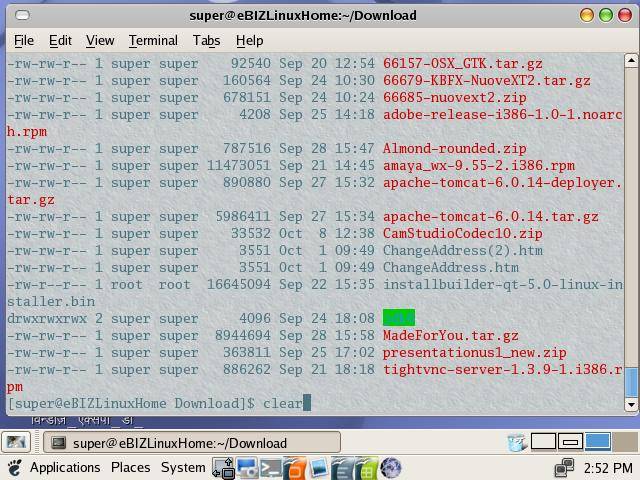
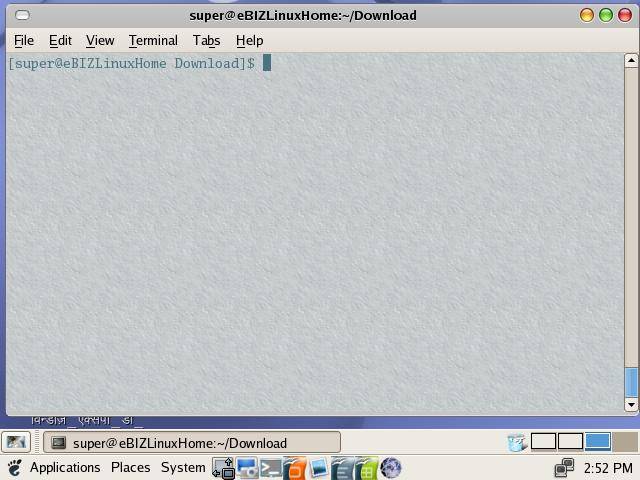
Type clear to clean up your command prompt window.
This is especially helpful when you are typing lots of commands and need a clean window to help you focus.
Ex:
clear |
| |
|
| after executing the clear command |
| |
|
| |
| This is also useful when you are getting ready to type a rather long command and do not wish to become confused by other details on the screen. |
| |
3. date
Used for:
Used to set/view your server's date and time.
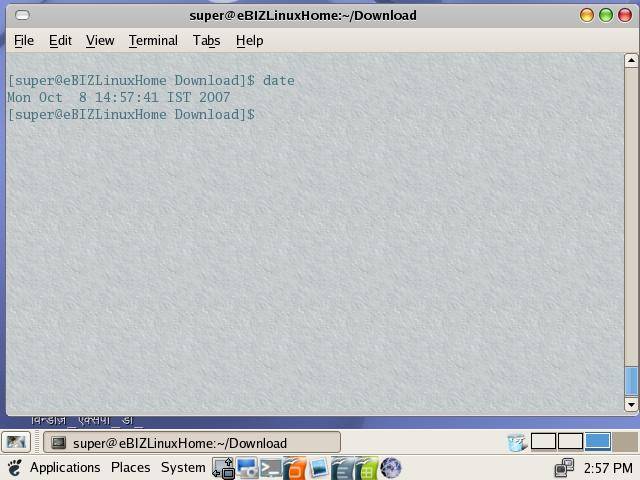
Description: date command with any argument is used to view the date and time.
Ex: |
| |
|
| To change the servers date and time, type date followed by the two digit month, the two digit date, the two digit time, and two digit minutes. |
| |
| The syntax is easy enough and resembles this: MMDDhhmm
This command is helpful but must be used when superuser or logged in as root. Otherwise you will get an "Operation not permitted" reply. |
| |
| As root user you can use the command such as: |
| |
| date 09261330 |
| |
| The above command will set the server date and time to the 9th month (September), the 26th day, at 1:30pm. |
| |
4. df
Used for: to check disk space.
Description: Typing df provides a very quick check of your file system disk space. |
| |
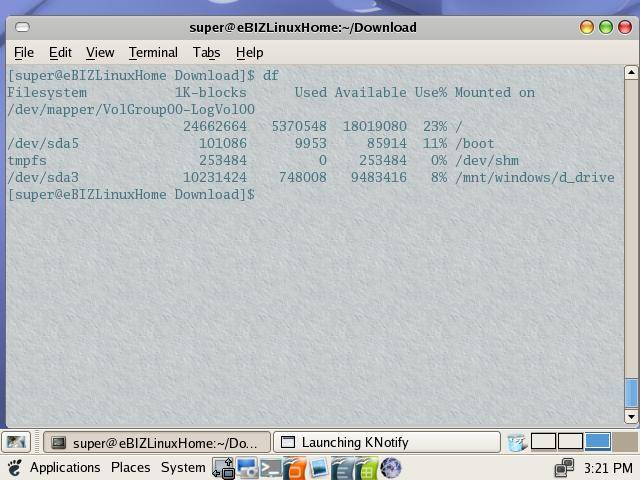
|
| |
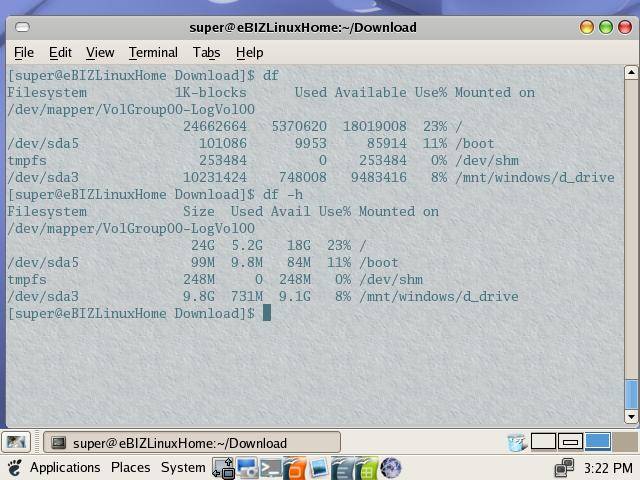
| Type df -h to get a more easily readable version of the output. |
| |
|
| |
| Notice that this command will include all applicable storage such as your hard disk/s (hda, hdb etc.) and your server SWAP file (shm). |
| |
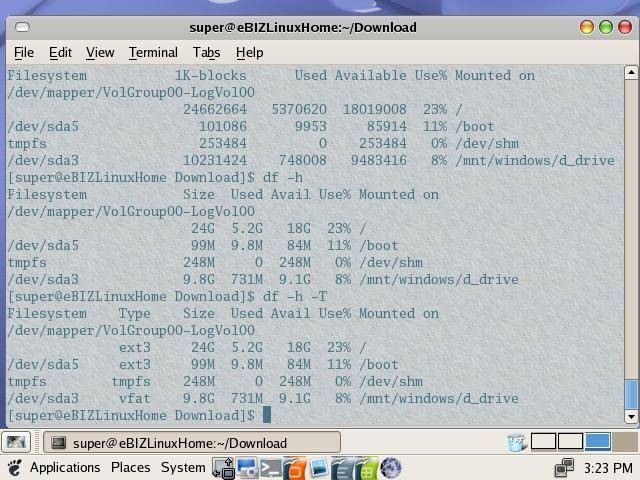
| To list disk space including filesystem type: |
| |
| df -h -T |
| |
|
5. finger
Used for: to see who's on the system
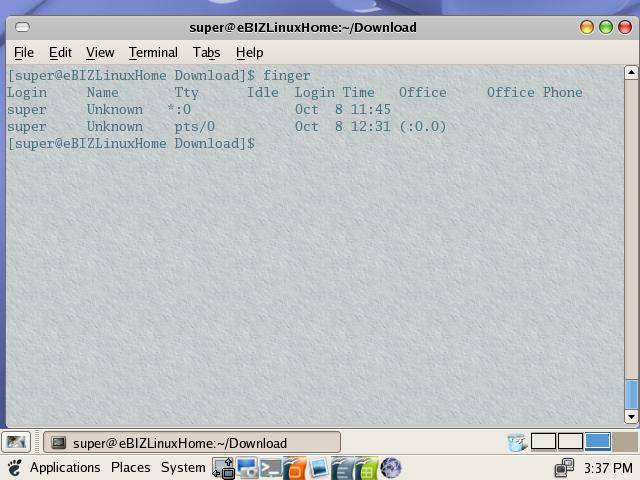
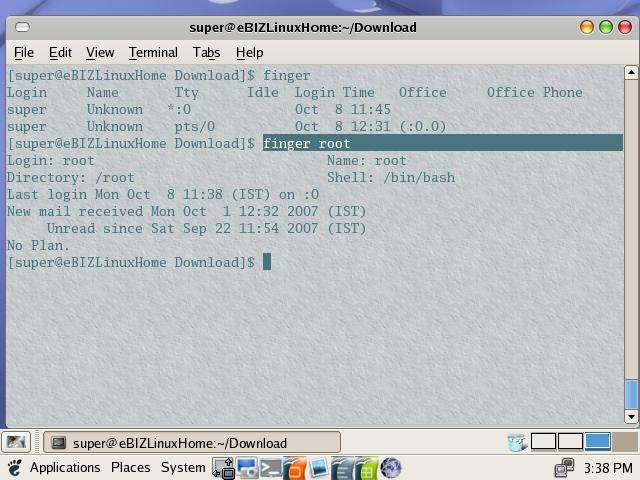
Description: Typing finger allows you to see who else is on the system or get detailed information about a person who has access to the system. |
| |
|
| Type finger followed by the name of a user's account to get information about that user. Or, type finger and press enter to see who's on the system and what they are doing. |
| |
| Ex:
finger super |
| |
|
| |
| 6. logout |
| |
| Used for: to quit using the system |
| |
Description:
hey, you guessed it, executing logout will log your account out of the system. |
| |
Type logout at the prompt to disconnect from your Linux machine or to logout a particular user session from the system. Keep in mind that although rudimentary, leaving your critical account logged on may be a security concern. We always recommend promptly using logout when you are finished using your root account!
Ex:
logout |
| |
7. ls
Used for:
Used to list files and directories
Description:
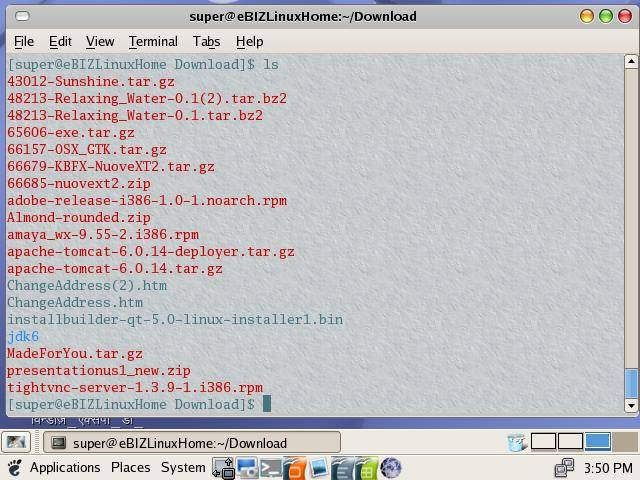
Type ls to see a list of the files and directories located in the current directory. If you're in the directory named Download and you type ls, a list will appear that contains files in the Download directory and sub-directories in the Download directory. |
| |
|
| |
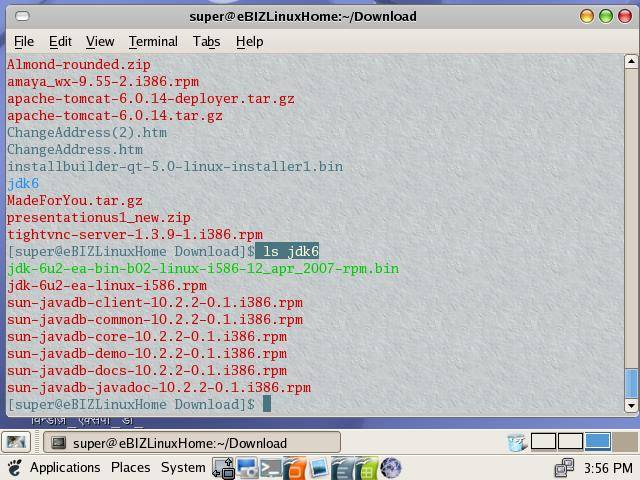
| Examples: ls jdk6 |
| |
|
| |
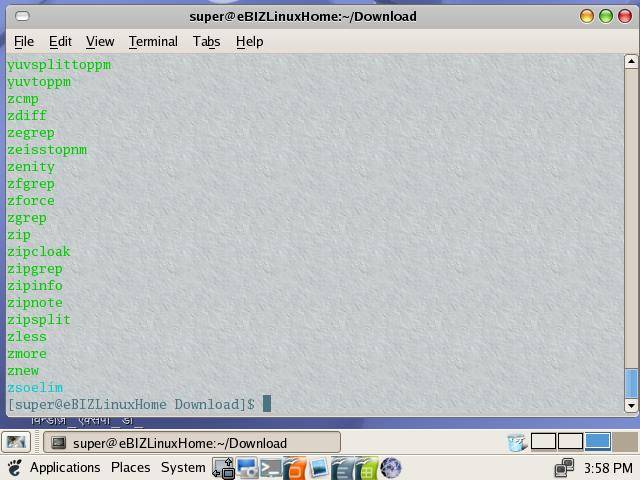
| ls /usr/bin |
| |
|
| |
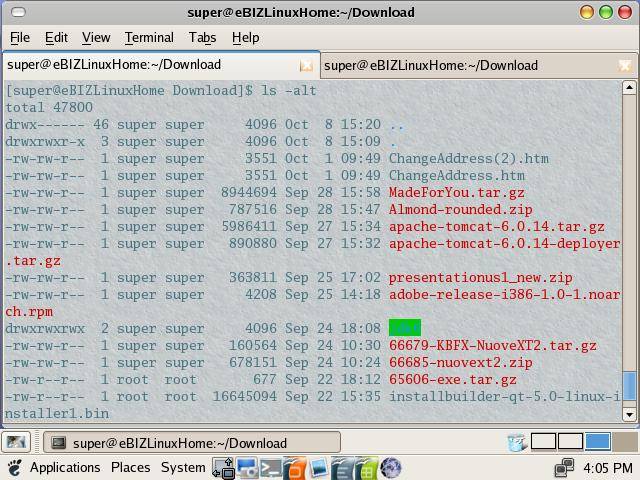
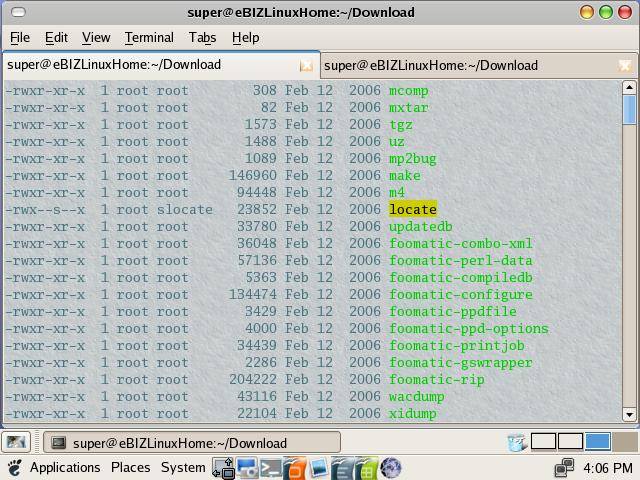
| Type ls -alt to see a list of all files (including .rc files) and all directories located in the current directory. The listing will include detailed, often useful information. Examples:
ls -alt |
| |
|
| |
|
ls -alt /usr/bin |
| |
|
| |
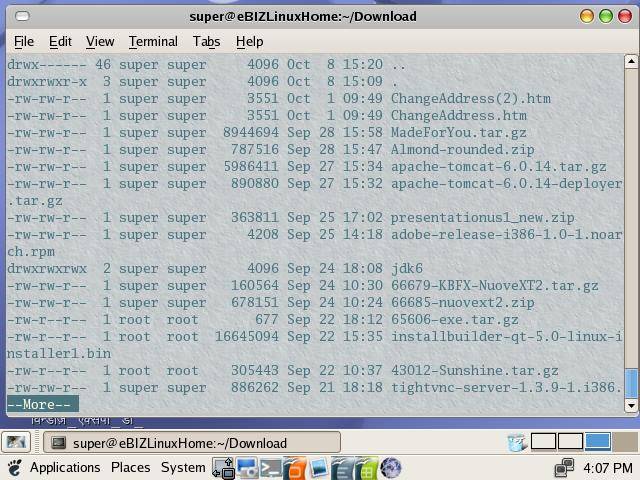
| If the screen flies by and you miss seeing a number of files, try using the |more at the end like:
ls -alt |more |
| |
|
| * In Bash (Linux shell) often the abbreviated command L is available. To get a verbose listing of files and directories you could therefore simply type: l |
| |
ls command options:
|
| Option Action |
| |
-a list hidden files
-d list the name of the current directory
-F show directories with a trailing '/'
executable files with a trailing '*'
-g show group ownership of file in long listing
-i print the inode number of each file
-l long listing giving details about files
and directories
-R list all subdirectories encountered
-t sort by time modified instead of name |
| |
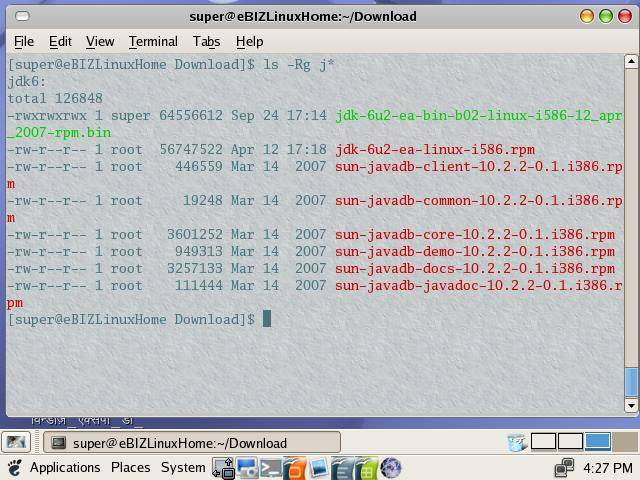
| using option R&g with ls command to view the contents of directories beginning with latter j, will produce the following result: |
| |
|
| |
| You can try these switches to narrow down your search results. |
| |
8. man
Used for: Used to pull up information about a Linux command
Description: Type man followed by a command to get detailed information about how to use the command.
Ex: man ls |
| |

|
| |
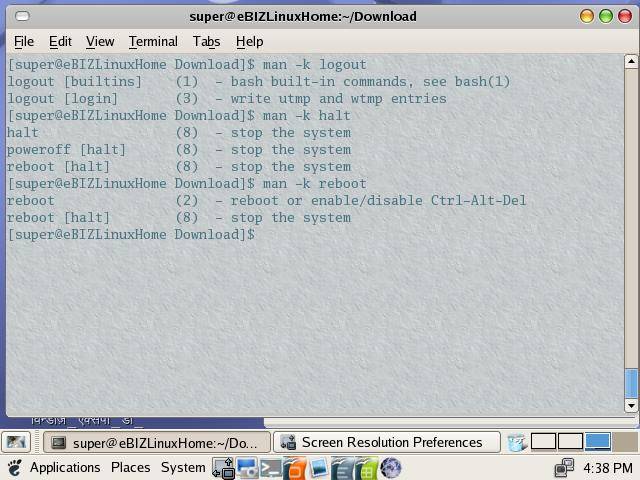
Type man -k followed by a word to list all of the commands and descriptions that contain the word you specified.
Ex:
man -k logout |
| |
|
9. more
Used for:
Used to read the contents of a file
Description:
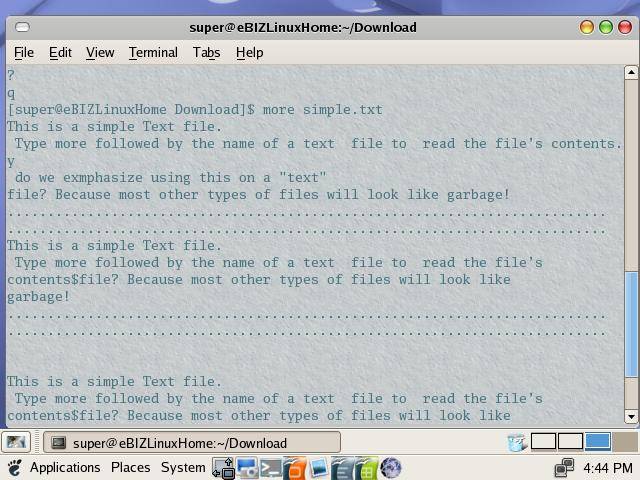
Type more followed by the name of a text file to read the file's contents. Why do we emphasize using this on a "text" file? Because most other types of files will look like garbage! |
| |
 |
| |
| |
10. nano
Used for:
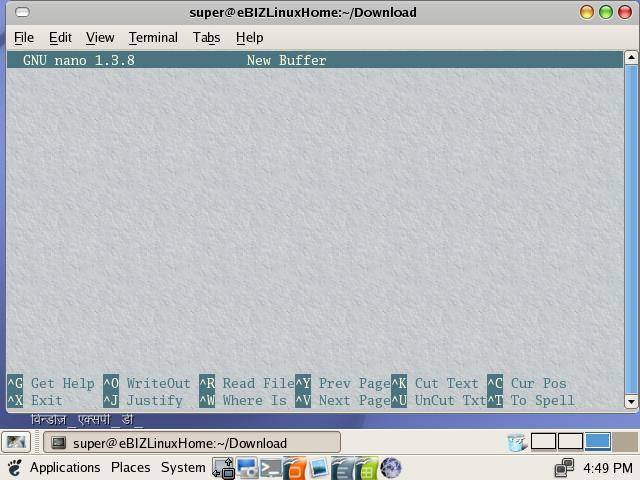
Description: Typing nano will start a basic text editor on most Linux systems. |
| |
 |
| |
| |
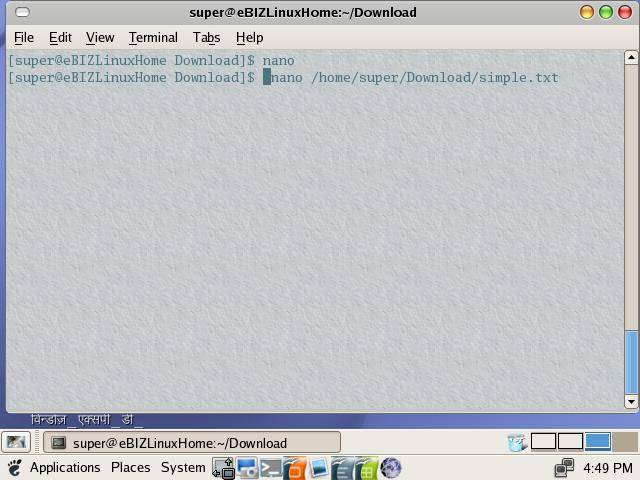
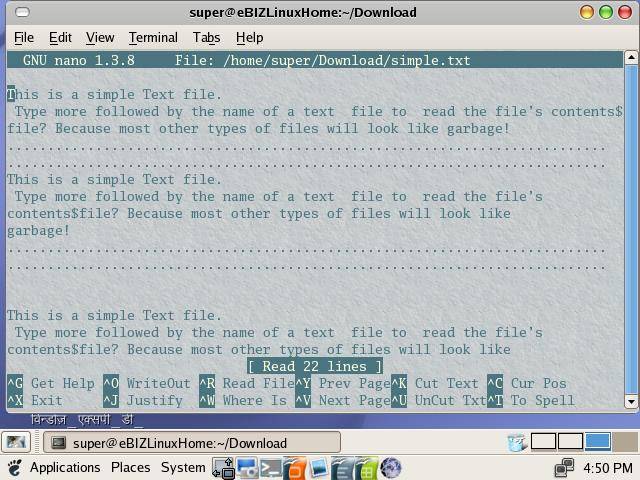
Type nano followed by the filename you wish to edit. This basic editor is quick and easy to use for beginners. However, it is very important that you also learn about other text editors available on Linux and UNIX systems.
Ex: nano /home/super/Download/simple.txt |
| |
 |
| |
| /home/super/Download/simple.txt file in opened in nano |
| |
 |
| |
| nano is covered in detail, later in this chapter. |
| |
11. passwd
Used for:
Used to change your current password
Description:
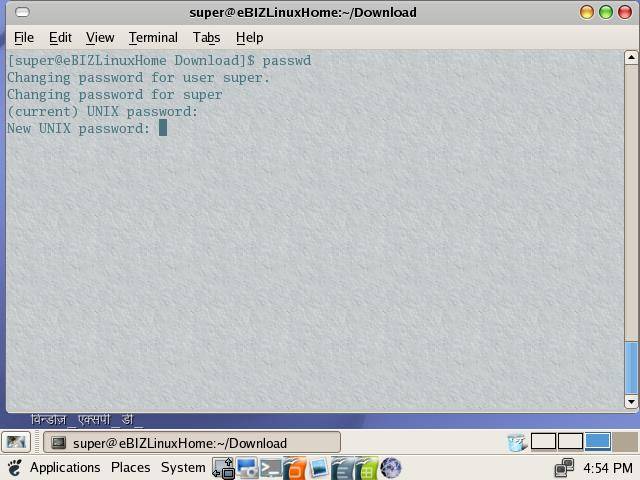
Type passwd and press enter. You'll see the message Changing password for yourname.
At the Old password: prompt, type in your old password .
Then, at the Enter new password: prompt, type in your new password .
The system double checks your new password. Beside the Verify: prompt, type the new password and press again. |
| |
 |
| |
| |
| Create a secure password that combines parts of words and numbers. For instance, your dog's name may be Rufus. He may have been born in 1980. Create a password that uses parts of both the name and date of birth, such as 80rufuS. Note the use of at least one capital letter. This is a fairly secure password and easy to remember. |
| |
12. pwd
Used for:
Used to list the name of your current directory
Description:
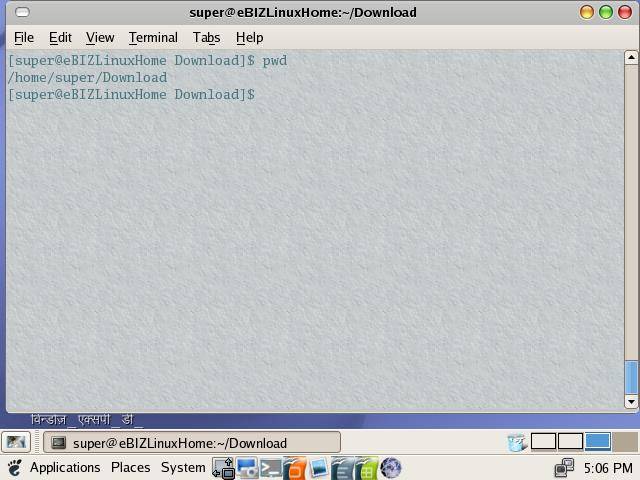
Type pwd and hit enter. You'll see the full name of the directory you are currently in. This is your directory path and is very handy. This is especially handy when you forget which directory you've changed to and are trying to run other commands. |
| |
 |
| |
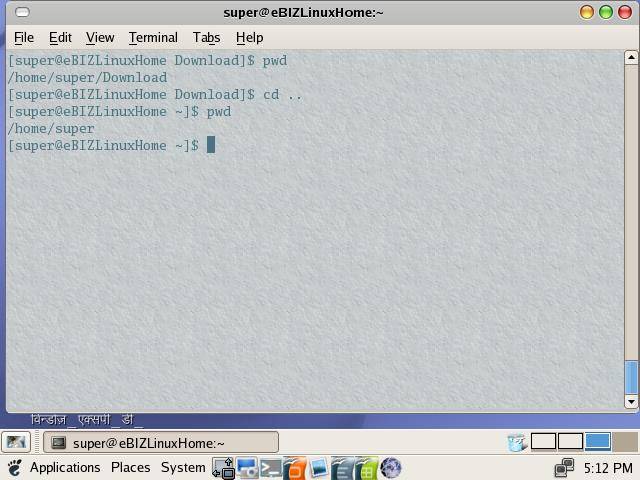
| If you were in a different directory, the output would have been different: |
| |
 |
| |
| |
| |
| |
| |


