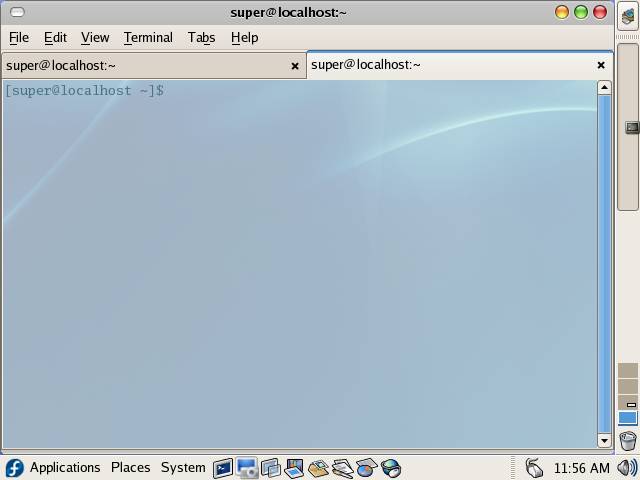
Open New Terminal Tab : Ctrl+Shift+T
Close Terminal Window : Ctrl+Shift+Q
Close Tab : Ctrl+Shift+W
Copy : Ctrl+Shift+C
Paste : Ctrl+Shift+V
Full Screen : F11
 |
 |
 |
| Working with Terminal/Shell | |||
| Starting and Customizing Shell interface | |||
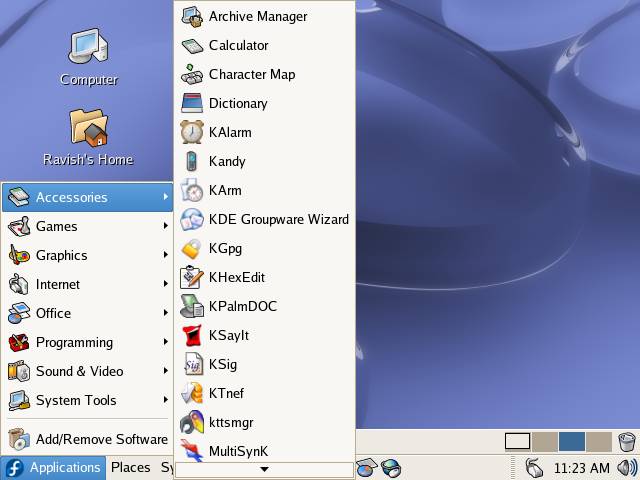
| To Start Shell in Gnome, first click on Applications and select Accessories from the Applications menu. | |||
|
|||
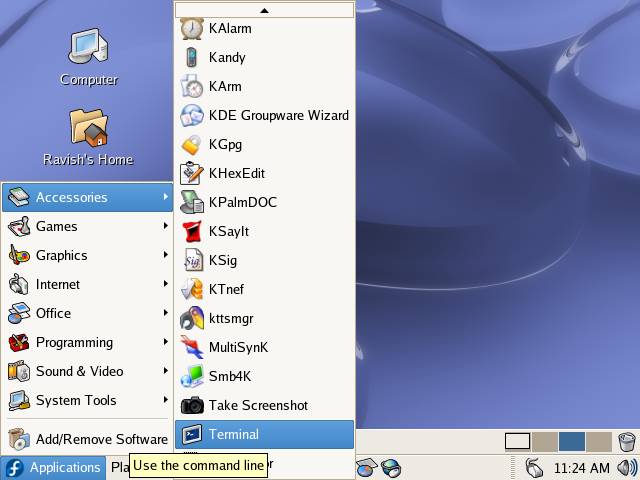
| From the Accessories sub menu select Terminal | |||
|
|||
|
|||
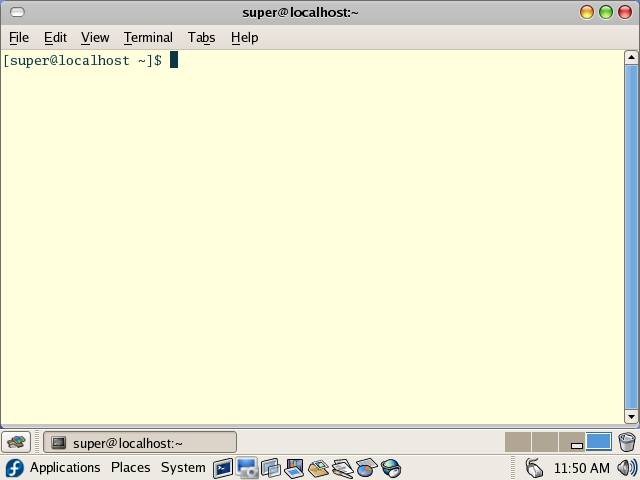
| This is Linux Shell/Terminal, similar to DOS interface. Unlike DOS, Linux Shell's are much more powerful and the interface of the shell can be customized in a variety of way by the shell user. User can create multiple profiles and customize each profiles look and feel. | |||
| Customizing Shell interface | |||
| Creating a new Shell Profile | |||
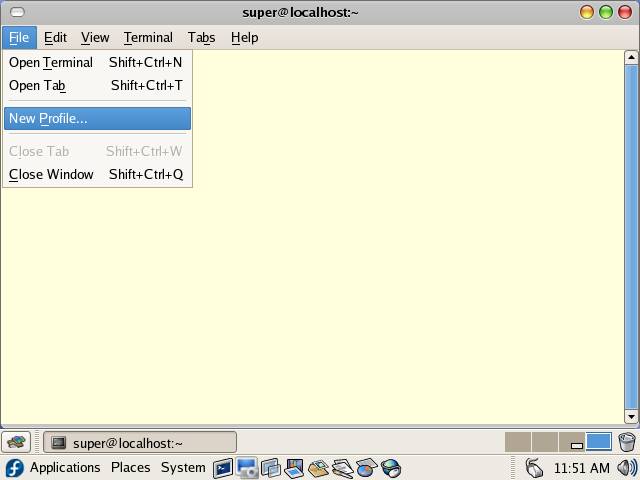
| To create a new Shell Profile Click on File menu and select New Profile.. option from the drop down menu. | |||
|
|||
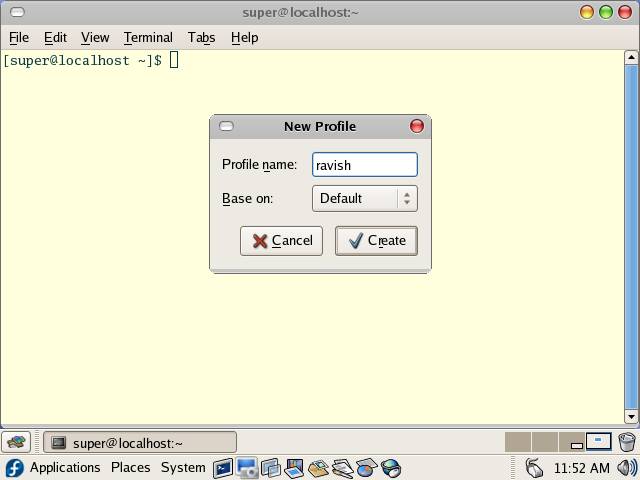
| Type the name of the new profile in the Profile name field on the New Profile dialog box | |||
|
|||
| After Entering the Profile name click on Create button to create the profile. | |||
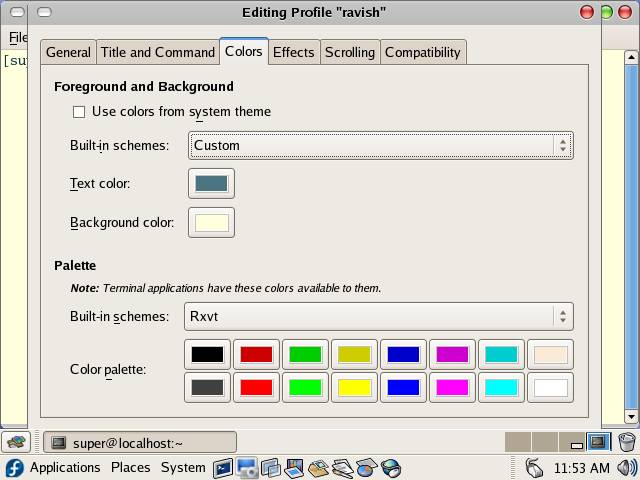
| Editing Profile dialog box will be displayed. This dialog box is used to customized the look and feel on the Shell interface. | |||
|
|||
| Click on Colors tab to customize the color schema of the Shell interface. | |||
|
|||
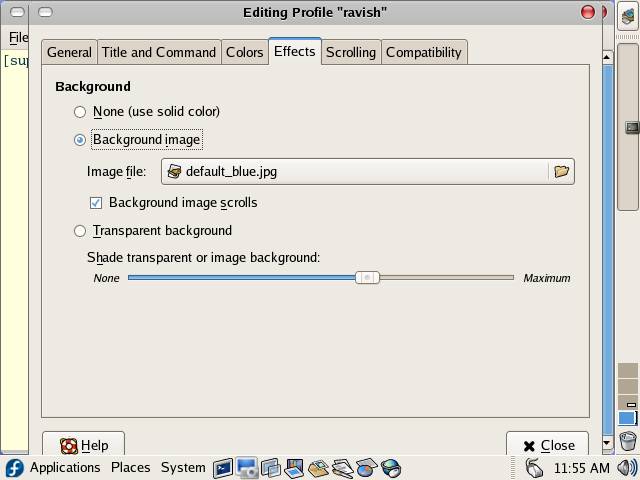
| Click on Effects tab to use a background image for Shell background instead of plain color. After customizing the profile click on Close button to close the Editing Profile dialog box. | |||
| Using the New Shell profile | |||
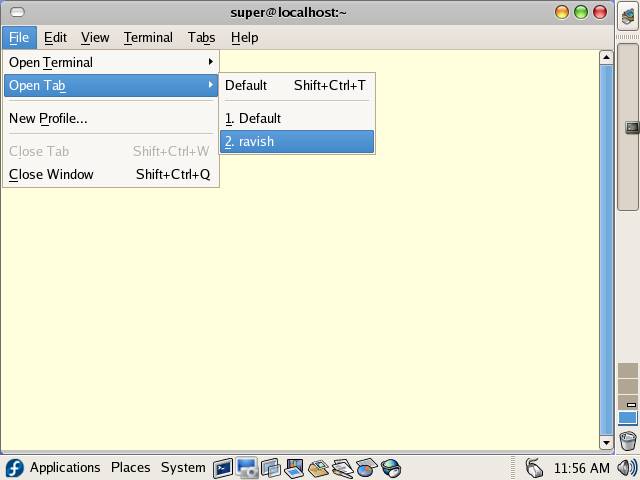
| To use the New Profile instead of the Default profile click on File-->New Tab/File-->New Terminal and select the profile that you want to use. | |||
|
|||
|
|||
| Shell interface with newly configured shell profile. | |||
| Basic Shell Interface Commands/Shortcuts: | |||
| Open New Terminal Window : Ctrl+Shift+N
Open New Terminal Tab : Ctrl+Shift+T Close Terminal Window : Ctrl+Shift+Q Close Tab : Ctrl+Shift+W Copy : Ctrl+Shift+C Paste : Ctrl+Shift+V Full Screen : F11 |
|||
|
|||