| Linux Office Applications (openoffice.org) |
| |
| Using Word Processor |
| |
| Core Fedora and almost all Linux distributions come bundled software and all of them are free. You don't need to spend a paisa for that. Fedora Core 6 come with around 1500 software, and they are from all walk i.e. Free Internet Applications, Graphics applications, Office Package, Imagine situation, Multimedia Applications, System Configuration, name a few. Huh! And you are not using any pirated software and not loosing your privacy with the big brother (Microsoft) and not paying for any software. Isn't it great. |
| |
| Linux come with pre-installed office packages(actually you have to select these package at install time or you can install them later), such as KOffice, Gnome office suit and OpenOffice.org office package. Here I will show you how to get started OpenOffice.org office package. |
| |
| OpenOffice.org's Word processor is known as OpenOffice.org Writer. |
| |
| Starting OpenOffice.org write |
| |
| Follow these steps to start OpenOffice.org Writer : |
| |
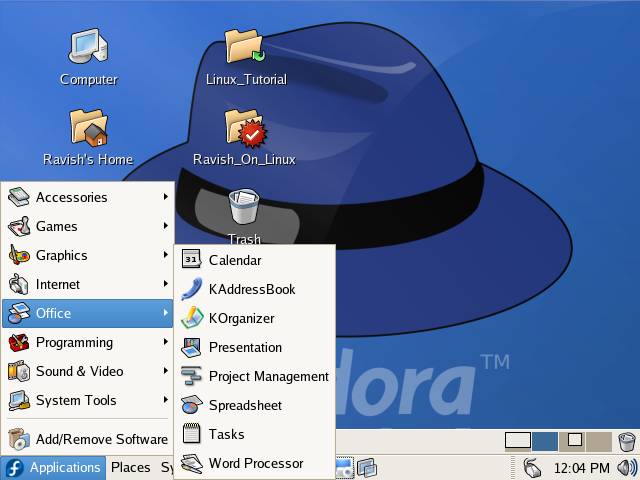
| * Click on Applications menu and select Office from the menu |
| |
|
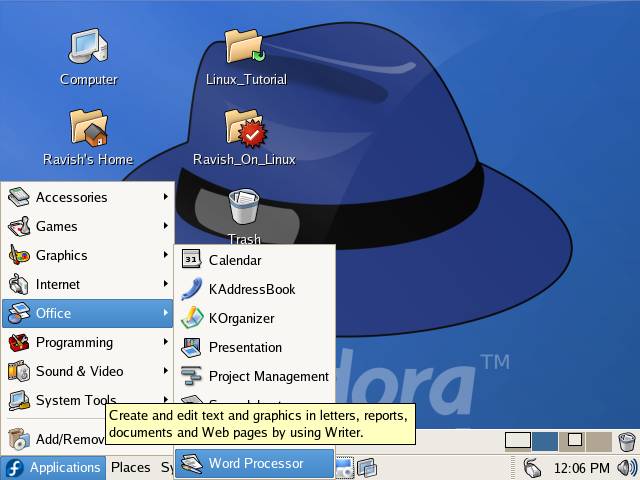
| * From the office sub-menu select Word Processor |
| |
|
| |
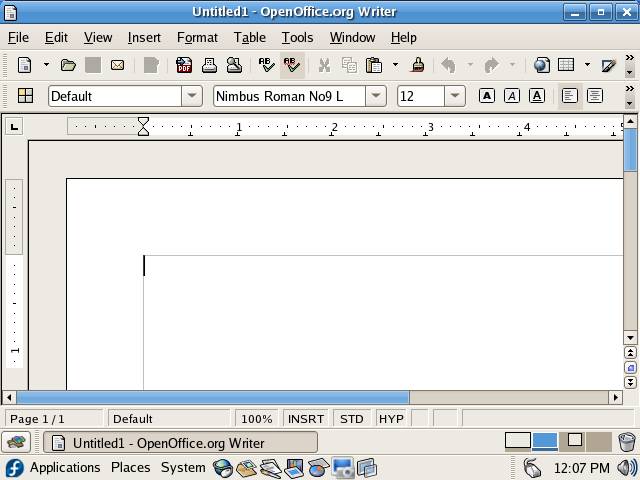
| . OpenOffice.org Writer interface is similar to the Microsoft Word interface. |
| |
|
| |
| This is OpenOffice.org Writer application window and as you seen on the screen it's look is similar to Microsoft Word and it has all the menu that Word has. |
| |
| Creating and Saving a Document |
| |
| Creating a new Document |
| |
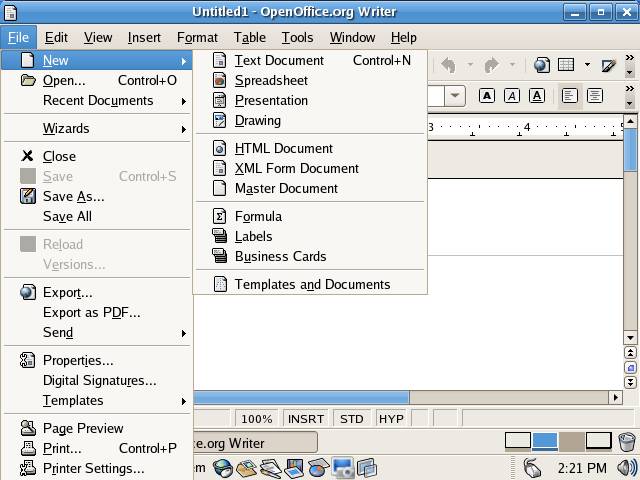
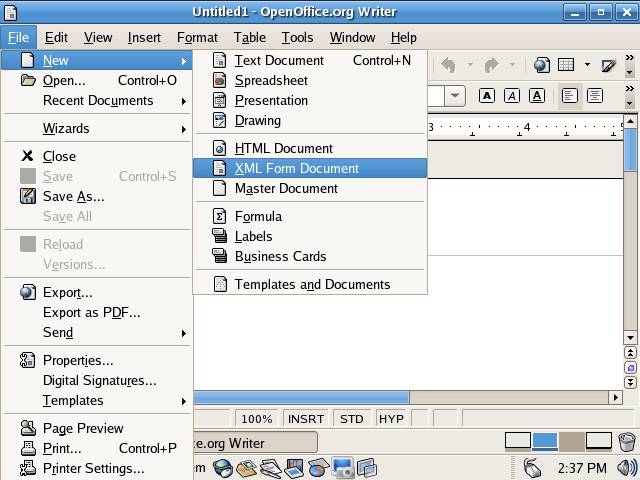
| To create a new document click on File menu and from the drop down menu select New option from the drop down menu. |
| |
|
| |
| From the New sub menu select the type of document you want to create such Text Document or XML Form Document . |
| |
|
| |
| Note: If you wish your document to be MS Word compatible then select XML Form Document instead of Master Document or Text Document , because you can save an XML Form Document in doc format. |
| |
|
| |
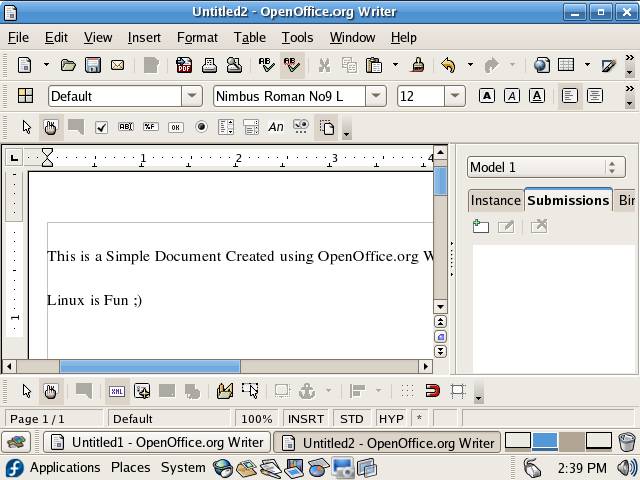
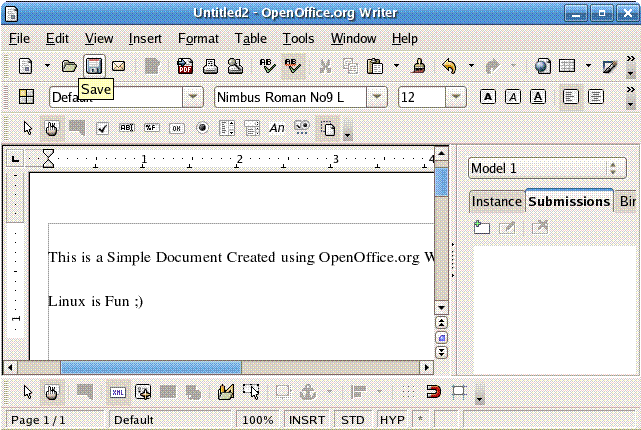
| Make the changes you want to make to your document and click on Save button on the toolbar to save the document. |
| |
|
| |
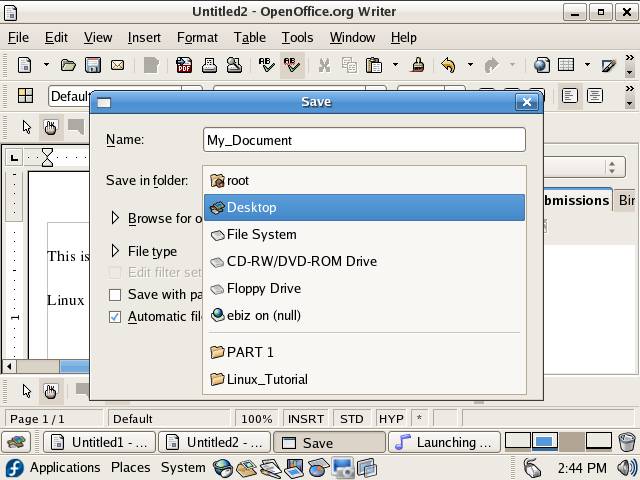
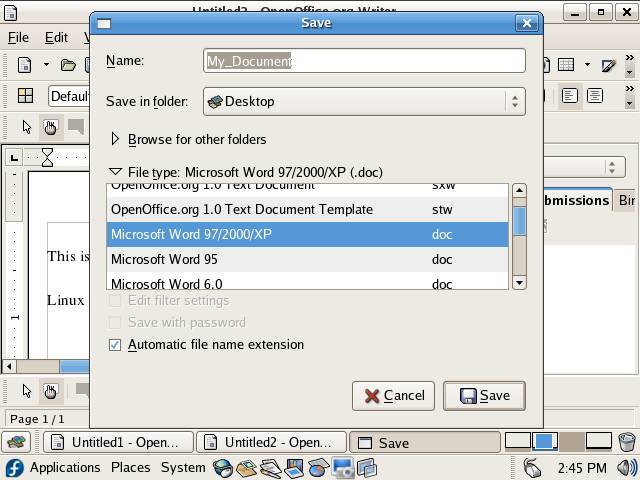
| In the Save dialog box type the name of the file and select the location of the file from Save in box or click on Browse for Folder button to select a custom location. |
| |
|
| |
| After selecting the location click on File type button to specify the format document should be saved in. By default OpenOffice.org Writer uses odt (Open Document Template) format that is not supported by MS Word and if you wish to open this document on windows then select windows compatible format. |
| |
|
| |
| Now click on Save button to save the file. |
| |
|
| |
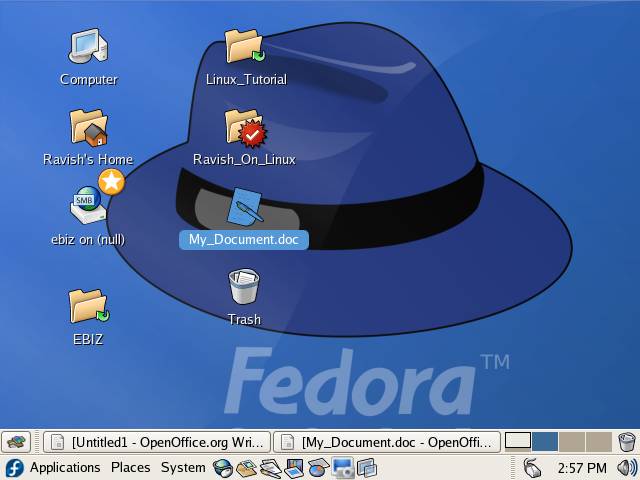
| Your file My_document.doc has been saved on Desktop. |
| |
| |
| |
| |
| |


