| Linux Office Applications (openoffice.org) |
| |
| Introduction |
| |
| The Desktop provides a useful metaphor for a modern office work environment. So on the Desktop we find that the applications that we want to run can easily be started or launched and the information and data that we need can easily be located. |
| |
| Applications that we can run from the Desktop are to be found either from the Main Menu (and sub-menus therein), or as icons on the Panel and the Desktop itself.
To run an application from the Main Menu, open up the menu (or sub-menu) and click on the application listed in the menu bar. |
| |
| To run an application from the Panel, click once on the icon representing the application.
To run an application from the Desktop itself, double-click on the icon representing the application.
Sometimes it is more handy to have the application as an icon on the Panel or Desktop where you can launch it more easily by just clicking on it, rather than in the Main Menu, especially if it is buried deep within several sub-menus. |
| |
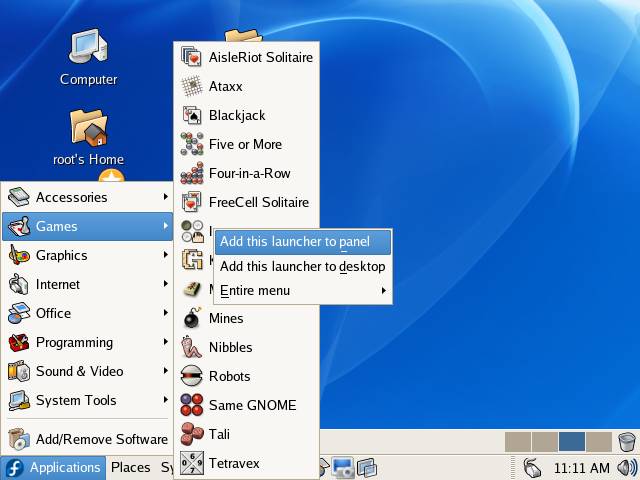
| To achieve this open the Main Menu and select the application item listed in it by clicking with the rightmouse button. Click on the selection "Add this launcher to panel" and a copy of the application icon will be placed on the Panel. |
| |
|
| To make a copy of this on the Desktop, you can drag the icon from the Panel over to the Desktop.
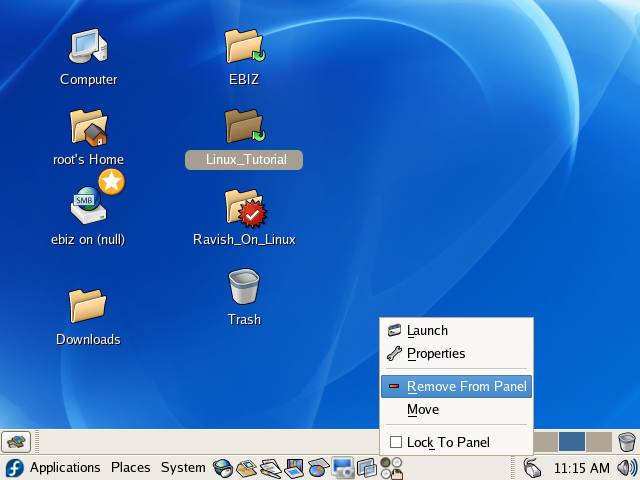
To delete an application icon from the Panel right-click on it and select the "Remove from Panel" option. |
| |
|
| |
| To delete an application icon from the Desktop, right-click on it and select the "Move to Trash" option. |
| |
| |
| |
| |
| |


