| Working with Internet |
| |
| The Different forms of Downloading |
| |
| Downloading technically means the transfer of one file on one computer to another computer. This can take several different forms when you are downloading using the internet. |
| |
| You can save individual web pages or images on a web page which are transferred in an instant or you can transfer whole programs and files by clicking on a link in a web page and the timing will depend on the size of the file. |
| |
| Saving A Web Page |
| |
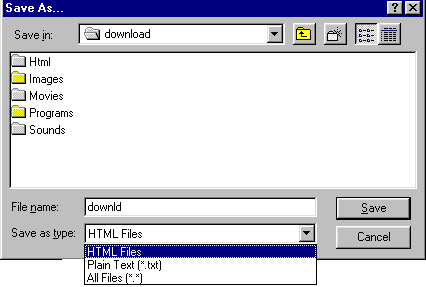
| With simple files like this web page you are reading you can save just by clicking on File on the menu bar of your browser, then clicking on Save As. |
| |
|
 |
| |
| In the save as type menu you will have two options, either to save it as html file or a text file. If you want to save the html code that is used in it or only wish to ever read the file in a web browser save it as a html file. If you want to read the file in any text based programs like Microsoft Word save it as text. This will mean that you don't have to sift through the code that comes with all hypertext documents. If you are using Microsoft Word 97 with HTML options installed you will not have this problem. |
| |
| All of the images on the web page will need to be saved individually if you wish to view the entire document, images included on your own computer. You will also need to store the images in the same directory that the images are stored in (or change the code). Getting confused? It's pretty simple. |
| |
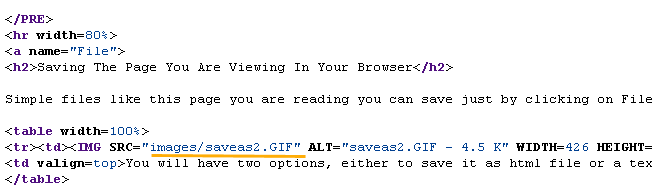
| For this particular document I have stored all the images in a separate directory called images and when I have inserted them into the web page with html code I have told the browser that all of these images are in an images directory. You can view the source code by clicking on the view button on your button and clicking on source code or look at the sample below. |
| |
| Here you can see that the saveas.gif file is saved in an images directory. Now all you have to do is create a subdirectory for this page, call it images and save all the images individually into that directory. When you open this page up from your own computer all images will be intact and the file will be viewed as normal. |
| |
 |
| |
| With HTML files that are in frames, you will either need to click on the particular frame that you wish to save and save it or you will need to collect all the frames by clicking in each frame and then also saving the main frame which is the document if you would like the entire page. Sometimes this can get a little messy and confusing, it might be easier just to do a screen capture of the web page. |
| |
| Downloading A File Through Your Web Browser |
| |
| The following instructions are based on downloading a file using the Netscape browser. Most web browsers operate in a similar manner so the basic concepts can be used for all browsers. |
| |
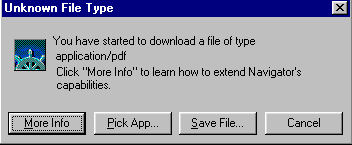
| When you click on the link for a file that you want to download a box similar to the one below will come up. |
| |
 |
| |
| The browser is stating that the file that I am downloading is of a pdf format - see application/pdf. The browser doesn't recognise this file so it is asking for you to either pick an application to run it or whether we want to save it and work out what application we will use to run it later. |
| |
| As a beginner, always save the file unless you are very familiar with the file extension and know what program will run it.. There is nothing more annoying than picking the wrong application, waiting for it to download and then finding the wrong program has been chosen and having to download the file again. |
| |
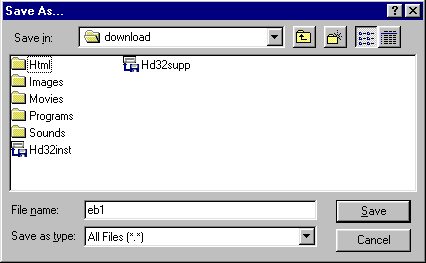
| A box like that below will come up if you click on Save The File. This is where your separate directory comes in handy. If you are using windows 95 you have the ability to create a new directory immediately to store the file in. |
| |
 |
| |
| For Animated Presentation(With Voice) Click Here |
| |
| Using The File |
| |
| This all depends on the type of file that you have downloaded and its file extension. For example if you have downloaded a file to be used in another application like a movie or sound file, you may be able to use it immediately after downloading with your movie or sound player by opening up the application that you would use to play the file and then locating where you have downloaded the file to and playing it in the application. |
| |
| For instance if you downloaded a file called sing.wav you could tell that this is a wav sound file that can be played in any sound player. Sometimes though you will need to uncompress files before you can use them. As you become more familiar with the different file extensions it will become easier to know what you can and need to do for each file you download. |
| |
| Sometimes a file may be so big that it has been compressed so that it is quicker to download . If the file is a compressed file in the Exe, Zip, Sea or Hqx formats it will need to be uncompressed before you can use it. Remember to store it in a download directory so you can locate it easily. |
| |
| Exe files and Sea files can be uncompressed by clicking on them either in File Manager/Windows Explorer or on the Mac Desktop. Zip and Hqx files require other software to be installed firstly before they can be uncompressed. When you uncompress the file another file should pop out of it. |
| |
| For PC users remember to refresh your File Manager after decompressing if you can't see the file immediately. (This is the F5 function key). The file that pops out is the file that you will use when you open up your application like a sound player and locate the file to play it. |
| |
| If the file that you have downloaded is a program/application file like a new web browser or a movie player, after clicking on it, it may decompress and commence a set up program which you would follow the instructions as you would normally installing any new software from a disk or cd. |
| |
| But it may initially uncompress with the installation file popping out of it (usually called setup.exe or install.exe) which you then just need to click on to start the installation process. If you are unsure of which file is the setup/installation file there will also normally be a text file that explains how to install the program. |
| |
| This is the time where having separate download directories come in very handy. Imagine downloading some software called jelly.zip that you have saved into your download directory, sub directory jelly, you click on it in explorer, out pops setup.exe a few read me files and a couple of extra files the program needs to use to install. |
| |
| You then click on the setup.exe, the installation process commences, it creates a program in your programs files automatically. You can now return to your download directory and delete all the files in the jelly directory because they are only taking up space. The program files that are needed are all set up in a different directory and are safe. |
| |
| Plugins & Helper Applications |
| |
| As the range of materials on the web gets more complex and exciting it sometimes is necessary to add special add-on programs to the software on your computer. There are two basic types, plugins and players/helper applications. |
| |
| A plugin is a piece of software or a program that operates within the web browser like the shockwave movie player and a player/helper application normally operates outside the browser like the Netoob movie player. |
| |
| Some plugins can also be helper applications like real audio, real video or adobe acrobat where you could play the file within your web browser or as a stand alone application without being connected to the internet. |
| |
| With the latest versions of Internet Explorer and Netscape Navigator you will have much of what you'll need to enjoy multimedia formats on the web like sound and video but occasionally you will across a file that won't work unless you get the appropriate plugin or player/helper application. |
| |
| If you don't have the appropriate plugin or helper application, when you click on the link you will get a message letting you know that you need to take a few minutes to download the tool or software before you can have any fun. |
| |
| This isn't really difficult to do. On most occasions your browser will also direct you to the web page of the program you need to get, and you just follow the links until you get to a download option, click on download and save it to your computer. |
| |
| With Netscape you can view the plugins that you have installed by clicking on the Help button and then clicking on about plugins. To view helper applications with Netscape, click on Options, General Preferences and then Helpers. |
| |
| Setting Up Helper Applications |
| |
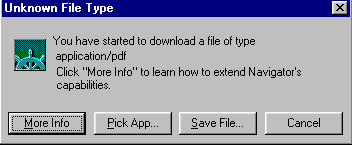
| When you click on a hyperlink of a file your browser doesn't recognise it will give you the option to either save the file or pick an application to run the program with. |
| |
 |
| |
| Most times your browser will recognise the files that you have plugins or helper applications and run them automatically but sometimes it doesn't and you have to set them up manually. This will mean that whenever you come across that type of file the helper application will automatically load up. |
| |
| The most important concept to understand when setting up helper applications is the concept of MIME (Multipurpose Internet Mail Extensions). MIME is a standardized method for organizing different file formats. The method organizes file formats according to the file's MIME type. |
| |
| . When your browser retrieves a file from a server, the server provides the MIME type of the file. The browser uses the MIME type to establish whether the file format can be read by the software's built-in capabilities or, if not, whether a suitable helper application is available to read the file. |
| |
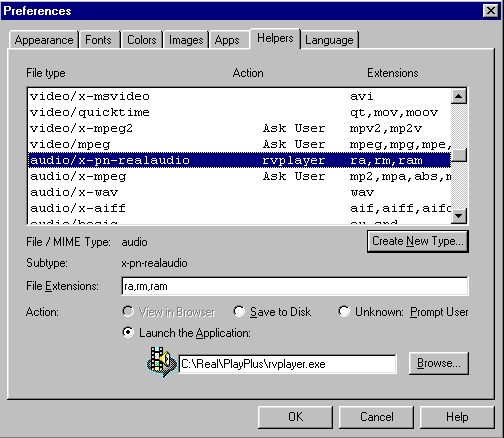
| For Netscape users you can view and configure the mapping of all MIME types to helper applications by clicking on Options, then General Preferences, then Helpers. The following screen should come up |
| |
 |
| |
| From here you only need to click on the format, for example real audio and all files with the extension of ra rm and ram, click on launch the application and then associate the application by finding the executable file on your computer by using the browse button. For ra, rm and ram files it would be the Real Video Player application file in the Real Video Directory - rvplayer.exe. |
| |
| Freeware & Shareware |
| |
| Freeware are fully working models of products that you do not have to pay for but can not alter in anyway or sell or relabel, as the author of the program retains all rights to the program and just allowed you to copy and use it without paying. |
| |
| With Shareware the author again retains all rights to the product but this is more of a testing stage. You are usually allowed to use the product for a limited time, limited access or limited abilities of the product. |
| |
| They normally expire after 30 days if you do not register and pay the fee. Most software of this sort is around the $50.00 mark. This type of software is the most common.
One other type of software is public domain software which allows you to relabel it, copy it, do virtually anything you like to it. |
| |
| |
|
| |
| |


