| Working with Internet |
| |
| Images on the Web |
| |
| Images on the web will come in two file formats, JPEG or GIF. |
| |
| JPEG Images |
| |
 |
| |
| A JPEG file stands for Joint Photographic Experts Group and all images under this format has the file extension of .JPG. You would use a JPEG image for photographs, realistic scenes, or other images with subtle changes in tone. |
| |
| The JPEG file format is not good for images which have sharp lines or lettering, they have a tendency to get blurred. JPEG original files should never be erased as each time you save a JPEG image the image will deteriorate more and more. You should always go back to the original |
| |
|
 |
| |
| Gif stands for Graphic Interchange Format. All images under this format have the file extension of .GIF. This format is the most commonly used image format on the web and includes features that enable background transparency. |
| |
| Saving Images From The Web |
| |
| There are many images on the web that you can use in your own web pages, presentations, documents and papers. You can save these images individually to your own computer Create a separate directory for all your images and call it something like Download and then create a subdirectory called Images. This way you know where to find all the images that you have downloaded from the web. You could even subdivide the images directory up into categories to make each of your images even easier to locate. |
| |
|
| |
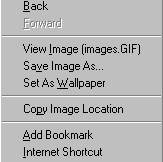
| In order to save the woman dancing image on the left, put your mouse over the image. If you are using Netscape on a PC click your right mouse button , for Macintosh users hold your mouse button down. If you are using Explorer just place your mouse over the image for Macintosh & PC users and give it a couple of seconds. While your mouse is over the image a menu like the one below will come up. |
| |
| You can see that one of the options is SAVE IMAGE AS. All you need to do is click on this option and save the image to your computer in your special directory. |
| |
| Making Screen Captures Of Web Pages |
| |
| Screen Capture involve as the name suggests capturing the image of the entire screen or a particular portion of the screen that you select. For entire screen captures Windows 95 users can press the print screen button on their keyboard. |
| |
| This copies the entire screen to the clipboard. You only need to paste it into the application of your choosing. If you are not using Windows 95 or would like to do partial screen captures you can download a program like Paintshop Pro. |
| |
| Download and save this program to your special Download directory under Programs, and then follow the instructions within the file to set it up on your computer. For more help with this see the Download Section of these materials.
The following instructions are based upon the 32 bit version of Paintshop Pro, other packages and the 16 bit version for Windows 3.1 users operate in a very similar manner. Once you understand the concepts you can use most screen capturing software. |
| |
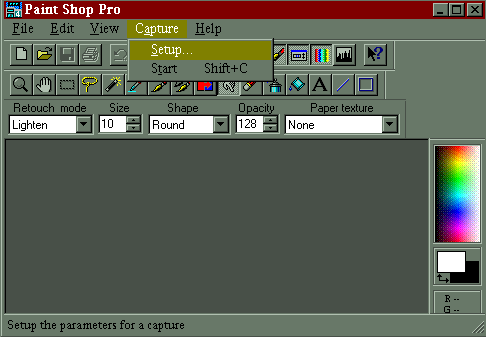
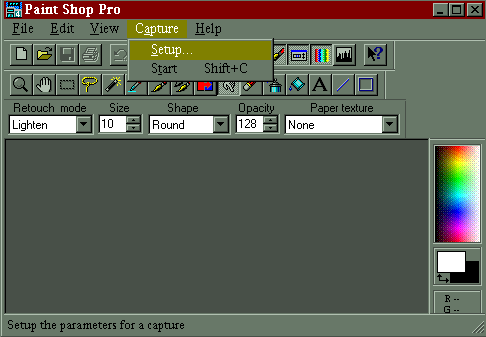
| After you open the software click on Capture on the Menu bar and then click on Setup with your mouse. |
| |
 |
| |
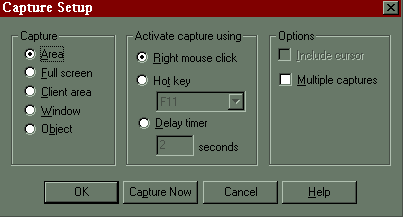
| The setup menu will bring up a box like this one. |
| |
 |
| |
| In the Capture section you are mainly interested in the two top options. Area and Full Screen. If you have Full Screen ticked, the program will capture the entire screen of your computer including all menu bars and everything it can see. If you select Area, you will then mark the Area that you wish to capture. |
| |
| The Activate Capture Using section lets you choose which button will be the trigger for the capturing process. It is set on a right mouse click here but you can change it to be any of your function keys, like F11 for example. You might want to do this so you don't get confused with right mouse clicks for saving individual images. Once your options are set you can click on capture now. In future when you use your software you only need to click on Capture and Start to start doing captures. |
| |
| Once you do this, the Paint Shop Pro Program will hide itself from view so you can start capturing what is on your screen because you need to be able to see the image or page that you wish to capture so this has to be foremost on the screen. When you have this on your screen, hit the trigger key to start capturing (F11 if you changed this). A cross will come up on screen. |
| |
| Position this cross at the corner of where you wish to start your area screen capture. When you are positioned, click your left mouse button once, let go and start moving your mouse over the area you wish to capture. As you move your mouse you will see an outline line of the area in white and measurements changing as you enlarge or reduce the capture. |
| |
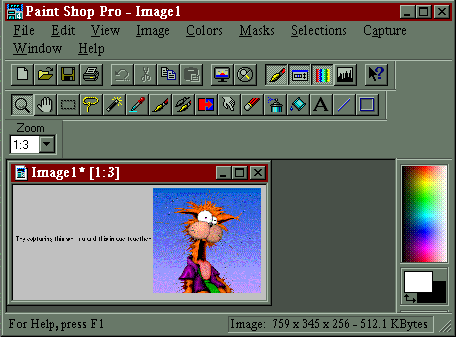
| . When you have the entire area covered click your mouse button again. You will be returned to the Paint Shop Pro program and the area you have captured will also be there. |
| |
| You will see that Paint Shop Pro has saved the area that you marked for saving. It has also given the file a temporary name of Image1.* You will need to give the file a correct name by clicking on File then Save or Save As. |
| |
 |
| |
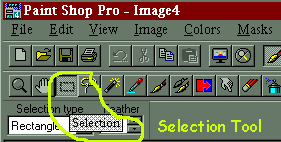
| To capture the entire screen change your Capture options to Full Screen and then click on capture now. Your entire screen will be captured using the same process as saving a selection. Remember you will get everything in there including the buttons and menus around the page. You can crop this image afterwards to get rid of these things by clicking on the Selection Button.Then with your mouse highlight the area you would like to keep. |
| |
| So start at the corner, click your left mouse button, hold it down and drag your mouse to the end of what you would like to keep, then let go of the mouse button and that area will be enclosed in a rectangle. Now that you have this area highlighted, click on the Menu option Image and then Crop Now. Everything except the area you have highlighted will disappear.. |
| |
 |
| |
| Download and save this program to your special Download directory under Programs, and then follow the instructions within the file to set it up on your computer. For more help with this see the Download Section of these materials; |
| |
| The following instructions are based upon the 32 bit version of Paintshop Pro, other packages and the 16 bit version for Windows 3.1 users operate in a very similar manner. Once you understand the concepts you can use most screen capturing software. |
| |
| After you open the software click on Capture on the Menu bar and then click on Setup with your mouse. |
| |
 |
| |
| Finding Images On The Web |
| |
| Where do you find images? There are lots of collections of free ClipArt available on the web. Just to get you started here are some places you can go to get buttons, backgrounds, icons and images for your web page. If you are not sure how to save them Read the Saving Images information first. |
| |
| • FUNET Collection of images, from animals to the Zodiac. |
| |
| Making Your Own Graphics |
| |
| Graphics software will allow you to create, alter and organise you graphics. You can even create animated graphics. PhotoShop for both Macintosh and PC is a powerful graphics program which you can use to create original images for your web publishing. For some tips on creating web graphics with PhotoShop, |
| |
| Adding Images To Web Pages |
| |
| Adding graphics, including ClipArt, photographs and backgrounds to your WWW page can not only make it more attractive, but can make it easier to use. For example, you could use symbols or colours to help people navigate your page or site. However you need to keep in mind that while some graphical interest is good, the graphics should neither overwhelm the content of your page, nor make it difficult to read or explore. |
| |
| If you use graphics on your web site try and make them AS SMALL AS POSSIBLE. A good guide is to keep the total for all graphics under about 30 Kb per HTML page. Use JPEG for photographic images (use the most compression possible), and GIF for computer artwork, drawings etc. |
| |
| You also need to remember that many people, because of limitations of time, cost or software, either don't see, or choose to turn off images. Your web page needs to be designed so that the maximum number of people can view it adequately, which means that you need to make sure that your images aren't so big that the page takes forever to download (20k is about the maximum size). |
| |
| If you use graphics as a navigation device make sure that you include ALT references (where you give a text description as part of the image direction). |
| |
 |
| |
| <IMG SRC="IMAGES/SNAKE.JPG" ALT="Picture of a Snake"> |
| |
| The information within the quotation marks is the path of the image or where the image can be located. These quotation marks around the path of the image file are important and if left off will leave you with a broken image symbol like this . You will also get a broken image if the path name is incorrect or the filename of the image is incorrect.
All images should be kept in a separate directory from your HTML files. Most Webstes store images in sub-directories and title it images or gif and jpeg for each type of image. |
| |
| |
|
| |
| |