| e-Mail |
| |
| Sending & Receiving E-mail |
| |
| Email messages are often less formal than letters and can sometimes be as short as one single word. Because it is treated more casually than a formal letter sometimes people aren't as careful with what they say in an email message |
 |
|
| |
| Anatomy of an Email Message |
| |
| Recipients Name & Address |
| |
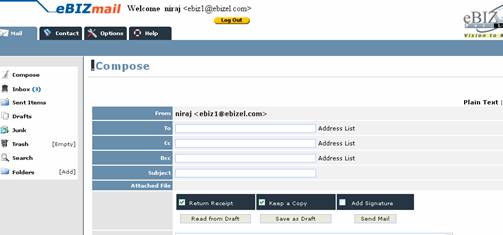
| You can't send email without having the other person's full email address. Without it its like mailing an envelope without any address on it. Just as you would put the person's name and address on the envelope, you would put their email address, comprised of their Username and domain name, on the email message. You can include their real name in the message also. |
| |
| You may be able to find an eBIZ users email address at the ebizel.com |
| |
 |
| |
| Most email packages allow you to set up an email address book so that you only need to click on the person you would like to send the message to once you have put them in your book. All you need to do is use the automatic addressing feature to transfer the address to your new message. |
| |
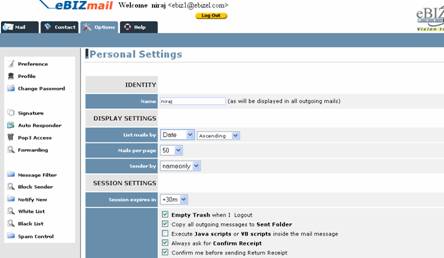
| As you would normally put your return name and address on the back of an envelope so the message can be returned to you if there is a problem - you can include this on your email software when you set it up so it does the same with the email messages you send. |
| |
 |
| |
| For Animated Presentation(With Voice) Click Here |
| |
|
RETURN NAME & ADDRESS |
| |
| Subject |
| |
| If you type in the subject, this subject header will show up on their email program so that they get an idea of what your message is about - you can type in Urgent! to let the recipient know to open it right away. |
| |
|
SUBJECT, TIME & DATE ON INCOMING MAIL |
| |
| Time & Date |
| |
| The email program automatically puts in the time, the date. |
| |
| Main Body |
| |
| This is where you type the main body of your message. |
| |
| Attachments |
| |
| Documents can also be attasched to email messages. To attach a document or other type of digital file to an outgoing emssage, select Attach File from the Message menu.. A standard dialogue box will be displayed. Slect the document you want to send and click OK. The location of the file will appear after the Attachments: field of the header. When the message is sent the attachment will be located and sent also. |
| |
| Receiving Attachments - Select the directory or folder you want the attachments to be saved to. You can do this by going to Settings menu, then clicking of Attachments, followed by the box under Attachemnt Directory. Select a directory/folder for your attachments to be saved into. If you do not select a specific directory, incoming attachments will be saved into the Eudora directory. |
| |
| BEWARE!! When you are sending attachments please ensure that the person you are sending to will be able to "read" (open) the file. Check to find out if they have the corrrect software and the correct version of that software. If in doubt save word processor documents as .rtf - most word processors can read this type of file, although you may lose some formatting in the process. |
| |
| For Animated Presentation on how to send Attachment(s) with your email (With Voice) Click Here |
| For Animated Presentation on how to download Attachment(s) from your email (With Voice) Click Here |
| |
| CC (carbon copy) |
| |
| You can forward a copy of your message to the user you include here. All you need to do is include their email address in this section. |
| |
| CC (blind carbon copy) |
| |
| This field allows you to send to send a copy of a message to someone else without the original recipient knowing. |
| |
| Checking for Email |
| |
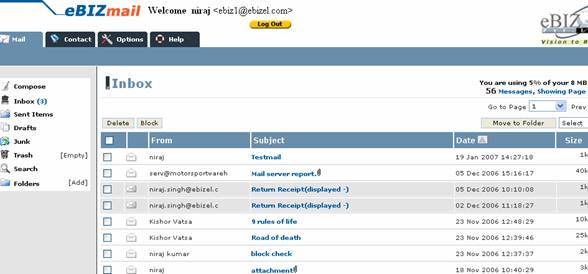
| To check if there is any new mail you have to login to your email software with your account. To do that you open the software, your Username will automatically come up and your password will be requested. After you type in your password your email program will connect to your mailbox at your post office to see if there is any mail waiting for you. |
| |
| If there is it will download the messages to your computer and tell you you have new mail. You click on OK, and then just click on the new messages that you have to open them. You can tell they are new by the unopened markers next to them. |
| |
 |
| |
| For Animated Presentation(With Voice) Click Here |
| |
| NEW MAIL |
| |
| If you want to make the best use of email make sure to check regularly for incoming mail and reply as soon as possible. The benefit of email is its ease of use in sending, receiving AND replying promptly. |
| |
| Remote Access |
| |
| You don't have to use the same computer to access your email, you can access it remotely from other computers as long as the computer has email software and you know the domain name of your mail server and your user details. |
| |
| Reply Command |
| |
| The email program has an automatic reply command, which will instruct it to prepare an email reply to go to the sender of the email. The program automatically insert the senders email address, and by default the same subject header. You have the option of including the original text in the message when you reply so that you can refer to points in it. |
| |
| Bounced Email |
| |
| Occasionally you will get email returned to you that has "bounced", this happens if you type the address incorrectly or the user has cancelled their account. It will be returned to you with an error message telling you why it couldn't be delivered like - "this message could not be delivered as there was no email account or mail box for this person". It is very important to get the address exactly right including all underscores and full stops. |
| |
| Email In The Classroom |
| |
| Electronic Mail in the classroom is an exciting adventure for both students and teachers. Some of the benefits of using electronic mail include: |
| |
• Students are writing messages for a purpose and a real audience
• Increased focus on literacy
• Increased motivation
• Co-operative team work
• Less emphasis on teacher-directed learning
• Improved research skills
• Increased communications
• Provides stimulus for students to learn about other cultures
• Increased comprehension, hand-eye coordination and typing skills |
| |
| There are many fun and educational projects can be joined through the Global Classroom Project site. |
| |
| Email Lists |
| |
| What is an e-mail discussion list? |
| |
| An electronic mail list is simply a discussion group which operates via electronic mail. In its simplest form an e-mail list can be a small number of people who send mail backwards and forwards to each other, possibly a professional group, or people with a particular interest in common. |
| |
| Imagine that at one stage this group of people decided to formalise things a bit, and appointed one person to operate as the maintainer of the discussion. One way of doing this would be for that person to maintain the list of e-mail addresses of the other members. |
| |
| Then each member of the list who wanted to join in the discussion would forward their message to that one person, who would then distribute it to everyone else. |
| |
| This would work quite well if there were only a small number of participants, but what if the discussion was so interesting that lots of people wanted to join in? It would become a lot of work for the person who was running the list. |
| |
| In order to make life simpler for the person who runs the list (the list owner), there are several kinds of software which automate the running of an e-mail list, including enrolling new members (subscribing), removing members (un-subscribing), changing mail preferences and distributing the messages. |
| |
| There are several different kinds of software which do this, one of the most common is known as Listserv software, so you will often see e-mail discussion lists called Listservs, after this software. However there are other kinds, including Majordomo. All of this list software operates in a similar fashion, so once you have learned how one kind works, it is easy to learn the others if you need to. |
| |
| How does a list work? |
| |
| Simply, once you have subscribed to the list (see below), all you need to do is send your mail message to the list's address and your message will be automatically distributed to every other member of the list. |
| |
| Why would I join one? |
| |
| Electronic mail lists are an excellent way of participating in discussions with people who share an interest in your particular subject area. They are a good way of keeping up with the latest developments in your field by belonging to a network of people all over the world who are working in your area. |
| |
| You can share ideas or concerns, ask questions, find out about research, conferences or professional development activities and discover what is going on in other regions, states or countries |
| |
| Electronic mail is a relatively low cost form of communication and e-mail lists are free. It costs you nothing except your dial-up time to subscribe and participate. The only cost you might find is in time, if you join a high volume mail list, or find yourself participating in a lot of discussions! |
| |
| For people who may be isolated from other professional networks because of distance, or for any other reason, electronic mail lists are an excellent way of remaining in touch with your colleagues, researchers in your field and other interested people. |
| |
| Where do I find a list? |
| |
| There are tens of thousands of e-mail lists in the world covering a huge variety of subjects. If you are looking for a list in a particular subject area here are some places to look. PAML, (Publicly Accessible Mail Lists) at: http://www.neosoft.com/internet/paml/ has possibly one of the most comprehensive lists of electronic discussion lists on the web. Another place to look is LIZST at: http://www.liszt.com/ where you can search more than 66, 000 lists for one that interests you. |
| |
| How do I join a list? |
| |
| Once you have found a list you need to let the list know that you want to join in the discussion by subscribing to the list. You do this by sending a subscription message (request to join the list) to the list address. The subscription message will vary depending on which list administration software is being used. |
| |
| Here is a table of the subscription messages for the major list administration software. |
| |
| Package |
Command |
| LISTSERV |
subscribe listname yourfirstname yourlastname |
| LISTPROC |
subscribe listname yourfirstname yourlastname |
| MAILBASE |
join listname yourfirstname yourlastname |
| MAJORDOMO |
subscribe listname |
|
| |
| Depending on the list you will get a message back, either letting you know that you are subscribed to the list, or that your subscription to the list has gone to the list owner for approval. Some lists are moderated or closed lists, which means that the list is open only to a particular group of people, or that all messages sent to the list need to be approved by the list owner before they circulate to other members. |
| |
| Note that most lists are publicly accessible, so that all you need to do is send your subscription message in order to be allowed to join. |
| |
| All e-mail lists have two addresses. One address is that of the automatic list software (for example listserv or majordomo), the other is the address to which you send your messages when you want to participate in the discussion. |
| |
| The first address will have the name of the e-mail software as the first element, (the bit before the @). The second address has the same element after the @ as the first address, but the bit before the @ is the name of the list. So if we invent a listserv called list-l, which is held at an address called address.edu.au, the two addresses would be: |
| |
| listserv@address.edu.au and list-l@address.edu.au.
The first address is where you send your subscription detail, the second address is where you can send your messages to join in the discussion. |
| |
| An easy way to sort this out is to think of the e-mail list as a club you want to join. Most clubs will have a secretary who is responsible for such things as requests to join, membership subscriptions, changes of address and other administrative details. This is the equivalent of the first address (majordomo@edx1.educ.monash.edu.au). |
| |
| However, if you wanted to submit an article to the club's newsletter you wouldn't send it to the secretary, you'd send it to the person responsible for that particular activity, possibly the newsletter editor. This is the equivalent of the second address (called the list address), the one where you send your thoughts, comments, information and questions. |
| |
| It is important that you are sure of the difference between the two addresses because if you try and send a question to the majordomo address you will simply get an error message back, while if you send a query about your subscription to the list address you won't get any action. |
| |
| One important thing to remember about subscribing to a list is that in order to use the list, you need to send any messages, to either address, from the original e-mail address you subscribed from. It is the equivalent of having the club's newsletter sent to your home address, if you move and don't let the secretary know you have changed addresses, you will no longer get your mail. |
| |
| So if you change e-mail addresses you will have to unsubscribe from the list using your old address and resubscribe using your new address. If you send a message to the list and get a reply saying that you are no longer subscribed to the list, check to make sure that you are sending your message from the e-mail address you used to subscribe. |
| |
| What other things do I need to know? |
| |
| There are other commands you can send to the majordomo which can be very useful to know. One of the most useful, and the easiest to remember is the word HELP. If you send a message to you majordomo address with just this in the body of your message you will receive a list of the commands that majordomo recognises, including instructions for subscribing and unsubscribing. |
| |
| But remember that their is more to e-mail than just joining a list, you need to remember that there are real people on the other end of the list. This is where Netiquette is important. |
| |
| Style Guide for Email |
| |
| Because e-mail is fast and easy to use, there is a tendency to write before you think. In order to make and keep friends using e-mail it is a good idea to learn about Netiquette, but it is also important to learn a few e-mail style guidelines which will make your messages welcome in the mail boxes of your correspondents. |
| |
| • Most e-mail programs are strictly text only, and use only the letters, numbers and keyboard punctuation marks, without any of the formatting you are used to being able to use in word-processing. |
| |
| • Keep it short. Unformatted text is not particularly easy to read on screen, so your chances of someone reading your whole message are better if you keep it as concise as possible. The length of a message might not seem important if you don't get much mail, but for people who receive a lot of e-mail there may not be time to read long messages. |
| |
| • If you need to write a longer message, flag it in the subject line of the message, ie "Why the Cat in the Hat Came Back (long)". This way people know that it's a long message and can decide whether they have time to read it immediately. |
| |
| • Always use a subject line and try and make it as relevant as possible to your message. This is the first part of the message anyone sees when they open their e-mail program and many people choose whether or not to read the message on the basis of the subject line. |
| |
| • A whole screen of text is not easy to read either, so try and break your message up into short paragraphs with breaks in between. White space makes text easier to read. |
| |
| • For much the same reasons don't use all capitals in a message. In the culture of cyberspace, messages written in all capitals are seen as shouting. This is because a message composed entirely of capital letters is uncomfortable to read. It's okay though to use all capitals IF YOU WANT TO EMPHASIZE SOMETHING, as long as it's not a whole message. |
| |
| • There are other ways of creating emphasis. You can use *.* to indicate italics. This can be *very useful*. |
| |
| • If you want to underline you can use underscores _. For example if you wanted to underline the title of a book, _The Cat in the Hat_. |
| |
| • Keep your line length shorter than 80 characters and preferably no longer than 60 characters. Otherwise when your message is received it might break
in
strange places
which is
very irritating to read. |
| |
| • If you are sending a message to a mailing list, don't start your message with a space. Some mailing lists gather a group of messages together and send them to subscribers all at once (this is called a digest). A message with a space at the beginning can cause the digest to truncate at your message. |
| |
| • Always include your name and e-mail address at the bottom of your message. Some mail programs don't receive the message header which generally includes your name and e-mail address, so if they wanted to answer you they might not be able to. |
| |
| • Some people have created remarkable signatures from simple ASCII text, but they tend to be quite large. Try and keep your signature file to no more than four lines. Some people have to pay for their e-mail by the amount they download, so it is considerate to save message size by keeping your signature short. |
| |
| Emoticons & Acronyms |
| |
| There are many ways of adding personality and meaning to your e-mail message, these are known as emoticons and acronyms. There are lots of them, but the most common are the ones to indicate humour. There is the smiley face :-) (try looking at it sideways), the grin, and the very big grin . Try some of these in your messages. |
| |
| Acronyms |
| Words |
Meaning |
Words |
Meaning |
| FOFL |
Fall on the floor laughing |
IRL |
In real life |
| LOL; |
Laugh out loud |
YMMV |
Your mileage may vary |
| ROTFL |
Roll on the floor laughing |
ITRW |
In the real world |
| TTFN |
Ta ta for now |
BTW |
By the way |
| Grin |
Grin, joking |
BG |
Big grin |
| VBG |
Very big grin; |
RTFM |
Read the flaming manual |
| TIA |
Thanks in advance |
IMHO |
In my humble opinion |
| IMNSHO |
In my not so humble opinion |
IOW |
In other words |
|
| |
| |
| Emoticons |
| Symbol |
Used for |
Symbol |
Used for |
| :-); |
Smile, "I'm joking" |
:-( |
Frown, "I'm not happy" |
| :) |
Smiley for lazy typists |
:( |
Frown for lazy typists |
| ;-) |
Wink, a sly grin |
:-O |
Shocked |
| * |
Kiss |
{ } [ ] |
Hugs |
| {{{***}}} |
Hugs and kisses |
:-P |
Sticking out your tongue |
| :,-( |
Crying |
:-| |
Can't decide how to feel |
|
| |
| |
|
| |
| |


