| e-Mail |
| |
| Setting up an E-mail Account |
| |
| http://www.hotmail.com |
| |
| To learn more about hotmail click on All about hotmail. |
| |
 |
| |
| Click on New Account Signup. |
| |
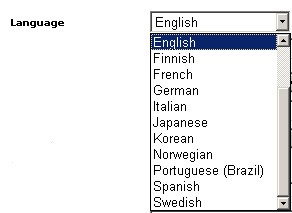
| Fill in your personal information which includes: Name, Language, Country, State, Zip Code, Time Zone, Gender, Birth Date, Gender, and Occupation. |
| |
| Notice the drop down menu which allows you to choose one of several answers. Simply click on the down arrow and drag the mouse to the option you would like to choose and when highlighted, release the button. |
| |
| |
 |
| |
| Creating an Account Continued |
| |
| • Username: Choose a username you would like to have your e-mail addressed to. You can use your name, birthdate, favorite hobby, number of children or grandchildren, or any combination of items. |
| |
| Some usernames may already be taken so it is important to be more unique. For example, instead of grandma@hotmail.com you could use grandmamoses@hotmail.com. It may take a few tries before you create a name that is not in use. |
| |
| • Password: Make the password something you can remember.
An address, birthdate, hobby, color, or object that you will remember work well. |
| |
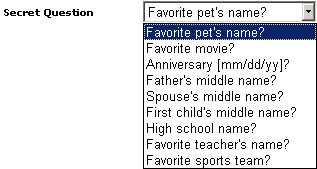
| • Secret Question: If you forget your password, you will be asked the secret question of your choice. |
| |
 |
| |
| For Animated Presentation(With Voice) Click Here |
| |
| • Secret Answer: Select a question you will always know the answer to. |
| |
| • Registration Check: Type in the letters and/or numbers you see in the box. This step prevents companies from e-mailing unwanted solicitations to hotmail account holders. |
| |
 |
| |
| • Agree to Terms of Service: Agree to follow the terms of service by clicking on the box.
After clicking on the "I Agree" button, you will be taken to the next screen |
| |
| Accessing Your Account |
| |
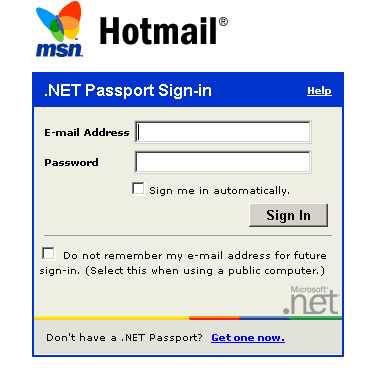
| Anytime you would like to access your e-mail account go to http://www.hotmail.com.• Type in your username@hotmail.com and password and click Sign In. |
| |
 |
| |
| For Animated Presentation(With Voice) Click Here |
| |
| • If you are using a private computer and would like the computer to sign you in automatically, click the box under password. |
| |
| • If you are using a public computer, click the box under sign in to keep your e-mail address and password private. |
| |
| What to Expect From Your E-mail Account |
| |
| You will be able to keep in contact with friends and family all over the world at the click of a mouse. You will also be subject to junk mail. |
| |
• Junk mail is unsolicited e-mail from companies.
• Junk mail can usually be identified by the name of the sender which is identified under the from column. |
| |
 |
| |
• For instance, any weird name found in the From column (for example, anne909tk435) will most likely be junk mail.
• Well-known companies may also send you junk mail.
• However, you have the option of what to do with junk mail. You will learn how to delete junk mail in a following lesson.
• Hotmail has special controls to limit the amount of junk mail able to enter your e-mail account. |
| |
| Changing Your Password |
| |
| For security purposes, you may need to change your password from time to time. You can do this by clicking the Options link, which is written in white letters and located in the top right corner of your Inbox. |
| |
 |
| |
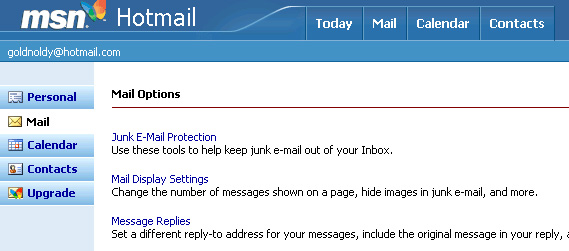
| Next you will reach a page called Mail Options. In a left-hand column, you will see several options. Click once on Personal, the first choice listed to the left. |
| |
 |
| |
| Changing Your Password Continued |
| |
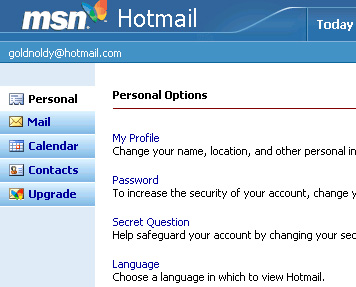
| After clicking on the Personal button, you will reach a page titled Personal Options. |
| |
 |
| |
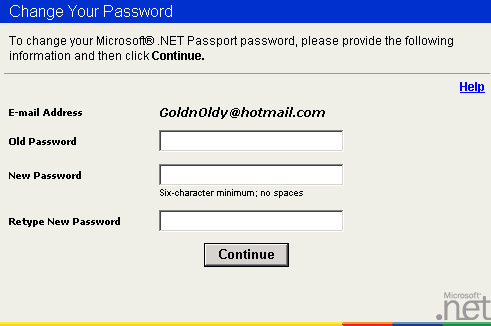
| Under the Personal Options header, click on Password, written in blue letters. Next, fill in your old password and enter a new password. Click continue. |
| |
 |
| |
| |
|
| |
| |


