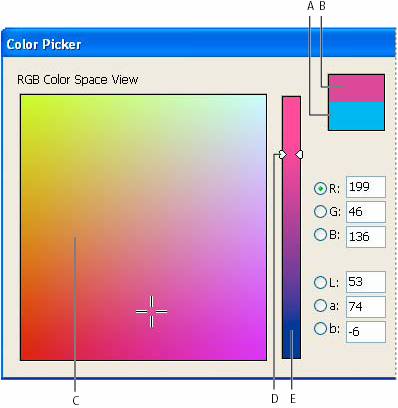
• Double-click on Fill box in the Toolbox or the Color panel to open the Color Picker. Select the desired color, and click OK.
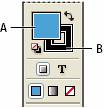
• Double-click on Stroke box in the Toolbox or the Color panel to open the Color Picker. Select the desired color, and click OK.
• The Gradient box in the Gradient panel.
• Swatches from the Swatches panel.
• Click and select Eyedropper tool

• Click on any sample object that has fill and stroke attributes that you want to apply on object.
• You will notice the selected objects are automatically updated with the fill and stroke attributes of the object you clicked.
• Click the Fill or Stroke box in the Swatches panel or the Toolbox.
• Choose Window > Gradient or double-click the Gradient tool in the Toolbox.
• Click the leftmost color stop below the gradient bar, and then do one of the following:
• Drag a swatch from the Swatches panel and drop it on the color stop.
• Click the rightmost color stop below the gradient bar.
• Select either Linear or Radial in the Type menu.
 |
 |
 |