| Drawing in Indesign |
| |
| Transformation of Objects |
| |
| By transforming object we mean rotation, position, scaling and shearing of object. |
| |
Transformation of object can be made by:
• Transformation Panel where all transformations, with the addition of reflection, are available.
• Transformation Tools- The Rotate, Scale, Shear, and Free Transform tools.
• Transformation commands |
| |
| Rotation of Object |
| |
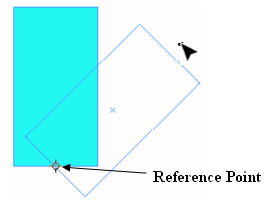
| Rotation of object with Rotation Tool |
| |
• Select the object to rotate.
• Click on Rotate tool . 
• Click where you want the reference point to appear.
• Position the tool away from the reference point, and drag around it. |
| |
 |
| |
| Note: An object can also be rotate with Free Transformation Tool |
| |
| Rotation of object with Transform Panel |
| |
• Select the object to rotate.
• To display Transform Panel Go to Windows>Object and Layout>Transform |
| |
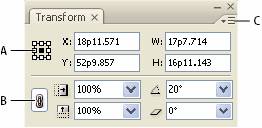 |
| Transform panel A. Reference point locator
B. Constrain Proportions icon
C. Panel menu |
| |
| • In the Rotation Angle box on the Transform or Control panel, type a positive angle to rotate selected objects counterclockwise, or type a negative angle to rotate selected objects clockwise, and then press Enter |
| |
| Note: To Change reference point of rotation click on Reference point of transform panel. |
| |
Rotation of object with Rotation Command
• Select an object to rotate.
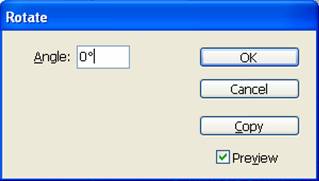
• Choose Object > Transform > Rotate. |
| |
 |
| |
• Enter the rotation angle, in degrees, in the Angle box. Enter a negative angle to rotate the object clockwise; enter a positive angle to rotate the object counterclockwise.
• To rotate the object, click OK.
• To rotate a copy of the object, click Copy. |
| |
| Scaling of Object |
| |
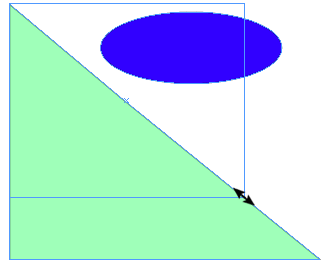
| Scaling of Object with Selection Tool |
| |
Select the object to scale.
Click on Selection Tool.
Drag object from any corner. |
| |
 |
| |
| Note: To change the size of object proportionally just press Shift key and drag from any corner of object. |
| |
| Scaling of Object with Scale Tool |
| |
• Select an object to scale.
• Select the Scale tool.
• Position the Scale tool away from the reference point and drag. |
| |
| Scaling of Object with Transformation Panel |
| |
• Select an object to scale.
• In the Transformation Panel, choose a preset percentage value in the Scale X Percentage or Scale Y Percentage or Scale Y Percentage pop up menu and press Enter. pop up menu and press Enter. |
| |
| Scaling of Object using Scale command |
| |
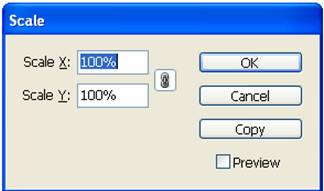
| Choose Object > Transform > Scale. |
| |
 |
| |
• Type a percentage value in the Scale X or Scale Y box.
• Click Ok. |
| |
| Shearing of Object |
| |
| Shearing of Object with Shear Tool |
| |
• Select an object to shear.
• Click on Shear tool.
• Position the Shear tool away from the reference point, and drag. |
| |
| Note: Shift-drag to constrain shearing to a perpendicular vertical or horizontal axis. |
| |
| Shearing of Object with Transformation Panel |
| |
• Select an object to shear.
• In the Transform or Control panel, type a positive or negative angle in the Shear box, and press Enter box, and press Enter |
| |
| Shearing of Object using Shear command |
| |
• Select an object to shear
• Select Object > Transform > Shear
• Type the shear angle.
• Click Ok. |
| |
| Transformation Again |
| |
• Select one or more objects, and perform all the transformations you want to repeat.
• Select the object or objects to which you want to apply the same transformations.
• Choose Object > Transform Again and then select one of the following options: |
| |
Transform Again Applies the last single transform operation
to the selection.
Transform Again Individually Applies the last single transform operation
to each selected object individually, rather
than as a group.
Transform Sequence Again Applies the last sequence of transform
operations to the selection.
Transform Sequence Again Individually Applies the last sequence of transform
operations to each selected object
individually. |
| |
|
| |


