| Drawing in Indesign |
| |
| Applying Stroke Settings |
| |
| Strokes can be applied on Text, Text Frames and on objects. By applying stokes we mean increasing or decreasing the width of outline of object or text, defining corner effects & defining custom strokes style ie stoke can be either dotted line or double line. By defining corner we mean a rounded corner, inverse roundness, bevel or some fancy effect on corners of an object. |
| |
| Defining the width of object or text |
| |
• Select path or object.
• Click Windows>Stroke or press F10.
• Stroke panel will appear on the screen.
• Type or Select the width in the stroke weight. |
| |
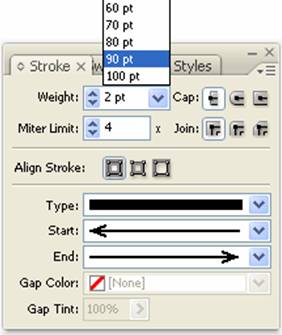 |
| |
| Defining Stroke Style |
| |
• Select path or object.
• Click Windows>Stroke or press F10.
• Stroke panel will appear on the screen.
• Click on Type and select the stroke style. |
| |
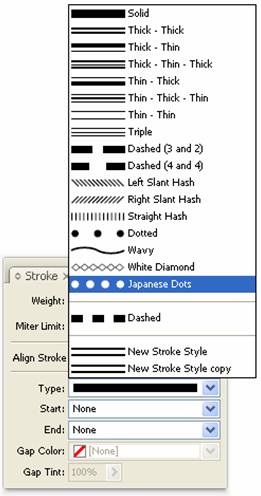 |
| Figure showing different stroke styles in Stroke Panel |
| |
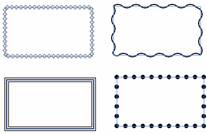 |
| Fig. A rectangle with different Style Strokes applied on it |
| |
| Applying Corner Effects |
| |
1. Select a path.
2. Go to Object > Corner Options.
3. Select any effect from Effect menu.
4. For Size, type a value to specify the radius by which the corner effect extends from each corner point.
5. Select Preview if you want to see the results of the effect before applying it. Then click OK. |
| |
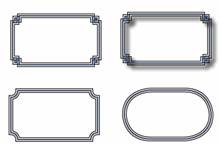 |
| Fig showing different type of Corner effects of rectangle. |
| |
|
| |


