| Drawing in Indesign |
| |
| Editing Paths |
| |
|
Editing Paths means adding, deleting the line or curved segments. It also includes adjusting the position or length of curved segments. |
| |
| Adjusting paths |
| |
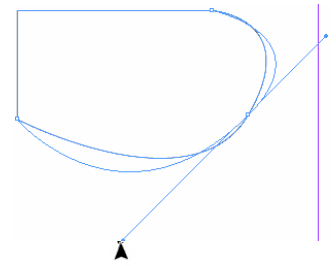
• With the Direct Selection tool , select an anchor point on the segment you want to adjust.
• Drag the anchor point to the desired position. Shift-drag to constrain the adjustment to multiples of 45°. |
| |
 |
| |
| Deleting Segments |
| |
1. Select the Direct Selection tool , and select the segment you want to delete.
2. Press Backspace to delete the selected segment. Pressing Backspace or Delete again erases the rest of the path. |
| |
| Connecting two open path |
| |
• To connect the path to another open path, click an endpoint on the other path. When you precisely position the Pen tool over the other path’s endpoint, a small merge symbol appears next to the pointer.
• To connect a new path to an existing path, draw the new path near the existing path, and then move the Pen tool to the existing path’s (unselected) endpoint. Click that endpoint when you see the small merge symbol that appears next to the pointer. |
| |
| Adding and deleting anchor points |
| |
The toolbox contains three tools for adding or deleting points: the Pen tool , the Add Anchor Point tool , the Add Anchor Point tool  , and the Delete Anchor Point tool , and the Delete Anchor Point tool . .
By default, the Pen tool changes to the Add Anchor Point tool as you position it over a selected path, or to the Delete Anchor Point tool as you position it over an anchor point. |
| |
| To Add anchor points: |
| |
1. Select the path.
2. Select the Pen tool or the Add Anchor Point tool.
3. Position the pointer over a path segment and click. |
| |
| To Delete anchor points: |
| |
1. Select the path.
2. Select the Pen tool or the Delete Anchor Point tool.
3. Position the pointer over a path segment and click. |
| |
| Converting corner point to smooth point |
| |
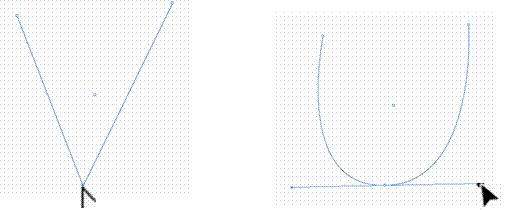
1. Select Direct Selection tool  , click on path. , click on path.
2. Select Convert Direction Point tool . .
3. Position the Convert Direction Point tool at the anchor point you want to convert, and do one of the following: |
| |
| • To convert a corner point to a smooth point, drag direction lines out of the corner point. |
| |
 |
| |
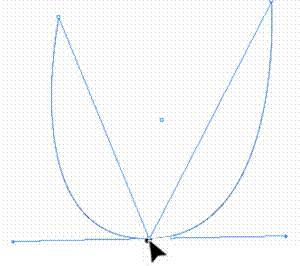
| • To convert a smooth point to a corner point without using direction lines, click a smooth point. |
| |
 |
| |
| Smoothing path with Smooth Tool |
 |
|
• Select path you want to edit.
• Click on Smooth tool. |
| |
| Note: If the Pencil tool is selected, hold down Alt to temporarily change the Pencil to the Smooth tool |
| |
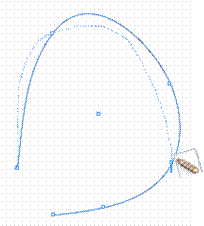
• Drag along the length of the path segment you want to smooth out.
• Continue smoothing till the stroke or path is of the desired smoothness. |
| |
 |
| |
|
| |


