| Working with Layout |
| |
| Master Pages |
| |
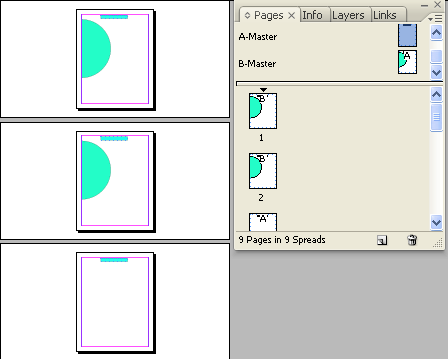
| A master page can be called as a background that can be quickly applied to many pages. Objects on master page appear on all other pages. Changes made to a master are applied to other pages. Master pages commonly contain repeating logos, page numbers, headers, and footers. They can also contain empty text or graphic frames. A master item cannot be selected on a document page unless the master item is overridden. |
| |
 |
| |
| Creating master pages |
| |
| You can create a new master from scratch or from an existing master page or spread. |
| |
• From Scratch choose New Master in the Pages panel menu.
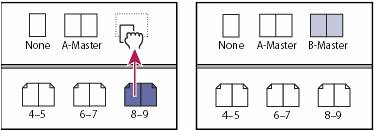
• From Existing Master Page drag an entire spread from the Pages section of the Pages panel to the Masters section. |
| |
 |
| |
| Fig. Creating a new master spread based on another page or spread |
| |
| To apply master to pages: |
| |
• Drag the master page icon to a page icon in the Pages panel.
• Drag the master page icon to a corner of the spread in the Pages panel. |
| |
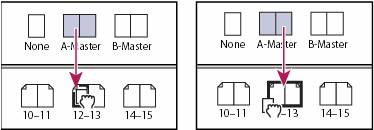 |
| Fig. Applying a master to a page (left) and applying a master to a spread (right) |
| |
| To make any adjustments or changes in the master page: |
| |
1. Go to the Pages panel and double-click the icon for the master you want to edit.
2. Make changes to the master. |
| |
| Importing master page from other document |
| |
| To import master page: |
| |
1. Go to the Pages panel menu, choose Load Master Pages.
2. Locate and double-click the InDesign document containing the master pages you want to import.
3. Determine what should occur if a loaded master has the same name as a master in the current document. |
| |
• Choose Replace Master Pages if you want the masters from the source to override the destination document’s masters with the same names. If your destination document does not have any overridden items, it is safe to Replace Master Pages on import.
• Choose Rename Master Pages to change the page prefixes to the next available letter in the alphabet. |
| |
| To Set Page Numbers |
| |
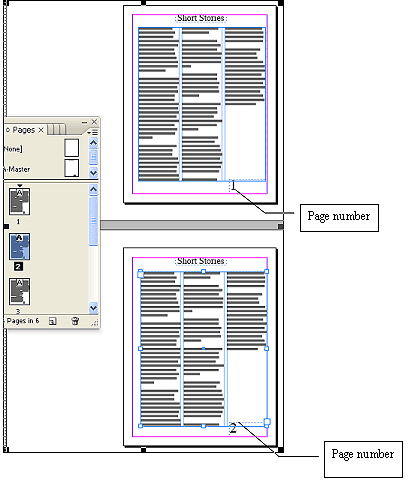
• Go to Master Page.
• Click on Selection Tool and make a text frame in the bottom of page.
• Go to Type>Insert Special Characters>Markers>Next Page Number.
• Add pages in the document. |
| |
 |
| |
|
| |


