| Working with Layout |
| |
| Pages and Spreads |
| |
| A spread is a set of pages viewed together, such as the two pages visible whenever you open a book or magazine. InDesign spread includes its own pasteboard, which is an area outside a page where you can store objects that aren’t yet positioned on a page. Each spread’s pasteboard provides space to accommodate objects that bleed, or extend past the edge of a page. |
| |
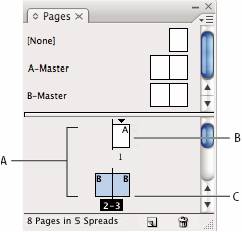 |
| Pages panel: A. Page icons
B. Page with master “A? applied
C. Selected spread |
| |
| Selecting pages or spreads |
| |
| You often select pages or spreads which depends on the task you perform. Some commands affect the currently selected page or spread, while others affect the target page or spread. For example, you can drag ruler guides only to the target page or spread, but page-related commands, such as Duplicate Spread or Delete Page, affect the page or spread selected in the Pages panel. Targeting makes a page or spread active and is helpful when, for example, several spreads are visible in the document window and you want to paste an object onto a specific spread. |
| |
| In the Pages panel: |
| |
| • To both target and select a page or spread, double-click its icon or the page numbers under the icon. If the page or spread is not visible in the document window, it shifts into view. |
| |
| You can also select both target and page or spread by clicking a page, any object on the page, or its pasteboard in the document window. |
| |
| The vertical ruler is dimmed alongside all but the targeted page or spread. |
| |
• To select page, click on its icon.
• To select a spread, click the page numbers under the spread icon. |
| |
| Note: Some options, such as those in the Pages panel menu, are available only when an entire spread is selected. |
| |
 |
| |
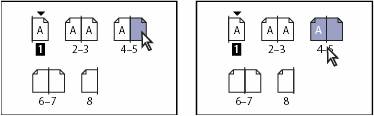
| Page 1 is targeted and page 5 is selected (left), and page 1 is targeted and entire spread is selected (right). |
| |
| To start a document with two-page spread: |
| |
1. Choose File > Document Setup. The document should contain at least three pages and the Facing Pages option is selected. Click OK.
2. In the Pages panel, select all the pages except page 1.
3. In the Pages panel menu, deselect Allow Selected Spread to Shuffle.
4. Select page 1. In the Pages panel menu, choose Delete Spread. |
| |
| For adding new pages to the document: |
| |
• Click the New Page button in the Pages panel or choose Layout > Pages > Add Page. The new page uses the same master as the existing active page.
• For adding multiple pages to the end of the document, choose File > Document Setup. In the Document Setup dialog box, specify the total number of pages for the document. InDesign adds pages after the last page or spread.
• To add pages and specify the document master, choose Insert Pages from the Pages panel menu or choose Layout > Pages > Insert Pages. Choose where the pages will be added and select a master to apply. |
| |
| For moving pages: |
| |
1. Select Layout > Pages > Move Pages, or choose Move Pages from the Pages panel menu.
2. Specify the page or pages you want to move.
3. For Destination, choose where you want to move the pages, and specify a page if necessary. Click OK. |
| |
| Or, |
| |
| Drag a page icon to a new position within the document. |
| |
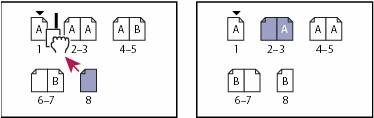 |
| Fig. Moving a page’s position using the Pages panel |
| |
| To duplicate pages: |
| |
• Drag the page range numbers under a spread to the New Page button.
• Select a page or spread, and then choose Duplicate Page or Duplicate Spread in the Pages panel menu.
• Press Alt (Windows) or Option (Mac OS) as you drag the page icon or page range numbers under a spread to a new location. |
| |
| To delete page: |
| |
• Drag one or more page icons or page-range numbers to the Delete icon.
• Select one or more page icons and click the Delete icon.
• Select one or more page icons and then choose Delete Page(s) or Delete Spread(s) in the Pages panel menu. |
| |
|
| |


