| Working with Layout |
| |
| Grids and Guides |
| |
| Grids |
| |
| Two kinds of nonprinting grids are available: a baseline grid for aligning columns of text, and a document grid for aligning objects. On the screen, a baseline grid resembles ruled notebook paper, and a document grid resembles graph paper. |
| |
| For view Grids go to View>Grids and Guides and select document or baseline grid. |
| |
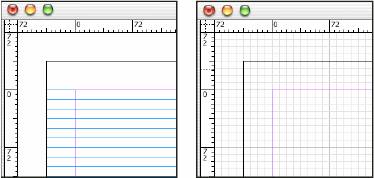 |
| Baseline grid (left) Document grid (right) |
| |
| Difference between Baseline grid and document grid |
| |
• The baseline grid covers entire spreads, whereas the document grid covers the entire pasteboard.
• The document grid can appear in front of or behind all guides, layers, and objects, but cannot be assigned to any layer whereas document grid follows the column direction set in the Margins and Columns dialog box. |
| |
| Settings of Grids |
| |
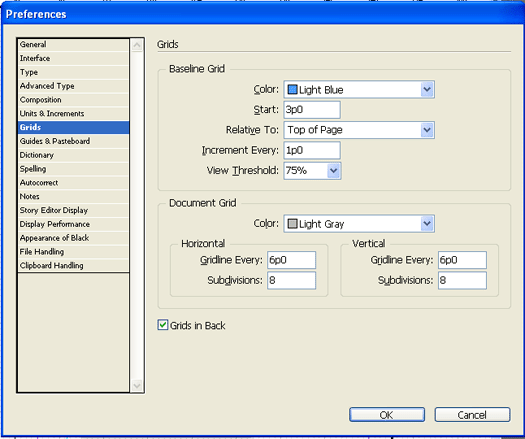
To change or adjust the grids settings go to Edit>Preference>Grids
A window will appear on the screen |
| |
 |
| |
| Do the any of the following adjustment: |
| |
| For baseline grid |
| |
Color: To change color of grid.
Start: From where the grid to start.
Relative To: For top of the page or for bottom of page.
Increment Entry : How much increment of one grid to other. |
| |
| For Document grid |
| |
Color: To change the color of grid.
Gridline Every: To change distance between of horizontal or vertical grid.
Subdivisions: Divisions between Horizontal and Vertical grid. |
| |
| Snap object to document grid |
| |
| Choose View > Grids & Guides and make sure that Snap to Document Grid is selected (checked). If it is not selected, click it. |
| |
| Note: The Snap to Guides command controls both snapping to guides and snapping to the baseline grid. |
| |
|
| |


