| Tools of Indesign |
| |
| Editing Tools |
| |
Eyedropper Tool |
| |
| Eyedropper tool lets you sample color or type attributes from objects and apply them to other objects. |
| |
| Here is an example of eyedropper tool. |
| |
• Select Rectangle Tool and draw a rectangle with blue color.
• Select Ellipse Tool and draw a circle with while color.
• Now, select Eyedropper tool and click on rectangle. You will notice that circle is filled with blue color. |
| |
Measure Tool |
| |
| Measure tool measures the distance between two points. |
| |
| Here is an example of Measure Tool. |
| |
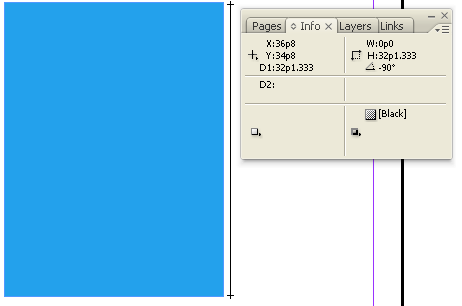 |
| Information Bar showing height between two points |
| |
Gradient Swatch tool  |
| |
| Gradient Swatch tool lets you adjust the beginning and ending points and angle of gradients within objects. |
| |
| Here is an example of gradient tool. |
| |
| • First, click on ellipse tool and draw a circle. |
| |
 |
| |
• Now click on Gradient Swatch Tool.
• Drag on object. The object will be filled with default gradient ie white and black linear gradient. |
| |
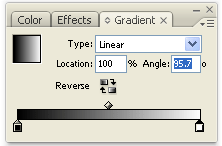
To change gradient style, first go to Window>Gradient.
A Gradient docker window will appear on screen. |
| |
 |
| |
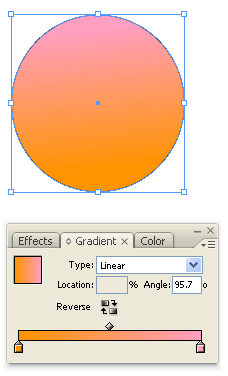
| • Change the color of gradient from color swatches. |
| |
 |
| |
| • Color of Gradient in circle will change automatically. |
| |
Scissors tool |
| |
| Scissors tool cuts paths at specified points. |
| |
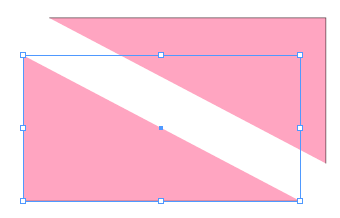
| Here is an example of scissors tool |
| |
• Create any object ie rectangle.
• Select Scissors tool and click on two opposite nodes or corner points of rectangle.
• The rectangle will be converted into two objects or parts as shown in figure below: |
| |
 |
| |
|
| |


