| Effects of Illustrator |
| |
| Extrude & Bevel |
| |
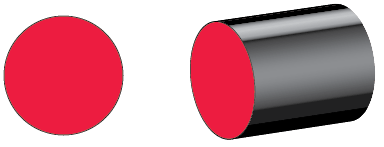
| Extruding extends a 2D object along the object’s z axis to add depth to the object. For example, if you extrude a 2D ellipse, it becomes a cylinder. |
| |
| Note: The object’s axis always lies perpendicular to the object’s front surface and moves relative to the object if the object is rotated in the 3D Options dialog box. |
| |
 |
| |
| Extruding an object |
| |
| 1. Select the object. |
| |
| 2. Choose Effect > 3D > Extrude & Bevel. |
| |
| 3. Click More Options to view the complete list of options, or Fewer Options to hide the extra options. |
| |
| 4. Select Preview to preview the effect in the document window. |
| |
| 5. Specify options: |
| |
| • Position |
| |
| Sets how the object is rotated and the perspective from which you view it. |
| |
| • Extrude & Bevel |
| |
| Determines the object’s depth and the extent of any bevel added to or cut from it. |
| |
| • Surface |
| |
| Creates a wide variety of surfaces, from dull and unshaded matte surfaces to glossy and highlighted surfaces that look like plastic. |
| |
| • Lighting |
| |
| Adds one or more lights, varies the light intensity, changes the object’s shading color, and moves lights around the object, for dramatic effects. |
| |
| • Map |
| |
| Maps artwork onto the surfaces of a 3D object |
| |
| 6. Click OK. |
| |
 |
| |
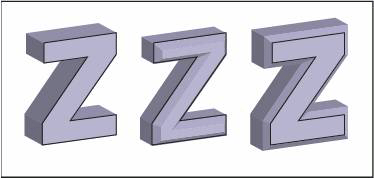
| Extruded object without a beveled edge (left) compared to object with Bevel Extent In (middle) and with Bevel Extent Out (right) |
| |
|
| |


