| Effects of Illustrator |
| |
| Disort and Transform |
| |
| Distort & Transform lets you quickly reshape vector objects, or apply the effects to a fill or stroke added to a bitmap object with the Appearance palette. There are various effects in disort and transform ie. Free transform, pucker and boat, roughen, transform, tweak, twist and zigzag. |
| |
| For any disort and transform effect Go to effect> disort and transform |
| |
| Free Transform Effect |
| |
| To apply Free Transform Effect on text: |
| |
| • Select text. |
| |
| • Go to Effect>Disort & transform>free transform |
| |
| • Dialog box will appear on your screen |
| |
| • Do some changes. |
| |
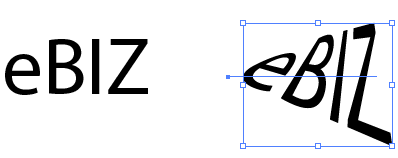 |
| Figure :Left-(a)Text without any effect. |
| Right (b) Text after free transform. |
| |
| Pucker & Boat Effect |
| |
| To apply Pucker & boat Effect on text: |
| |
| • Select text. |
| |
| • Go to Effect>Disort & transform> Pucker & boat |
| |
| • Dialog box will appear on your screen |
| |
| • Do some changes. |
| |
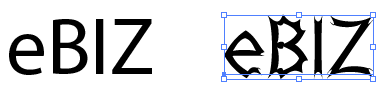 |
| Figure :Left-(a)Text without any effect. |
| Right (b) Text after pucker and boat effect |
| |
| Roughen Effect |
| |
| To apply Roughen Effect on text: |
| |
| • Select text. |
| |
| • Go to Effect>Disort & transform> Roughen |
| |
| • Dialog box will appear on your screen |
| |
| • Do some changes. |
| |
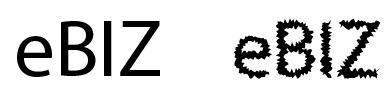 |
| Figure :Left-(a)Text without any effect. |
| Right (b) Text after Roughen effect |
| |
| Transform Effect |
| |
| To apply Transform Effect on text: |
| |
| • Select text. |
| |
| • Go to Effect>Disort & transform> Transform |
| |
| • Dialog box will appear on your screen |
| |
| • Do some changes. |
| |
 |
| Figure :Left-(a)Text without any effect. |
| Right (b) Text after transform effect |
| |
| Tweak Effect |
| |
| To apply Tweak Effect on text: |
| |
| • Select text. |
| |
| • Go to Effect>Disort & transform> Tweak |
| |
| • Dialog box will appear on your screen |
| |
| • Do some changes. |
| |
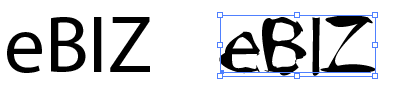 |
| Figure :Left-(a)Text without any effect. |
| Right (b) Text after tweak effect |
| |
| |
|
| |


