| Illustrator Fundamentals |
| |
| Arrangement of Objects |
| |
| Although all drawn objects in Illustrator are on the same screen, they each appear in the order that they were drawn. In other words, if you were to draw two rectangles, one on top of another, the second rectangle would cover the first one and hide it from view. It's similar to having a stack of papers on your desk. If you want to shuffle the order of pages, you would take a paper from the bottom or middle of the pile and put it on top. Or you might take a paper from the top of the pile and move it to the bottom. |
| |
| Illustrator gives you the ability to move objects all throughout the "pile." Under the Object menu you can find the Arrange submenu, which contains four commands |
| |
| The Arrange submenu. |
| |
| • Bring to Front--brings the selected object to the front, similar to putting a paper on the top of the pile. (Figure 1) |
| |
| • Bring Forward--brings the selected object forward one level, similar to moving a paper over the one directly above it. (Figure 2) |
| |
| • Send Backward--sends the selected object one level backward, similar to putting a paper directly under the one it's resting on. (Figure 3) |
| |
| • Send to Back--sends the selected object to the rear, similar to putting a paper on the bottom of the pile. (Figure 4) |
| |
| When using groups, each group has its own set of levels. So if you bring an object that is part of a group to the front, it goes to the front of that group. In order to bring the object to the front of everything, you need to select the entire group and bring the whole group to the front. |
| |
 |
| Figure 1. Bring to Front |
| |
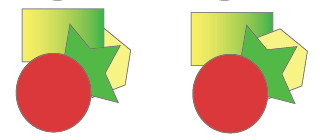 |
| Figure 2 Bring Forward |
| |
 |
| Figure 3 Send Backward |
| |
 |
| Figure 4 Send to Back |
| |
| |
|
| |


