| Illustrator Fundamentals |
| |
| Pathfinder |
| |
| Pathfinder effects let you create new shapes out of overlapping objects. You can apply Pathfinder effects by using the Effects menu or the Pathfinder panel. |
| |
| • Pathfinder effects in the Effects menu can only be applied to groups, layers, and text objects. After you apply the effect, you can still select and edit the original objects. You can also use the Appearance panel to modify or remove the effect. |
| |
| • Pathfinder effects in the Pathfinder panel can be applied to any combination of objects, groups, and layers. The final shape combination is created when you click a pathfinder button; after that, you cannot edit the original objects. If the effect results in multiple objects, they are automatically grouped together. |
| |
| Pathfinder Options |
| |
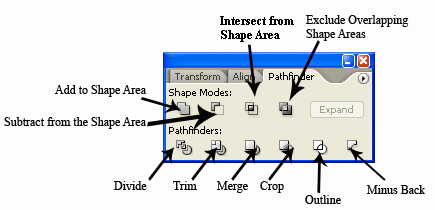
| Another way to build complex objects is using the powerful 'Pathfinder' palette. This set of tools allow designers to 'Add to Shape Area,' 'Intersect,' 'Exclude,' 'Subtract,' and 'Outline,' objects and paths. |
| |
 |
| |
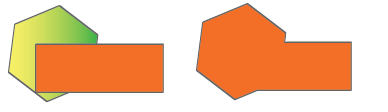
| Add to Shape area button |
| |
| This tool traces the outline of all selected objects and merges them into a single object. All interior paths are deleted. The top object's fill/line attributes will be applied to the new object. |
| |
 |
| |
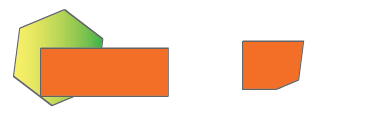
| Intersect from Shape Area |
| |
| This tool traces the outline of all overlapping objects. This command is limited to two objects at a time. The top object's fill/line attributes will be applied to the new object. |
| |
 |
| |
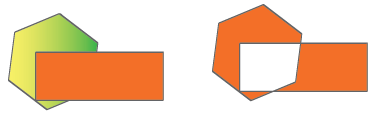
| Exclude |
| |
| Exclude tool traces all non-overlapping shapes, making overlapping areas transparent. Where an even number of objects overlap, the overlap becomes transparent. Where an odd numbers of objects the overlaps become filled. |
| |
 |
| |
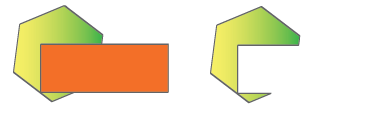
| Subtract from Shape Area |
| |
| This tool subtracts the back most selected object from the front most object. |
| |
 |
| |
|
| |


