| Illustrator Tools |
| |
| Reshape tools |
| |
| Rotate Tool |
 |
|
| |
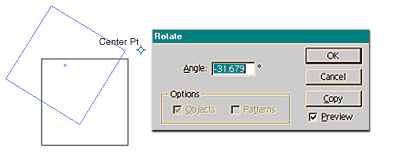
| This tool is for rotating an object or group of objects. The default setting is the object will rotate about its center. But by shifting the 'center point' around you can rotate an object from any location. You can also double click the tool and get a 'Rotate' window allowing the user to enter a precise rotational angle and whether you want to rotate the original object or a copy of the object. |
| |
 |
| |
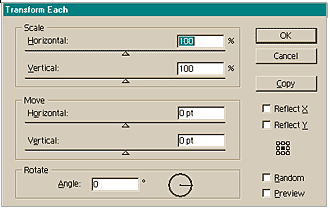
| You can also rotate, scale, move and reflect a group of objects. Simply select the objects you wish to affect and go - Object - Transform - Transform Each. |
| |
 |
| |
| Twirl Tool |
 |
|
| |
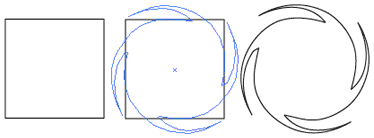
| This tool rotates a selected object(s) more sharply at the center than at the edges. |
| |
 |
| |
| Scale Tool |
 |
|
| |
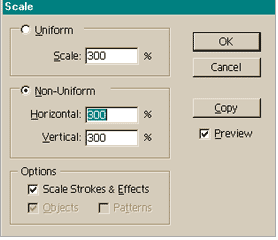
| This tool will enlarge or shrink an object(s). But by shifting the 'center point' around you can scale an object from anywhere. The - Shift - key will create a uniform scale (for those in PBC that means the shape of an object will not change, only its overall size).You can also double click the tool and get a 'Scale' window allowing the user to enter a precise scaling effect and whether you want to scale the original object or a copy of the object. |
| |
 |
| |
| Reshape Tool |
 |
|
| |
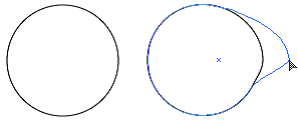
| This tool allows designers to select one or more anchor points and adjust those points while keeping the overall detail of the object intact. |
| |
 |
| |
| Shear Tool |
 |
|
| |
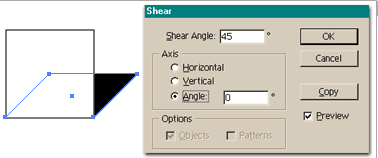
| The Shear tool skews objects along an axis you set. This tool is very useful for creating shadows of objects. By double clicking the tool you get greater control on how an object(s) is sheared. |
| |
 |
| |
| Free Transform Tool |
 |
|
| |
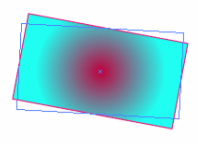
| The Free Transform tool (E) scales, rotates, or skews a selection. . By double clicking the tool you get greater control on how an object(s) is transformed. |
| |
 |
| |
| Figure showing rotation of object with free transformation tool. |
| |
| Blend Tool |
 |
|
| |
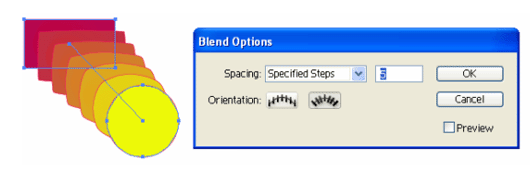 |
| Figure showing blending between two objects with blend tool .
Blend steps taken between two objects is 5. |
| |
| Wrap Tool |
 |
|
| |
| The Warp tool (Shift+R) molds objects with the movement of the cursor (like molding clay, for example). |
| |
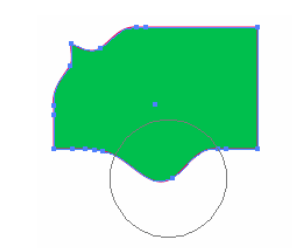 |
| Figure showing wrap tool effect on rectangle. |
| |
| Twirl Tool |
 |
|
| |
| The Twirl tool creates swirling distortions within an object. |
| |
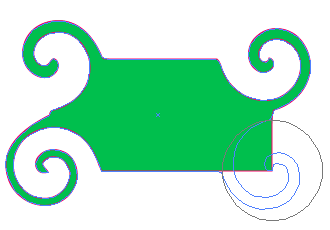 |
| Rectangle after twirl tool effect on it. |
| |
| Pucker Tool |
 |
|
| |
| The Pucker tool deflates an object by moving control points towards the cursor. |
| |
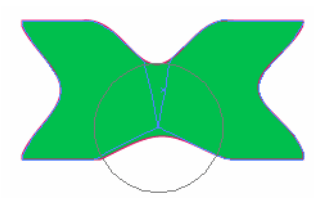 |
| Figure showing pucker tool effect on rectangle. |
| |
| |
|
| |


