| Illustrator Tools |
| |
| Drawing Tools |
| |
| Line segment tool |
 |
|
| |
| Line segment tool (shortcut /) is the most simple of the line tools allowing you to draw straight lines. Select the tool, click hold and drag on the canvas to draw a line. If you hold shift as you draw the line will be constrained to 45 degree angles. By default the colour is a stroke on the path that you have drawn. There is a menu above the canvas where you can increase the stroke or change the stroke colour. You can even add a fill if you like. |
| |
| Arc Tool |
 |
|
| |
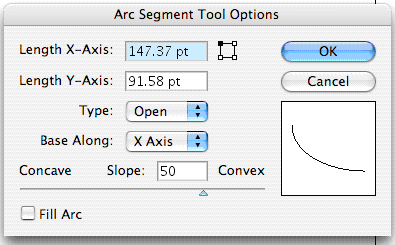
| This tool allows you to draw simple arcs and maintain tight control about how they appear. Click hold and draw on the canvas to see an Arc. Again if you hold down shift it will be constrained. Further options for the tool can be seen by double clicking the icon in the tool bar. This brings up the following menu. |
| |
 |
| |
| You can set the X and Y axis, open or close the arc and flip the arc to all four corners. The contact slope slider bar lets you set the arc precisely. |
| |
| Spiral Tool |
 |
|
| |
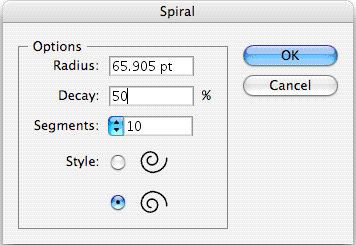
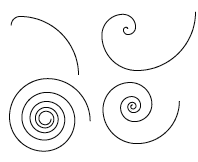
| This tool lets you draw spirals and modify how those spirals can appear. This can be really useful for drawing organic shapes and backgrounds. The options allow you to specify the shape of your spiral. |
| |
 |
| |
| Radius This is the radius from the centre point of the spiral to the edge |
| |
| Decay This is the amount each segment of your spiral will decay. The closer to 100% it is the more circular it will be (100% is a circle). The closer to 5% the straighter the line. |
| |
| Segments This is the number of segments in the spiral. The larger the number the more circles there will be. Each circle has 4 segments. |
| |
| Style This is the orientation of the spiral |
| |
 |
| |
| Rectangular grid tool |
 |
|
| |
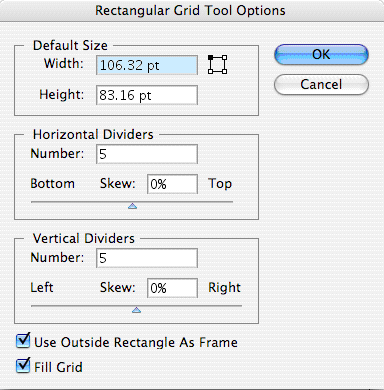
| This is a simple tool that lets you draw rectangular grids. Double click the icon in the toolbar to bring up the options. |
| |
 |
| |
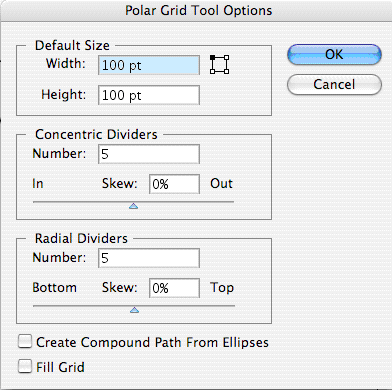
| You can specify the default size here and set the horizontal and vertical dividers. |
| |
 |
| |
| Set the default size first. The concentric dividers are the number of circles that will be on the polar grid. The radial dividers are the lines that will come out from the centre. |
| |
| Rectangle tool |
 |
|
| |
| The rectangle tool allow designers to create rectangle shapes and rectangle shapes with rounded corners. This tool works like the ellipse tool. To confine the shape to a equal sided shape hold down the - Shift - key. Holding the - Shift - and - Alt - keys creates a square from the center point out. Creating a rectangle while holding down the - Alt - key builds a rectangle from the center point out. Hold down the - Space Bar - to move the shape as you create it. |
| |
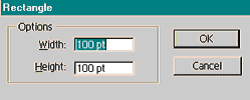
| You can also create a precise shape by clicking once on the document. A window appears allowing you to enter precise dimensions for the rectangle shape. |
| |
 |
| |
| Rounded Rectangle Tool |
 |
|
| |
| This tool works like the ellipse tool. To confine the shape to a equal sided shape hold down the - Shift - key. Holding the - Shift - and - Alt - keys creates a rounded square from the center point out. Creating a rounded rectangle while holding down the - Alt - key builds an rectangle from the center point out. Hold down the - Space Bar - to move the shape as you create it. |
| |
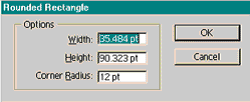
| You can also create a precise shape by clicking once on the document. A window appears allowing you to enter precise dimensions for the rectangle shape and corner radius. |
| |
 |
| |
|
| |


