| Illustrator Tools |
| |
| Selection Tools |
| |
| As in most applications, in Illustrator you need to select something in order to do something to that something. Get it? In Illustrator, there are various and sundry was of making selections, and altering those selections. |
| |
| The keyboard commands are for the specific tool—Illustrator does not cycle through ‘hidden’ tools as does Photoshop. Instead, tool buttons with ‘hidden’ tools can be ‘torn off’, by selecting a small tab at the right of the selection (when the tools are pulled out), forming a small mini-palette: |
| |
 |
| |
| Here are the selection tools: |
| |
 |
Selection (V) |
|
| |
| Situated at the top of tools this is the first tool you are likely to use in Illustrator. To work on a particular object in your illustrator document you need to select it. Let's start by drawing three circles using the Elipse Tool (shortcut L). If you hold down shift as you draw you will get perfect circles. |
| |
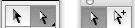
| Now select the Direct Selection Tool (shortcut V). Click on a circle to select it. Move the mouse to the centre of the circle and you will see the icon changes, losing the tail to the arrow. This means you can move the shape. Click hold and move the shape. Releasing drops the shape where you want to put it. |
| |
| You will notice that around the shape you have selected is a blue circle with 8 small white rectangles. You can use these to resize the shape you have drawn. Hover over one of the rectangles and you will see the mouse icon change to two arrows facing in different directions. If you click and hold you can resize your shape. |
| |
| Hovering a little way away from the edge of the white square you will see that the mouse icon changes again to two arrows in a circular directions. This allows you to rotate shapes. Holding and moving the mouse moves the shape. Once you are happy with where the shape is let go. Holding shift as you do this will snap the shape as you turn it. |
| |
 |
Direct Selection (A) |
|
| |
| The Direct Selection tool (shortcut A) allows you to select and modify paths within shapes. With the direct selection tool click on one of the circles. You will see that it doesn't select the entire group like the selection tool but instead chooses just the circle you click on. You can click, hold and drag to move the shape. More useful though is the ability to modify individual path points. You will see that the circle has a blue circle around it with four blue squares. Hover over one of the squares and you will see the icon change. These squares are known as anchor points. You can click and hold the anchor points and move them around. Once you have clicked on the anchor point you will also see lines coming off it. These are known as direction points. Using the tool you can drag these to change the shape. This is a little tricky to explain so see what happens in the video below. |
| |
 |
Group Selection |
|
| |
| Group Selection Tool allows you to click once and select one object. If you click again it will select everything in the parent group of the object. If there are other groups that are grouped with the parent group you can click again to select those. The final video shows grouping and the group selection tool in action. It shows each line being made into a group, then the top two lines being grouped, and finally the bottom line grouped with the top two lines. Then the Group Selection Tool is used to gradually select objects. |
| |
 |
Magic Wand (Y) |
|
| |
| Selects objects with similar attributes. The tolerance setttings are set in the Magic Wand palette, accessed by double-clicking the tool, or from the Window menu. The lower a tolerance setting, the closer the objects need to be to be selected. In general, an alternative to the Select > Same menu commands. |
| |
| The Magic Wand Tool lets you select objects that are similar in stature. You can do this by just selecting one of the targets and the Magic Wand Tool will attach to the others that are similar. You can make the tool look for anything that you can think of within each object to connect the two. |
| |
| The Magic Wand tool lets you select objects of the same color, stroke weight, stroke color, opacity, or blending mode by clicking the object. |
| |
 |
Lasso (Q) |
|
| |
| A sort of freeform Direct Selection tool. Like the Wand, a carryover from Photoshop. |
| |
| |
|
| |


