2. From the Data menu, point to Import External Data, and then click the Import Data option.
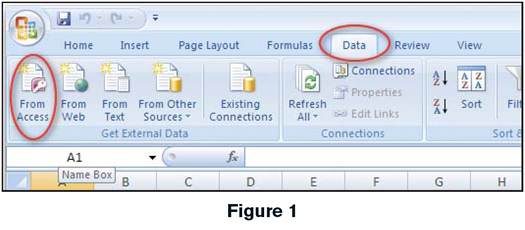
4. From the Data Connection Wizard dialog box, click ODBC DSN, and click Next.
5. Click MS Access Database, and click Next.
6. From the Select Database dialog box, locate the database file you want to import, and click OK.
7. Click the name of the table containing the data you want to import, and click Next.
8. Type a name and description, and click Finish.
9. In the Select Data Source dialog box, click the data source you just created and click Open.
10. In the Import Data dialog box, specify where you want to put the data, and then click OK.
 |
 |
 |