| Advance Features in excel 2007 |
| |
| Data Validation |
| |
| To set Data Validation in Excel do the following steps. |
| |
.	Create a result card for a student.
.	select all cells in which validation rule is to be set .
.	click on Data menu.
.	click on Validation.
|
| |
| In excel 2007 click on Data menu and click on Data Validation in Data Tools group. |
| |
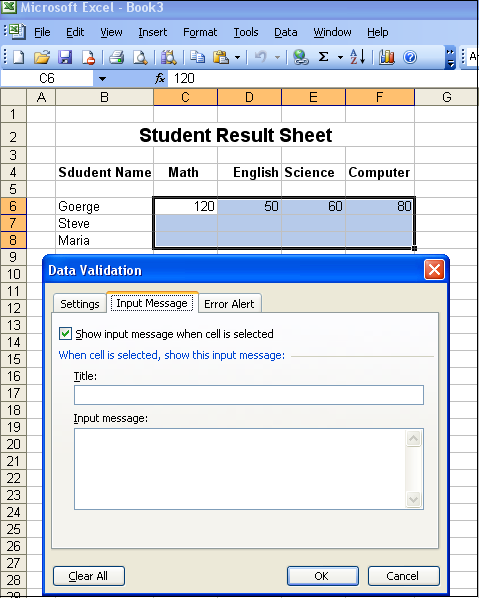
| A data validation Dialog box will appear as shown in figure below. Figure also shows the result card of student. |
| |
 |
| |
| Now we have to set a validation rule that no student can get more than 100 marks. |
| |
| So in the settings tab of Data validation Dialog box, |
| |
| choose whole number in allow field and 0 to 100 range in Minimum and Maximum fields as shown in figure above. |
| |
| If you want to show a message to user to help in data entry, you can do this in Input Message tab. This message appears when focus is on the cell. |
| |
| In Error Alert tab, enter error message. When user enters value in the cell, excel validates this value against validation rule and displays error message if value does not stratify the rule. There are three Style available in Error Alert tab, Stop, Warning, Information. Stop do not allow user to navigate away from cell without entering correct value. Warning and Information just intimate user and focus is shifted to next cell. |
| |
| To test this enter a 150 in cell c7 and press enter, an error message appears and will keep on displaying until you provide correct value or cancel as shown in figure below. |
| |
| |
| Note that the value in the cell C6 is violating validation rule. This is because validation rule was set after data entry in C6. Excels allows this but provides a way solve this problem. |
| |
| For Animated Presentaiton Click Here! |
| |
|
| |
| |


