. On the fresh worksheet, click inside cell A1
. Click on the Data menu, then on click From Web on the Get External Data panel
. In the New Web Query Address box, type the following Address (don't click the Go button just yet): http://ebizel.com/
 |
 |
 |
| Importing External Data | |||
| Web Integration | |||
| The next web query we'll do will see an import of full HTML formatting. When you're finished, you'll see why this can be a problem. | |||
| . At the bottom of Excel 2007, click on Sheet1 . On the fresh worksheet, click inside cell A1 . Click on the Data menu, then on click From Web on the Get External Data panel . In the New Web Query Address box, type the following Address (don't click the Go button just yet): http://ebizel.com/ |
|||
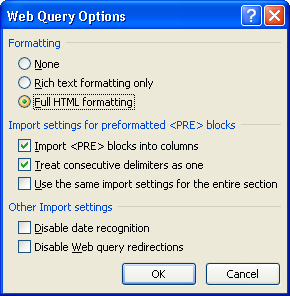
| Click the Options button in the top right of the dialogue box: | |||
|
|||
| This time, select Full HTML Formatting, as in the image above. Click OK, then click the Go button. | |||
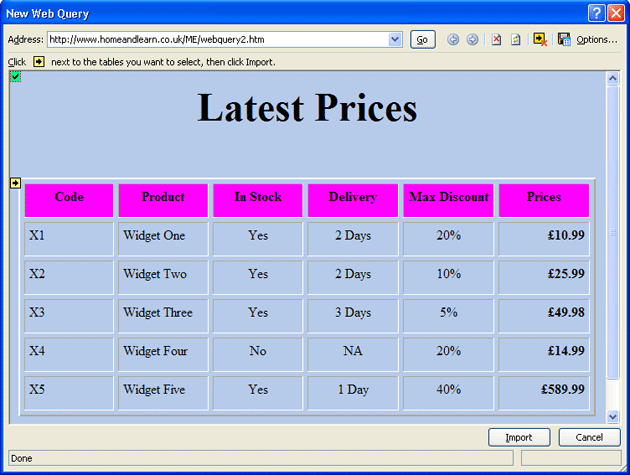
| Excel 2007 will bring back your data. Click the yellow box with the arrow in it to select all the data: | |||
|
|||
| Click the Import button at the bottom when your dialogue box looks like the one above. | |||
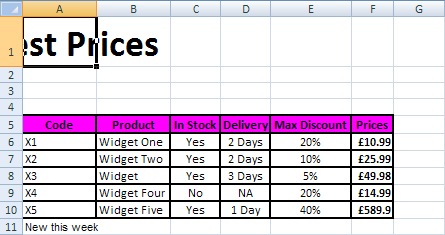
| When you see the Import Data dialogue box, just click OK. The data will then be imported into Excel: | |||
|
|||
| The problem with importing full HTML is that some of that fancy formatting you did won't convert very well in Excel. In the image above, our Latest Prices heading has been mangled! | |||
| In other words, you may have to spend time re-formatting your spreadsheet. | |||
| To get the full heading back, for example, highlight the first row, from A1 to G1. Click on the Home menu, and then locate the Alignment panel. Click Merge and Centre. | |||
| But that's it for Web Queries. They are quite simple to do, and can come in handy if you're out on the road. | |||
|
|||