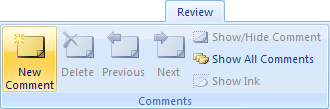
. From the menu bars on the Ribbon at the top of Excel, click on Review
. Click on New Comment

 |
 |
 |
| Formatting Data in Excel-2007 | |||
| Add a Comment to a Cell | |||
| A comment can be added to any cell on your spreadsheet. When you hover your mouse pointer over a cell that contains a comment, you'll see the comment appear in a sort of Sticky- | |||
| To let users know what to do, we'll add a comment to cell B1. | |||
| To let people know about this, you can add your comment to the cell. To add a comment to cell B1, do the following: | |||
| . Click inside cell B1 on your spreadsheet . From the menu bars on the Ribbon at the top of Excel, click on Review . Click on New Comment |
|||
|
|||
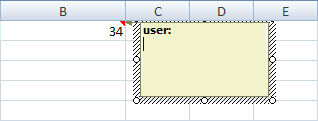
| A greenish textbox will appear to the right of cell B1, as in the image below: | |||
|
|||
| The word "user" in the image above is placed there by Excel. This is the name of the user account that was set up in either Windows XP or Vista. Press the backspace on your keyboard to delete this. | |||
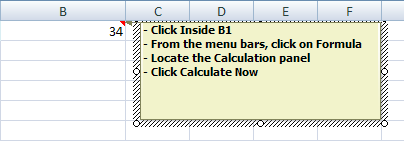
| To add your comment, just start typing. The size of the comment area can be increased or decreased by moving your mouse over the white circles. Hold down the left mouse button and drag. | |||
|
|||
| When you have finished typing your comment, click on any other cell. The comment will disappear. Notice that the cell now has a red triangle in the top right. This indicates that it contains a comment: | |||
|
|||
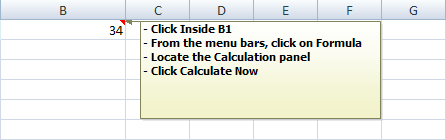
| If you move your mouse pointer over cell B1 the comment will appear: | |||
|
|||
| To get rid of a comment, right click the cell that contains the comment. Then, from the menu that appears, select Delete Comment. | |||
| For Animated Presentaiton Click Here! | |||
|
|||