| Formatting Data in Excel-2007 |
| |
| Align Cell Entries |
| |
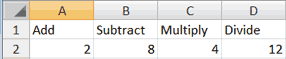
| You can adjust the cell alignment. You can center, left-align, or right-align any cell entry. Look at cells A1 to D1. Note that they are aligned with the left side of the cell. |
| |
 |
| |
| Center |
| |
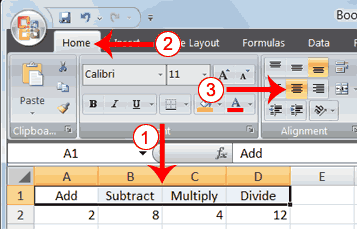
| To center cells A1 to D1: |
| |
 |
| |
1. Select cells A1 to D1.
2. Choose the Home tab.
3. Click the Center button in the Alignment group. Excel centers each cell's content. |
| |
| Left-Align |
| |
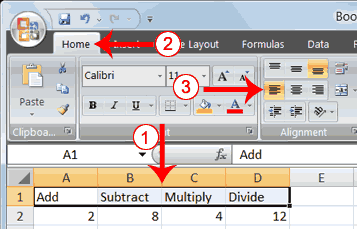
| To left-align cells A1 to D1: |
| |
 |
| |
1. Select cells A1 to D1.
2. Choose the Home tab.
3. Click the Align Text Left button in the Alignment group. Excel left-aligns each cell's content. |
| |
| Right-Align |
| |
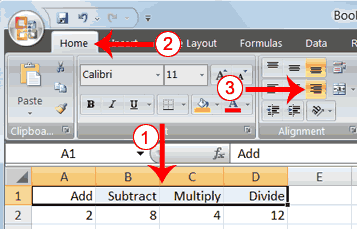
| To right-align cells A1 to D1: |
| |
 |
| |
1. Select cells A1 to D1. Click in cell A1.
2. Choose the Home tab.
3. Click the Align Text Right button. Excel right-aligns the cell's content.
4. Click anywhere on your worksheet to clear the highlighting. |
| |
| Note: You can also change the alignment of cells with numbers in them by using the alignment buttons. |
| |
| For Animated Presentaiton Click Here! |
| |
| |
|
| |
| |


