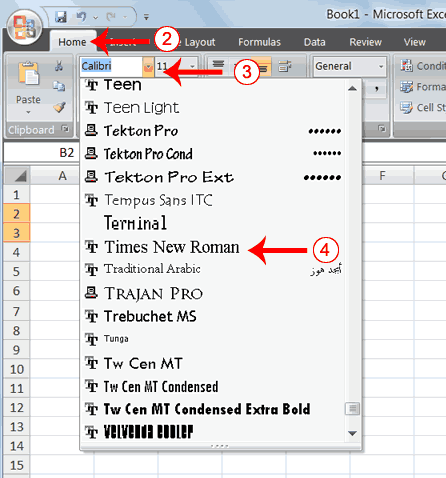
3. Click the down arrow next to the Font box. A list of fonts appears. As you scroll down the list of fonts, Excel provides a preview of the font in the cell you selected.
4. Find and click Times New Roman in the Font box.
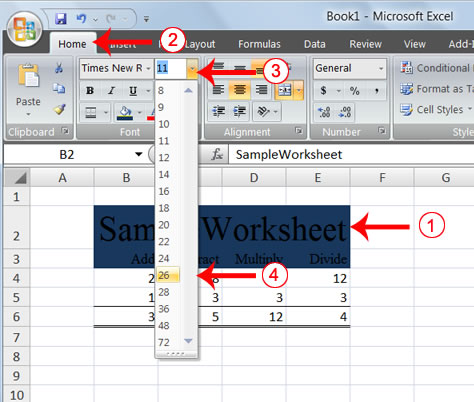
2. Choose the Home tab.
3. Click the down arrow next to the Font Size box. A list of font sizes appears. As you scroll up or down the list of font sizes, Excel provides a preview of the font size in the cell you selected.
4. Click 26.
5. Excel changes the font size in cell B2 to 26.
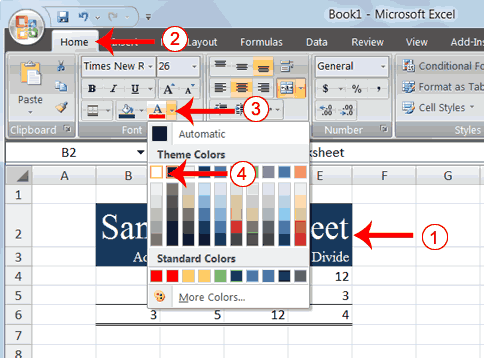
2. Choose the Home tab.
3. Click the down arrow next to the Font Color button .
4. Click on the color white. Your font color changes to white.
 |
 |
 |