. The pointer will change shape and now be a black arrow
. Keep the left mouse button held down, and drag your cross to the right
. Once you have all the text in the A column, let go of the left mouse button.
 |
 |
 |
| Make a Start with Excel | |||
| How to Edit Text in a Cell | |||
| To change the text in cell A1, you can just click inside of the cell and start typing. Anything you had there previously would be erased. But if you just want to edit the text (if you've made a spelling mistake, for example), then this is no good. If you want to keep most of the text, and just make minor changes, then you need to do something else. | |||
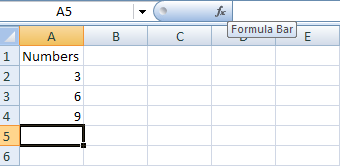
| In the image below, you can see what's known as the Formula Bar. The Formula Bar is like a long textbox that you can click inside and start typing. | |||
|
|||
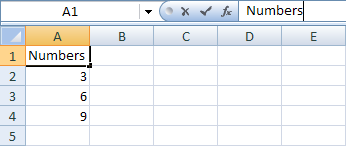
| To edit a Cell in Excel 2007, first click inside the cell you want to edit (A1 for us). Then click inside the formula bar. Notice where your cursor is now: | |||
|
|||
| The image above shows that the cell A1 is active, but the cursor is inside of the formula bar. | |||
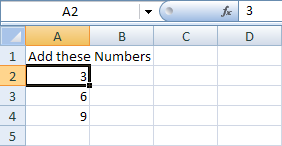
| With the cursor in the Formula Bar, try changing the text "Numbers" to "Add these Numbers". Press the Enter key when you've made the changes. Your spreadsheet should look like ours below: | |||
|
|||
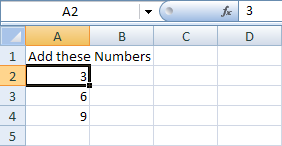
| Notice that the active cell is now A2, and that the Formula Bar has a 3 in it. | |||
| However, there's a problem. There's not enough room in cell A1 for our new text. Part of it seems to be in the B column. | |||
| The solution is to widen the whole of Column A. Try this: | |||
| . Move your mouse up to the start of the A Column . The pointer will change shape and now be a black arrow |
|||
|
|||
| . When you see the new shape, hold down your left mouse button . Keep the left mouse button held down, and drag your cross to the right . Once you have all the text in the A column, let go of the left mouse button. |
|||
| You can make the height of the Rows bigger or smaller by using exactly the same technique. | |||
| For Animated Presentaiton Click Here! | |||
|
|||